
Harvest
Time Tracking
Sign up free

Utilization Rate Calculator for Google Sheets

Many businesses suffer from inefficient resource use, losing potential profits. Harvest excels in providing a comprehensive utilization rate calculator, helping teams maximize productivity and profitability.

Try Harvest Free

How much revenue is your team leaving on the table?

Most agencies run at 55-60% utilization. Even a small improvement means significant revenue. See what closing the gap looks like for your team.

Number of people who track billable time
$
Blended rate across roles (junior, senior, lead)
55%
Percentage of total hours that are billable. Industry average is 55-60%.
75%
A realistic target for service businesses is 70-80%.
Monthly revenue gap $0
Revenue at current utilization $0/mo
Revenue at target utilization $0/mo
Extra billable hours needed per person/day 0h
Annual revenue opportunity $0

Start tracking team utilization

Walk through the entire flow below. Start a timer, check your reports, and create a real invoice — all in three clicks.

Go ahead — start tracking!

One click and you're timing. Try it right here: start a timer, add an entry, edit the details. This is exactly how it feels in Harvest.

  • One-click timer from browser, desktop & mobile
  • Works inside Jira, Asana, Trello, GitHub & 50+ tools
  • Duration or start/end — your call
  • Day, week & calendar views to stay on top of it all
  • Friendly reminders so no hour gets left behind
Acme Corp
Website Redesign
Homepage layout revisions
1:24:09
Content Strategy
Blog calendar planning
1:30:00
SEO Audit
Technical audit report
0:45:00
Brand Guidelines
Color system documentation
2:15:00
Logo Concepts
Initial sketches round 1
1:00:00

Understanding Resource Utilization: The Foundation of Efficiency

Resource utilization is a critical metric for assessing the efficiency and productivity of both human and non-human resources in various industries. It is defined as the percentage of productive or billable hours out of the total available hours. For instance, in professional services, a typical target for employee utilization is around 80%, balancing high efficiency with the risk of burnout. Achieving a 100% utilization rate is generally not feasible due to factors like holidays and planned leave.

Utilization rates are directly tied to profitability, especially in service-based businesses where maximizing billable work is crucial. The calculation requires a clear distinction between billable and non-billable hours, where non-billable activities might include training, administrative tasks, and internal meetings. Understanding and improving utilization rates can significantly enhance a company's financial health by ensuring resources are used effectively.
Calculating Utilization Rate in Google Sheets: A Step-by-Step Guide

Creating a utilization rate calculator in Google Sheets involves structuring raw data and applying the correct formulas. Begin by organizing your data with columns for "Employee Name," "Date," "Project Name," "Hours Logged," and "Billable?" status. Utilize a Pivot Table to summarize this data efficiently, grouping by employee and summing logged hours.

Next, you'll need to define "Total Available Hours" for each employee, generally calculated as 40 hours per week. The core formula for utilization rate is (Total Hours Logged / Total Available Capacity) × 100%, which you can apply within a new column. For billable utilization, adjust the formula to include only billable hours.

Visualizing this data with bar charts can help compare utilization rates across team members, making it easier to identify trends and areas for improvement. Regular updates to the spreadsheet ensure accurate tracking and efficient future planning.

Interpreting and Optimizing Your Utilization Rates

Interpreting utilization rates involves understanding what constitutes a "healthy" rate. For many roles, an 80% utilization rate is ideal, striking a balance between productivity and employee well-being. Low utilization may indicate idle capacity or inefficient scheduling, while high rates can signal burnout risks or decreased quality.

Strategies to optimize utilization include balancing workloads, developing skills to increase efficiency, and automating processes where possible. Regularly reviewing utilization data helps teams adjust allocations and improve resource management. By identifying under-utilized areas, businesses can redirect efforts to more profitable activities, maximizing their operational output.

Advanced Techniques and Best Practices for Google Sheets

To enhance your Google Sheets utilization calculator, implement data validation to ensure consistency, preventing errors from typos in critical columns like "Team Member" and "Status/Type." Advanced users can create dashboards with visual elements like stacked column charts to track trends over time, providing insights into monthly or quarterly changes in utilization.

When dealing with different resource types, consider the specific needs of personnel versus equipment. For instance, tracking utilization of machinery may require different data inputs compared to human resources. Regular maintenance of the Sheets and adapting to specific industry requirements can further refine utilization tracking, driving more informed decision-making.

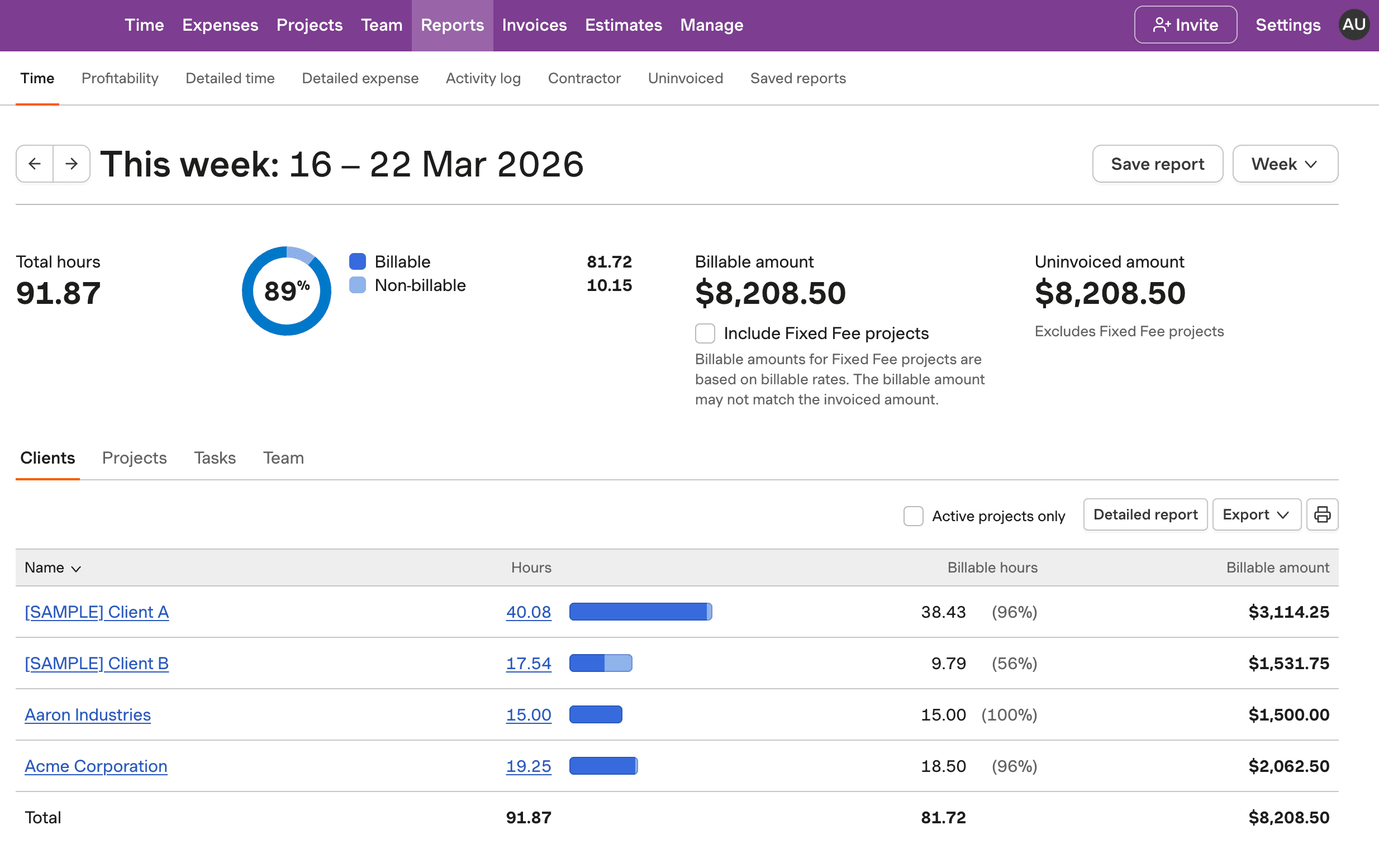
Utilization Rate Calculator in Harvest

See how Harvest's Google Sheets calculator tracks and optimizes your team's utilization rate for maximum efficiency.

Harvest utilization rate calculator in Google Sheets

Utilization Rate Calculator for Google Sheets FAQs

  • The formula for utilization rate is (Productive Hours ÷ Available Hours) × 100%. This calculates the percentage of time spent on productive or billable tasks out of the total available time.

  • Organize your data with columns for "Employee Name," "Date," "Project Name," "Hours Logged," and a "Billable?" status. This ensures you can effectively summarize and calculate utilization rates.

  • Yes, you can create bar charts or stacked column charts in Google Sheets to visualize utilization rates across different team members or time periods, aiding in easy interpretation of data.

  • Use a consistent calculation for available hours, regularly update data, and differentiate between billable and non-billable hours. Visualize data for better insights and maintain data validation for accuracy.

  • Harvest provides detailed reports on team utilization, helping identify under-utilized staff and prevent burnout. It ensures accurate tracking of billable hours, maximizing profitability.

  • Adjust the total available hours based on part-time schedules. For example, if a part-time employee works 20 hours a week, use that figure instead of the standard 40 hours.

  • Improving low utilization involves analyzing idle capacity, redistributing workloads, and enhancing employee skills. Using tools like Harvest can provide insights into efficiency improvements.