
Harvest
Time Tracking
Sign up free

Rate Comparison Sheet Word

Harvest is a time tracking and invoicing tool that simplifies project management for teams and freelancers. With features like one-click timers and detailed reporting, Harvest optimizes time tracking and billing processes.

Try Harvest Free

What should you charge per hour?

Most freelancers and consultants dramatically undercharge. This calculator accounts for what most people miss: non-billable time, taxes, and overhead.

$
Accounting for vacation, holidays, sick days
60%
Most freelancers can bill 50-70% of their time. The rest goes to admin, marketing, proposals, and learning.
$
Software, insurance, equipment, accounting, taxes beyond income tax, etc.
Your break-even rate $0
Recommended rate (+20% buffer) $0
Billable hours per week 0h
Equivalent daily rate $0

Start tracking your billable hours

Walk through the entire flow below. Start a timer, check your reports, and create a real invoice — all in three clicks.

Go ahead — start tracking!

One click and you're timing. Try it right here: start a timer, add an entry, edit the details. This is exactly how it feels in Harvest.

  • One-click timer from browser, desktop & mobile
  • Works inside Jira, Asana, Trello, GitHub & 50+ tools
  • Duration or start/end — your call
  • Day, week & calendar views to stay on top of it all
  • Friendly reminders so no hour gets left behind
Acme Corp
Website Redesign
Homepage layout revisions
1:24:09
Content Strategy
Blog calendar planning
1:30:00
SEO Audit
Technical audit report
0:45:00
Brand Guidelines
Color system documentation
2:15:00
Logo Concepts
Initial sketches round 1
1:00:00

Understanding the Purpose of a Rate Comparison Sheet

A rate comparison sheet in Word is an essential tool for making informed decisions about purchasing goods or services. By providing a structured way to compare various rates, these sheets help users identify the most cost-effective or value-driven choices, thereby avoiding overpayment. Whether used for personal finance management or business procurement, comparison sheets offer a clear overview of options, instilling confidence in decision-making. For businesses, they are also a powerful tool for conducting market analyses and shaping pricing strategies.

By systematically organizing data into a comparison format, these sheets enable users to leverage information during negotiations. For instance, one can use the detailed data to negotiate better rates or additional benefits with vendors. This strategic advantage is particularly valuable in procurement processes where cost efficiency is paramount. Moreover, by regularly updating these sheets, businesses can track market trends, ensuring they remain competitive and informed.
Key Elements of an Effective Rate Comparison Sheet

An effective rate comparison sheet in Word includes key data elements to facilitate a comprehensive evaluation. Common columns found in these sheets are:

  • Item Name or Service Description
  • Company or Vendor Name
  • Quantity and Unit Price
  • Total Price and Additional Costs (e.g., shipping, taxes)
  • Key Features and Quality
  • Pros and Cons for each option

These elements ensure a holistic view of all factors influencing the decision, going beyond just cost to include qualitative aspects like quality and service features. Incorporating hidden costs, such as taxes and shipping, prevents unexpected expenses and supports accurate budgeting.

By organizing these details into a table format, users can easily compare options side by side, enhancing clarity and decision-making efficiency. This structured approach is particularly beneficial for businesses conducting competitive analyses or managing procurement tasks.

Step-by-Step Guide to Creating Your Sheet in a Word Processor

Creating a rate comparison sheet in Word involves a few straightforward steps:

  1. Title the Document: Start by clearly titling the document to reflect its purpose.
  2. Insert a Table: Use the "Insert Table" feature to create a grid that suits your comparison needs.
  3. Define Column Headers: In the top row, label each column with categories such as "Vendor Name," "Product/Service," and "Total Cost."
  4. Populate Data: Enter the relevant details for each item or vendor.
  5. Customize for Clarity: Adjust the table's appearance with fonts, colors, and bullet points to enhance readability.

By following these steps, users can create a versatile and effective comparison tool. Regular updates to the sheet with current data ensure it remains a valuable resource for ongoing decision-making processes.

Leveraging Your Comparison Sheet for Strategic Advantage

Using a rate comparison sheet strategically can enhance negotiation leverage and inform pricing strategies. By showing a comprehensive breakdown of rates and features, these sheets allow businesses to negotiate better terms or discounts from suppliers. This can be a significant advantage in cost-sensitive negotiations, where every dollar counts.

Additionally, businesses can use insights from these sheets to conduct competitive analyses, aligning their pricing and service offerings with market trends. This not only aids in maintaining competitiveness but also in improving supplier relationships by demonstrating thorough market understanding. Moreover, tracking supplier performance through regular updates to the sheet can help identify patterns and opportunities for cost savings or service improvements.

Industry-Specific Applications and Best Practices

Rate comparison sheets are invaluable across various industries, each with its own specific applications and best practices. In the construction industry, for instance, these sheets are commonly used to compare bids from subcontractors, ensuring project cost-effectiveness. Event planners rely on them to manage budgets and reduce decision fatigue when selecting services like catering or venues.

In legal and compliance contexts, such sheets facilitate contract comparisons, ensuring adherence to market and legal standards. For instance, the average cost of a simple contract can reach $6,900, emphasizing the importance of thorough comparisons to prevent financial oversights. By tailoring the sheet to include industry-specific criteria, users can ensure comprehensive evaluations that meet regulatory and operational needs.

Rate Comparison Sheets in Word with Harvest

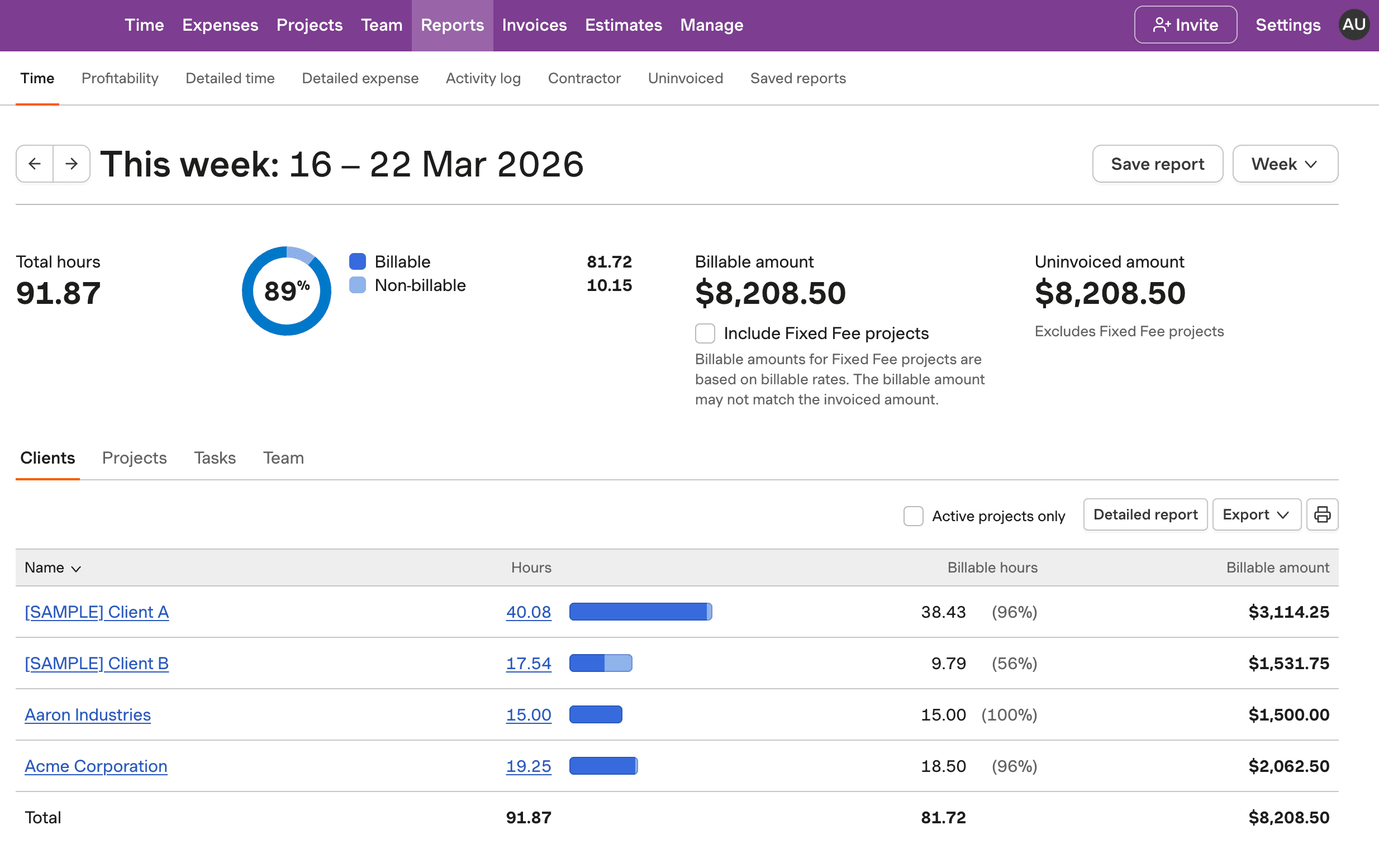
Harvest offers tools to optimize time tracking and billing, not document creation. Learn about creating rate comparison sheets in Word.

Rate comparison sheet template in Word format showing columns for vendor, item, price.

Rate Comparison Sheet Word FAQs

  • A rate comparison sheet in Word is a document created using tables to compare different rates, prices, or services systematically. It helps users make informed decisions by providing a clear overview of options.

  • To create a rate comparison sheet in Word, insert a table and define column headers for key comparison categories. Populate the table with relevant data, and customize its appearance for clarity.

  • Rate comparison sheets help in making informed purchasing decisions, negotiating better terms, and conducting market analyses. They provide a structured way to evaluate options and avoid overpaying.

  • Yes, you can customize a rate comparison sheet template in Word by adding or removing columns, adjusting formatting, and entering specific data relevant to your needs.

  • Essential elements include columns for vendor name, item description, unit price, total cost, and additional factors like shipping and taxes. Including qualitative factors like features is also beneficial.

  • Businesses use rate comparison sheets for procurement, competitive analysis, and strategic negotiations. They help in tracking market trends and managing supplier relationships effectively.

  • In construction, these sheets compare contractor bids. Event planners use them for service selection, and legal fields use them for contract comparisons to ensure compliance and cost-effectiveness.