
Harvest
Expenses
Sign up

Export Expense Report

Manual expense reporting can lead to significant errors and lost revenue. Harvest simplifies this process with easy export options to CSV/Excel, enhancing accuracy and efficiency.

EXPENSE REPORT DRAFT

Drop your receipts here or click to upload

Images and PDFs (max 10 MB each)

Date
Category
Merchant
Description
Amount
Total
$0.00

Customise report

Appearance

Show report title

Report settings

How to Export Expense Reports Efficiently

Exporting expense reports is essential for accurate financial analysis and accounting. The process can become cumbersome if not managed efficiently, leading to errors and lost time. Manual reporting often results in mistakes, with 19% of expense reports containing errors, which can incur hidden costs due to corrections. To streamline this, automated systems offer significant advantages.

Harvest simplifies this process by allowing users to export detailed expense reports directly to CSV or Excel. This functionality is particularly beneficial for small-to-medium businesses looking to enhance financial control without the complexity of large-scale ERP systems. By using Harvest, companies can avoid the pitfalls of manual processes, such as data entry errors and reconciliation issues, which can delay financial reporting and decision-making.
Benefits of Automated Expense Reporting

Automated expense reporting systems provide numerous benefits over traditional manual methods. Companies that have switched to automated solutions report saving over 5,400 employee hours, demonstrating the significant time savings and productivity gains possible. Automation reduces the risk of errors and fraud, with 75% of businesses indicating that manual tracking increases fraud risk.

By employing Harvest's project-based expense tracking, businesses gain real-time visibility into spending, allowing for proactive management of cash flow and adherence to budgets. This real-time insight is invaluable for making informed financial decisions quickly, a necessity in today’s fast-paced business environment. Additionally, these systems help maintain compliance with financial regulations by ensuring accurate documentation and timely reporting.

Steps to Export Your Expense Report with Harvest

Exporting your expense report with Harvest is a straightforward process designed for user convenience. Follow these steps to ensure a seamless export experience:

  1. Log in to your Harvest account and navigate to the 'Reports' section.
  2. Select the 'Expense' report type to access your expense data.
  3. Choose the desired date range or project to filter the data you wish to export.
  4. Click on the 'Export' option and select your preferred format: CSV or Excel.
  5. Download the exported file for further analysis or integration into your accounting systems.

This method ensures that your data is exported accurately, ready for use in financial analysis or audits. While Harvest provides a streamlined export process, it’s important to regularly review and audit your expense reports to maintain financial accuracy and compliance.

Common Challenges in Expense Reporting and How Harvest Solves Them

Expense reporting can be fraught with challenges such as missing receipts, delayed submissions, and duplicate entries. These issues not only complicate financial tracking but can also lead to compliance problems and financial losses. For instance, businesses can lose up to 5% of revenue annually due to expense fraud and policy violations.

Harvest addresses these challenges by offering a reliable platform for tracking and exporting expenses. Its user-friendly interface and automated features reduce the risk of error and ensure that all expenses are accurately documented and categorized. By leveraging Harvest, businesses can improve compliance with financial regulations and reduce the risk of fraud, ultimately safeguarding their revenue.

Export Expense Reports with Harvest

See how Harvest streamlines exporting expense reports to CSV/Excel, enhancing your financial management process.

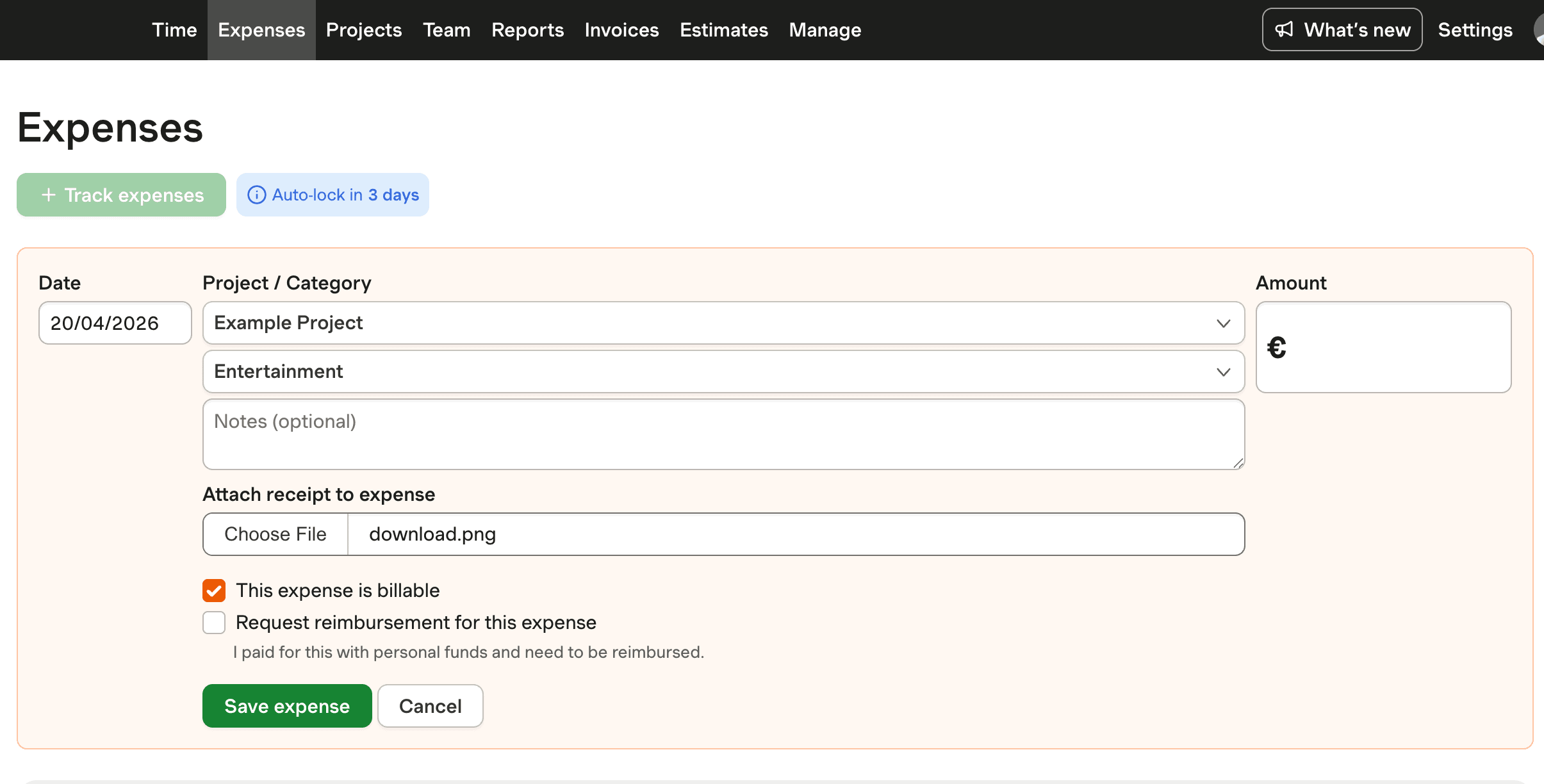
Screenshot of Harvest interface showing export expense report feature.

Export Expense Report FAQs

  • To export your expense report from Harvest, log in and navigate to the 'Reports' section. Select 'Expense' and choose your desired date range or project. Click 'Export' and select CSV or Excel to download your report.

  • Harvest allows you to filter expense reports by date range or project before exporting to CSV or Excel. While the export format itself is not customizable, these filters help tailor the data you need.

  • With Harvest, you can export your expense reports to CSV or Excel formats. These formats are widely used and compatible with most accounting software for ease of integration.

  • Automating your expense report process saves time and reduces errors. Businesses report saving thousands of hours and minimizing fraud risks by switching from manual to automated systems like Harvest.

  • Common errors in manual expense reporting include missing receipts, duplicate entries, and incorrect data entry. These errors can lead to financial discrepancies and compliance issues.

  • Automated systems like Harvest reduce fraud by flagging out-of-policy expenses and providing real-time visibility into spending. This minimizes the risk of unapproved or fraudulent claims.

  • Harvest helps ensure compliance by maintaining accurate records and providing detailed documentation for audits. This reduces the risk of penalties for non-compliance with financial regulations.