
Harvest
Expenses
Sign up

Export Expense Report to Csv

With Harvest, exporting expense reports to CSV is streamlined and customizable, allowing for detailed financial analysis without manual errors.

EXPENSE REPORT DRAFT

Drop your receipts here or click to upload

Images and PDFs (max 10 MB each)

Date
Category
Merchant
Description
Amount
Total
$0.00

Customise report

Appearance

Show report title

Report settings

Why Export Expense Reports to CSV?

Exporting expense reports to CSV format is essential for businesses seeking efficient financial analysis and reporting. CSV files are universally compatible with spreadsheet software, making it easier to manipulate data, identify trends, and ensure compliance with financial regulations. Studies show that manual expense report processing costs businesses approximately $58 per report, with a 19% error rate potentially adding $52 and 18 minutes for corrections. These inefficiencies highlight the need for streamlined, automated solutions.

By exporting expense reports to CSV, organizations can significantly reduce processing costs by 70-85% and enhance accuracy to over 90-95%. Moreover, CSV exports allow finance teams to shift from time-consuming manual tasks to more strategic initiatives, as 70-80% of their time is often consumed by manual expense management. Utilizing software like Harvest for exporting can lead to a 27% reduction in time spent on processing and a 20% decrease in error rates.
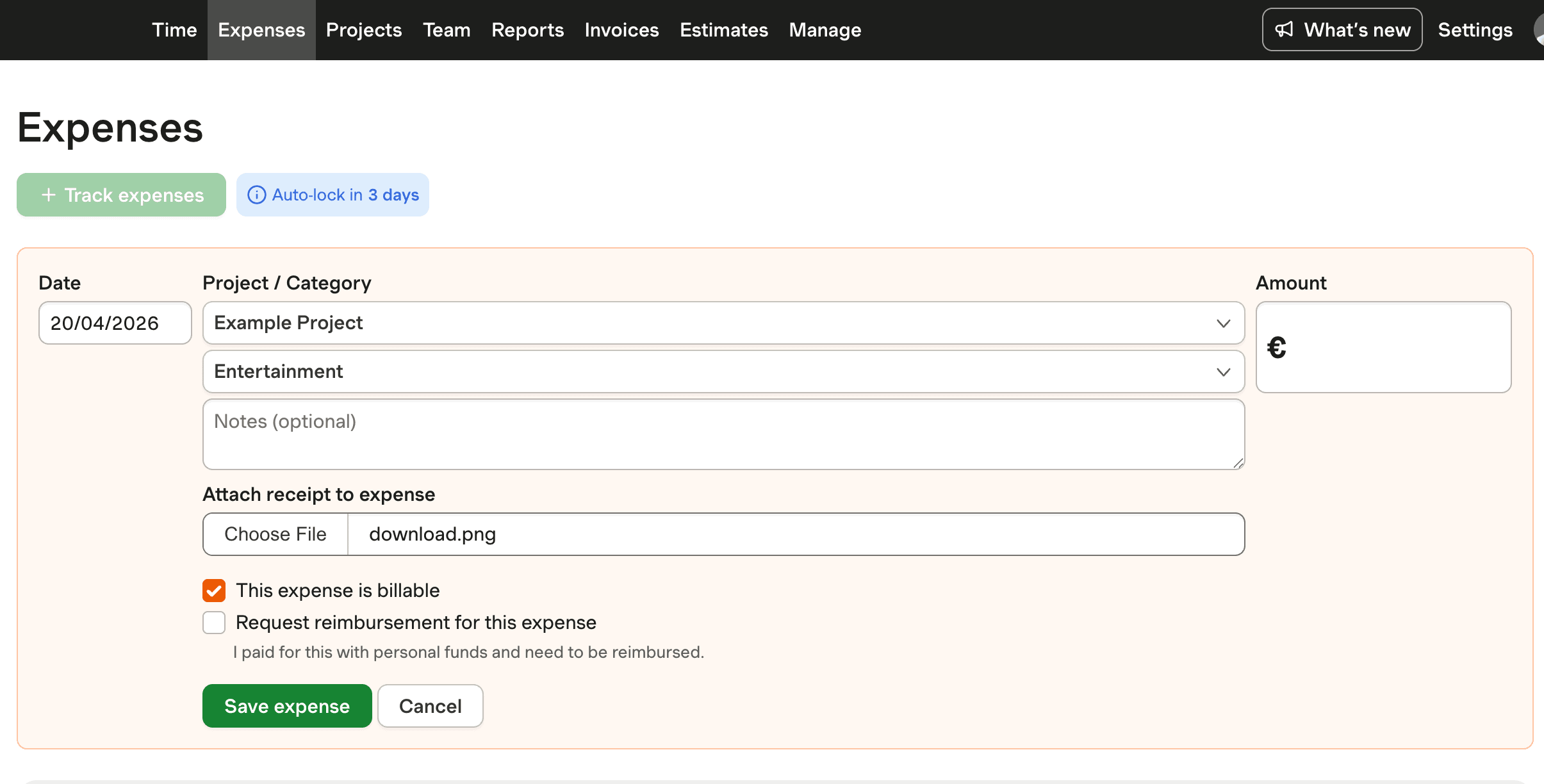
How to Export Expense Reports to CSV with Harvest

Exporting expense reports to CSV using Harvest is a straightforward process tailored for ease and flexibility. To begin, navigate to the reports or expenses section within Harvest. Here, you can select specific date ranges, such as financial quarters or custom periods, ensuring that your export captures the necessary timeframe for analysis.

Harvest allows you to customize the data included in the CSV export by selecting various attributes and categories, making it ideal for project-based financial analysis. This flexibility ensures that the exported data aligns with your reporting needs, whether you are focusing on departmental budgets or project expenses. Once configured, the exported CSV can be seamlessly imported into spreadsheet software like Excel or Google Sheets for detailed analysis.

Benefits of Using Harvest for CSV Exports

Utilizing Harvest for exporting expense reports offers several advantages that enhance financial oversight and data management. Harvest provides customizable export options that allow businesses to tailor their reports to specific requirements. This feature is particularly beneficial for organizations that need to analyze expenses based on different criteria, such as project phases or departmental budgets.

Moreover, Harvest’s integration with spreadsheet software like Excel and Google Sheets ensures that your exported CSV files are ready for immediate use, facilitating detailed financial analysis and strategic decision-making. Automation through Harvest can also boost productivity by over 70%, as evidenced by organizations that have reduced their reconciliation time by 75% and improved month-end closing efficiencies.

Addressing Common CSV Export Challenges with Harvest

Exporting expense reports to CSV can present challenges, such as ensuring data is correctly formatted and all necessary fields are included. With Harvest, these challenges are minimized. Harvest offers the ability to select specific date ranges and attributes, providing comprehensive data tailored to your requirements.

While Harvest does not specifically handle split transactions in CSV exports, it offers detailed reports for individual entries, ensuring accurate and comprehensive data capture. Additionally, if issues arise with data displaying in one column due to delimiter recognition, tools like Excel's "Text to Columns" can resolve this. Harvest’s capabilities provide a robust solution for overcoming common export challenges, ensuring data integrity and accuracy.

Export Expense Reports with Harvest

See how Harvest enables CSV exports for detailed financial analysis, customizable to your needs and compatible with Excel or Google Sheets.

Harvest interface showing expense report CSV export options.

Export Expense Report to Csv FAQs

  • To export your expense report to CSV with Harvest, navigate to the reports section, select the desired date range, and choose your preferred export options. Harvest allows you to customize the data included, ensuring the CSV meets your requirements.

  • Yes, Harvest provides customizable export options. You can select specific date ranges and attributes to tailor the data in your CSV export, making it ideal for various reporting needs.

  • Absolutely, the CSV files exported from Harvest are fully compatible with both Excel and Google Sheets, facilitating seamless data manipulation and analysis.

  • Exporting to CSV allows for easier data manipulation, compatibility with spreadsheets, and detailed financial analysis. It reduces manual errors and enhances reporting accuracy.

  • CSV exports enable detailed financial analysis by allowing data to be easily manipulated in spreadsheet software, facilitating trend analysis and strategic decision-making.

  • This often indicates a delimiter issue. You can fix it using the "Text to Columns" feature in Excel or by importing the file properly in Google Sheets.

  • Harvest automates many aspects of expense reporting, reducing time spent on manual processing by 27% and decreasing error rates by 20%, thus boosting productivity.