
Harvest
Expenses
Sign up

Making an Expense Sheet in Excel

Many businesses still use Excel for expenses, risking errors and inefficiencies. Harvest streamlines tracking with its built-in module, eliminating reliance on spreadsheets.

  • Attach receipts to projects & tasks
  • Turn tracked expenses into client invoices
  • Free 30-day trial, no credit card needed

or drag & drop • Images and PDFs, max 10 MB

The Pitfalls of Excel for Expense Tracking

Creating an expense sheet in Excel is a common practice among small businesses and individuals, but it comes with notable drawbacks. Studies have shown that about 35.9% of businesses still rely on Excel spreadsheets for tracking expenses. However, this method often leads to inefficiencies, as managing expenses manually can be time-consuming and error-prone. In fact, up to 88% of spreadsheets contain errors, which can result in inaccurate financial reports and compliance issues. Moreover, as businesses grow, Excel struggles to scale with increasing transaction volumes, lacking the real-time visibility needed for timely financial decisions.

While Excel offers customization and accessibility, the high risk of human error and inefficiencies make it less suitable for growing businesses. Transitioning to automated expense management software can significantly improve productivity and accuracy. For instance, a construction firm reported saving 62 hours per month by moving away from manual methods. Harvest provides a robust alternative with its built-in expense tracking module, allowing businesses to manage expenses more efficiently without relying on external spreadsheets.
Setting Up an Expense Sheet in Excel: A Step-by-Step Guide

For those still inclined to use Excel, setting up an expense sheet involves several critical steps. Start by creating columns for essential details such as Date, Category, Description, Amount, and Payment Method. This structure helps in organizing your data systematically. To automate calculations, use Excel formulas like SUM() to calculate total expenses and SUMIF() to categorize expenses.

Implementing data validation rules can enhance data integrity by preventing errors through drop-down lists for categories. Additionally, leveraging Excel's charting capabilities, such as pie charts and bar graphs, can help visualize spending patterns, providing valuable insights into financial habits. However, these manual setups can be cumbersome and error-prone, especially as business needs expand. Harvest's built-in expense tracking module eliminates these challenges by offering a streamlined, automated solution that integrates directly with other financial management tools.

Automation: The Future of Expense Management

The shift from manual to automated expense management is driven by the need for efficiency and error reduction. The global expense management software market, valued at $8.33 billion in 2025, is expected to nearly double by 2034, reflecting a rising demand for mobile-first and automated solutions. Companies that adopt these solutions report significant productivity gains and enhanced financial control.

For instance, automated systems can save employees 5 to 15 hours per month on receipt capture and expense coding. Harvest's platform supports this transition by offering an integrated expense tracking module that not only automates data entry but also provides real-time visibility into spending. This capability ensures businesses can make informed financial decisions without the hassle of manual Excel sheets.

Why Choose Harvest Over Excel for Expense Tracking

Harvest offers a comprehensive solution for expense tracking that surpasses the capabilities of Excel. By utilizing Harvest's built-in expense tracking module, businesses can streamline their financial operations, ensuring accuracy and efficiency. This solution eliminates the need for manual spreadsheet management, reducing the risk of errors and freeing up valuable time for employees.

Harvest's platform also allows for customization of expense categories and provides seamless integration with other business systems, offering a more holistic view of financial health. With Harvest, businesses can avoid the common pitfalls of Excel, such as scalability issues and lack of real-time insights, and instead focus on optimizing their expense management processes.

Make Expense Sheets with Harvest

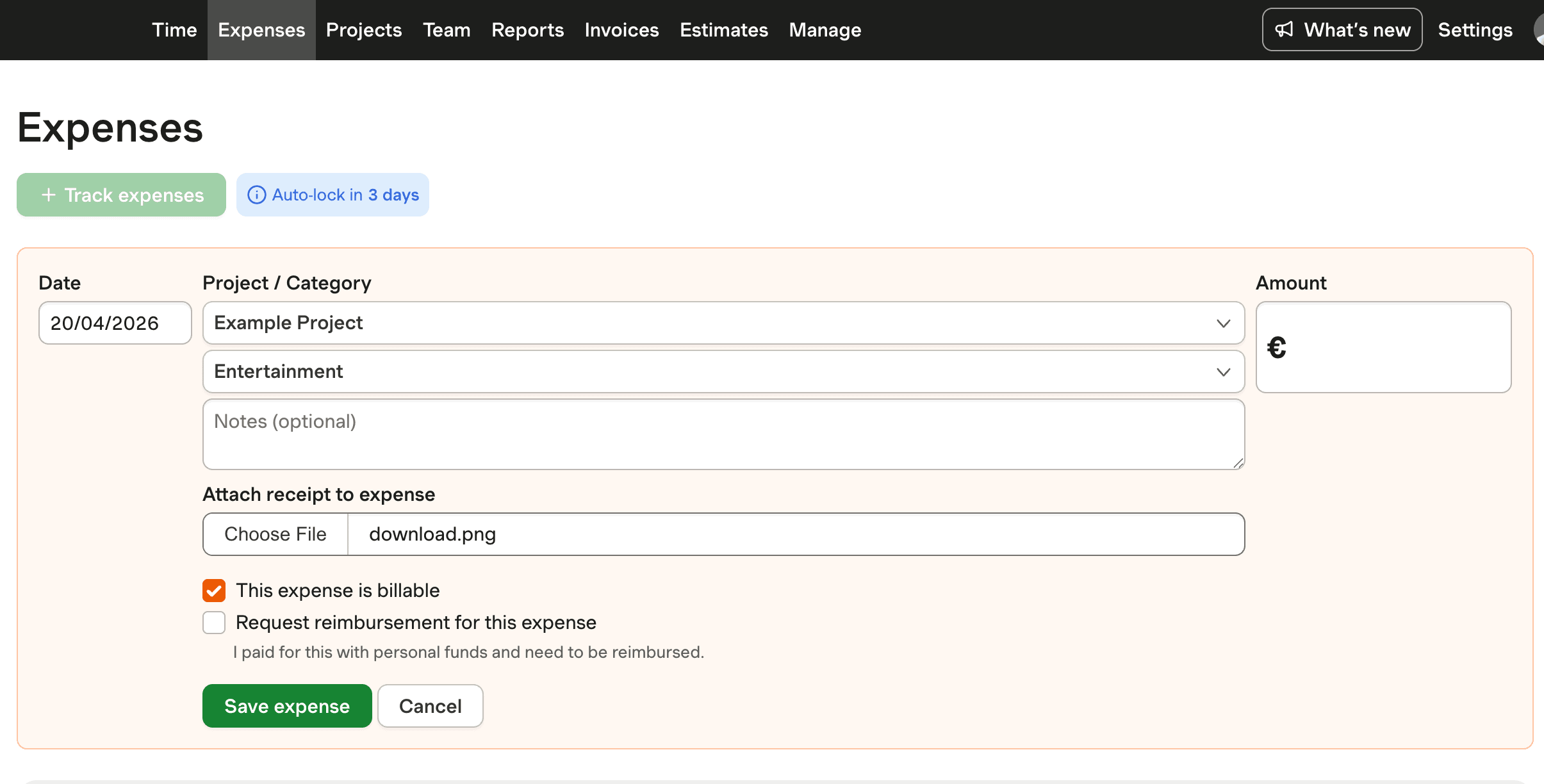
Discover how Harvest's built-in expense tracking feature streamlines management, eliminating the need for external Excel sheets.

Screenshot of Harvest's expense tracking feature, highlighting its built-in module over Excel.

Making an Expense Sheet in Excel FAQs

  • Begin by setting up columns for Date, Category, Description, Amount, and Payment Method. Use Excel formulas like SUM() for totals and SUMIF() for categories to automate calculations.

  • Common mistakes include manual data entry errors, incorrect formulas, and lack of real-time updates. Up to 88% of spreadsheets contain errors, making accuracy a significant issue.

  • Yes, Harvest offers a built-in expense tracking module that automates data entry and integrates with financial systems, eliminating the need for Excel sheets.

  • Automation reduces errors, saves time, and provides real-time visibility into expenses. Businesses adopting automated solutions have reported significant productivity gains.

  • Harvest provides automated expense tracking, customization of categories, and real-time insights, which improve accuracy and efficiency compared to manual Excel sheets.

  • Businesses can save significant time and reduce errors. For example, a firm saved 62 hours monthly by moving from manual tracking to automated systems.

  • There is a growing shift towards automated, mobile-first solutions, with the market projected to nearly double by 2034. Automation offers enhanced efficiency and accuracy.