
Harvest
Expenses
Sign up

Transaction Tracker Google Sheets

Struggling with manual transaction tracking in Google Sheets? Harvest simplifies this with customizable expense categories and automatic calculations.

  • Attach receipts to projects & tasks
  • Turn tracked expenses into client invoices
  • Free 30-day trial, no credit card needed

or drag & drop • Images and PDFs, max 10 MB

Why Google Sheets Remains a Popular Choice for Transaction Tracking

Despite the advent of specialized financial software, over 70% of small businesses continue to rely on spreadsheets for transaction tracking and financial reporting. The flexibility and familiarity of tools like Google Sheets make them an enduring choice for managing expenses and transactions. However, this preference comes with a cost: nearly 94% of spreadsheets contain errors, leading to flawed analyses and potential financial losses. Moreover, manual data entry can consume up to 20% of employees' work time, detracting from more strategic tasks.

To address these challenges, there's a growing trend towards automating transaction tracking in spreadsheets. For instance, businesses can connect bank accounts to automatically sync transactions, reducing manual entry and errors. This automation can save companies between $27 and $58 per expense processed through traditional spreadsheet systems, underscoring the hidden costs of manual management.
Customizing Your Transaction Tracker in Google Sheets

Creating a transaction tracker in Google Sheets offers unparalleled customization, allowing businesses to tailor the tool to their specific needs. To start, set up a basic structure with dedicated sheets for "Transactions" and "Categories." In the "Transactions" sheet, include columns for Date, Description, Category, Income, Expense, and Balance. Meanwhile, list all potential income and expense categories in the "Categories" sheet.

To enhance accuracy and efficiency, use data validation to create dropdown menus in the "Category" column, ensuring consistency and preventing typos. Employ formulas to automate calculations, such as total expenses and running balances, and consider building a summary dashboard for a high-level financial overview. While Google Sheets allows for significant customization, integrating automated data feeds and leveraging tools like Harvest can further streamline tracking processes by providing customizable expense categories and automatic calculations for specific transaction types.

Integrating Harvest for Enhanced Transaction Tracking

While Google Sheets provides flexibility, integrating it with Harvest enhances efficiency and accuracy in transaction tracking. Harvest allows administrators to create customizable expense categories, enabling precise and tailored tracking for various transaction types. This feature is particularly beneficial for businesses managing multiple projects or departments, each with unique financial needs.

By using Harvest, businesses can avoid the pitfalls of manual entry errors common in spreadsheets. With its web and mobile interfaces, Harvest offers a streamlined way to enter and manage expenses, ensuring data accuracy and saving time. Although Harvest doesn't integrate directly with Google Forms, its robust interfaces provide a comprehensive solution for direct data entry, making it an ideal complement to a Google Sheets setup.

Overcoming the Limitations of Spreadsheets with Harvest

While Google Sheets is a powerful tool, it is not without limitations, especially regarding data security and audit trails. Spreadsheets are notoriously difficult to secure, and any user with access can potentially view sensitive data. Additionally, spreadsheets lack comprehensive audit tracking, which can be problematic for businesses requiring detailed financial process documentation.

Harvest addresses these limitations by offering secure, role-based access to financial data and detailed expense reports. While Google Sheets can act as a bridge for consolidating data from various sources, Harvest's built-in tracking features provide a more secure and efficient alternative. By leveraging Harvest's capabilities, businesses can focus on strategy rather than the "busywork" associated with manual spreadsheet updates, effectively mitigating the risks associated with spreadsheet errors.

Streamline Tracking with Harvest

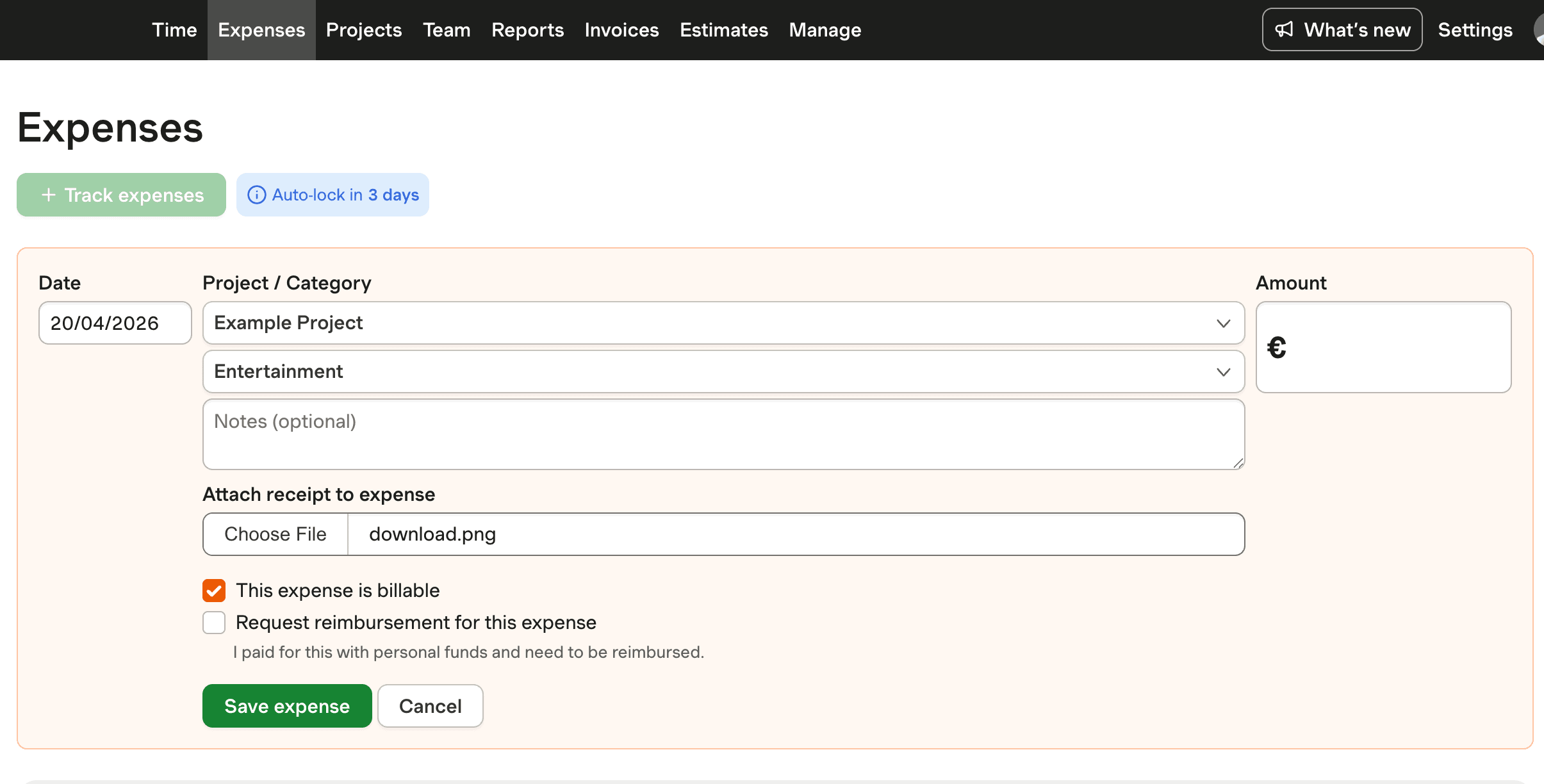
See how Harvest enhances Google Sheets with customizable expense categories and real-time calculations for efficient transaction tracking.

Screenshot of Harvest's customizable expense tracking interface.

Transaction Tracker Google Sheets FAQs

  • To create a transaction tracker in Google Sheets, start by setting up a basic structure with sheets for "Transactions" and "Categories." Define columns such as Date, Description, Category, and Amount. Use data validation for category consistency and formulas for calculating totals and balances.

  • Google Sheets offers flexibility and customization, making it an excellent tool for tracking transactions. It allows for real-time collaboration and integration with other data sources, but requires careful management to avoid errors and ensure data accuracy.

  • Yes, you can automate transaction tracking in Google Sheets by connecting bank accounts to sync transactions automatically. This reduces manual entry, minimizes errors, and saves time, allowing for more accurate financial reporting.

  • Harvest enhances Google Sheets by offering customizable expense categories and direct data entry through web and mobile interfaces. This integration reduces manual errors and provides a secure way to manage financial data efficiently.

  • Spreadsheets can be prone to errors and security issues. Over 90% contain errors, and sensitive data is often difficult to protect. They lack comprehensive audit trails, making it challenging for businesses with stringent compliance requirements.

  • Businesses use transaction trackers to monitor expenses, manage cash flow, and prepare for taxes. Real estate agents, for example, track deals from initiation to closing, while small businesses organize expense data to improve financial insight.

  • While Harvest does not directly integrate with Google Sheets, its customizable expense categories and automation features can complement a Google Sheets setup, offering an efficient solution for tracking various transaction types.

  • Common mistakes include manual data entry errors, vague categorization, and broken formula links. Avoid these by using data validation, specific categories, and regularly checking formulas after structural changes.