
Harvest
Expenses
Sign up

Expense Sheet Google Sheets

Harvest simplifies project-based expense tracking, allowing easy data export to Google Sheets for detailed analysis.

EXPENSE REPORT DRAFT

Drop your receipts here or click to upload

Images and PDFs (max 10 MB each)

Date
Category
Merchant
Description
Amount
Total
$0.00

Customise report

Appearance

Show report title

Report settings

Effective Expense Management with Google Sheets

Google Sheets offers a flexible and customizable platform for managing expenses, providing users with the ability to create personalized expense sheets that cater to specific business needs. Using Google Sheets for expense management can help organizations transition from manual, paper-based systems to more efficient, digital solutions. This shift is vital as nearly all spreadsheets reportedly contain errors, which can lead to financial inaccuracies and inconsistencies.

One of the key benefits of using Google Sheets for expense tracking is the ability to customize templates with specific formulas. For example, you can automate calculations for travel, meals, and lodging expenses by setting predefined categories and unit prices. This ensures accuracy and saves time, reducing the manual effort required for data entry and minimizing errors associated with manual calculations.
Harvest's Role in Streamlining Expense Tracking

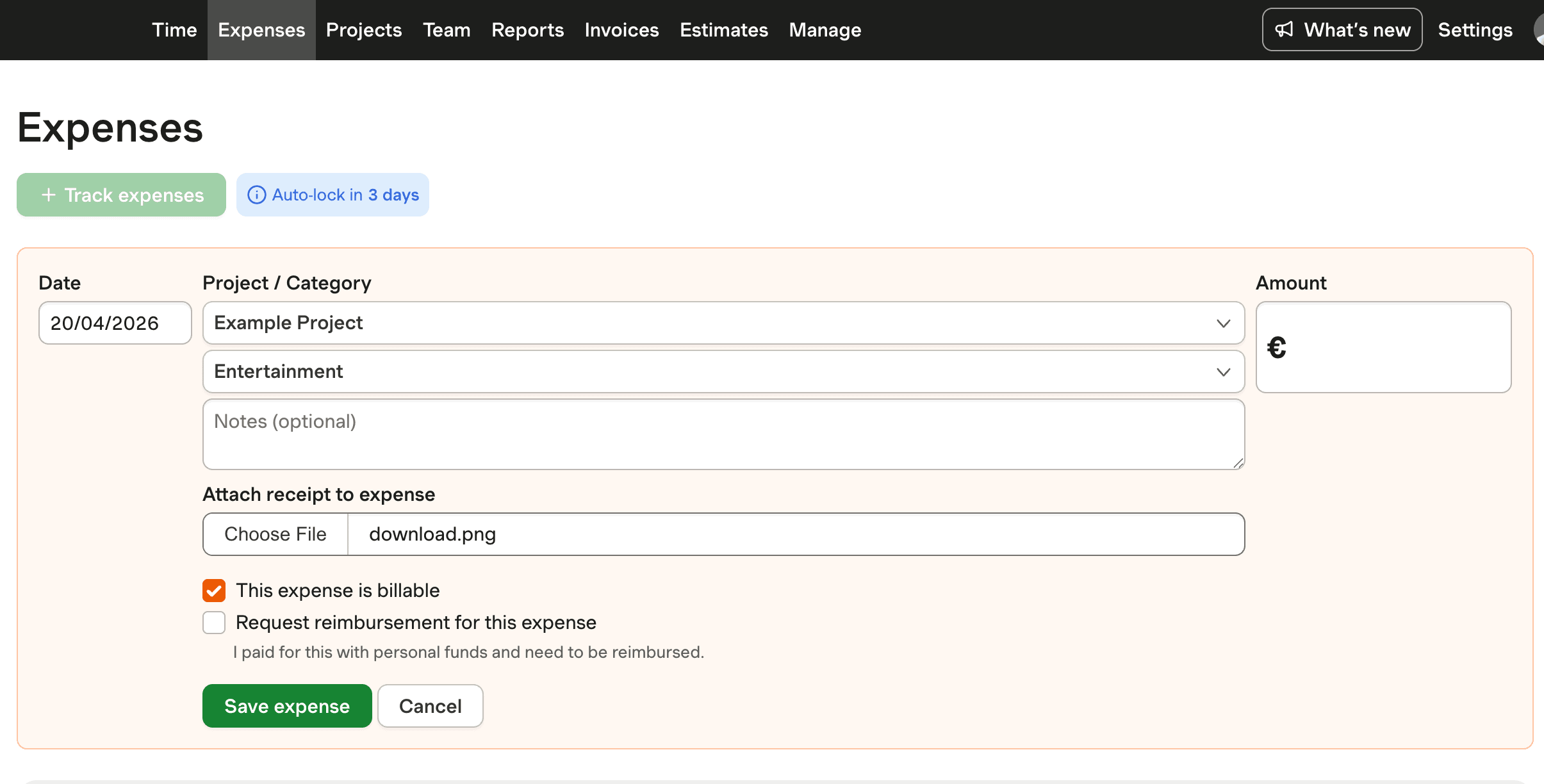
Harvest provides an effective solution for project-based expense tracking, allowing teams to categorize and manage expenses efficiently. With Harvest, administrators can set customizable expense categories, such as travel, meals, and lodging, each with specific unit prices. This feature enables automated calculations, reducing the likelihood of errors and ensuring consistent financial reporting across projects.

While Harvest does not directly integrate with Google Forms for automated expense entry, it offers seamless data export capabilities. Users can export expense data to CSV or Excel formats, which can then be imported into Google Sheets for further analysis and visualization. This capability empowers businesses to leverage the analytical features of Google Sheets while maintaining accurate and organized expense records in Harvest.

Customizing Your Google Sheets Expense Template

Creating a customized expense sheet in Google Sheets involves setting up templates that match your specific business needs. Begin by defining categories for different types of expenses, such as travel, meals, and lodging. Utilize formulas to automate calculations, ensuring that totals are accurate and that the data remains consistent across different categories.

Integrating Google Sheets with Harvest can further enhance your expense management system. By exporting data from Harvest into Google Sheets, you can utilize its robust data visualization tools to gain insights into spending patterns and identify areas for potential cost savings. Although Harvest does not offer built-in data visualization within Google Sheets, this export functionality allows you to leverage Google Sheets' strengths for comprehensive analysis.

The Cost of Manual Expense Processing

Manual expense processing can be a costly endeavor, with companies spending between $27 and $58 per expense. This highlights the substantial cost and inefficiency associated with manual data entry and reconciliation. The use of Google Sheets, when integrated with automated solutions like Harvest, can significantly reduce these costs by streamlining the data entry process and automating calculations.

By leveraging Harvest's features for team expense tracking, organizations can reduce the occurrence of errors and inconsistencies, which are common in traditional spreadsheet-based systems. This reduces the administrative burden and allows teams to focus on more strategic tasks, ultimately leading to improved financial management and compliance.

Streamline Expenses with Harvest

See how Harvest exports expense data to Google Sheets for analysis, offering customizable tracking solutions.

Screenshot of Harvest expense tracking export to Google Sheets.

Expense Sheet Google Sheets FAQs

  • To create an expense sheet in Google Sheets, start by setting up columns for categories like date, amount, and type of expense. Use formulas to automate calculations for totals and averages. Templates are available online for quick setup.

  • Google Sheets offers flexibility and customization, allowing users to create templates that fit specific needs. Its cloud-based nature ensures easy access and sharing, while formulas automate calculations, reducing manual entry errors.

  • Harvest allows users to export expense data to CSV or Excel files, which can be imported into Google Sheets for further analysis. This enables the use of Google Sheets' data visualization tools to gain insights into expenses.

  • Automate calculations by using formulas within Google Sheets. For example, use SUM to total expenses or AVERAGE to find average costs. These formulas update automatically as data changes, ensuring accuracy.

  • Yes, Google Forms can be linked to Google Sheets. This integration allows for automated data entry, where responses from forms populate directly into the spreadsheet, streamlining the expense tracking process.

  • Harvest supports team expense tracking with features that allow categorization by project and date. Customizable categories and automated calculations ensure consistent and accurate financial reporting.

  • Common errors include incorrect formulas, duplicated entries, and missing data. Automated solutions like Harvest reduce these errors by streamlining data entry and ensuring consistency across spreadsheets.