
Harvest
Expenses
Sign up

Expense Tracker Dashboard Excel

Harvest simplifies expense tracking by automating project-based reports, which you can export to Excel for detailed analysis, eliminating manual errors.

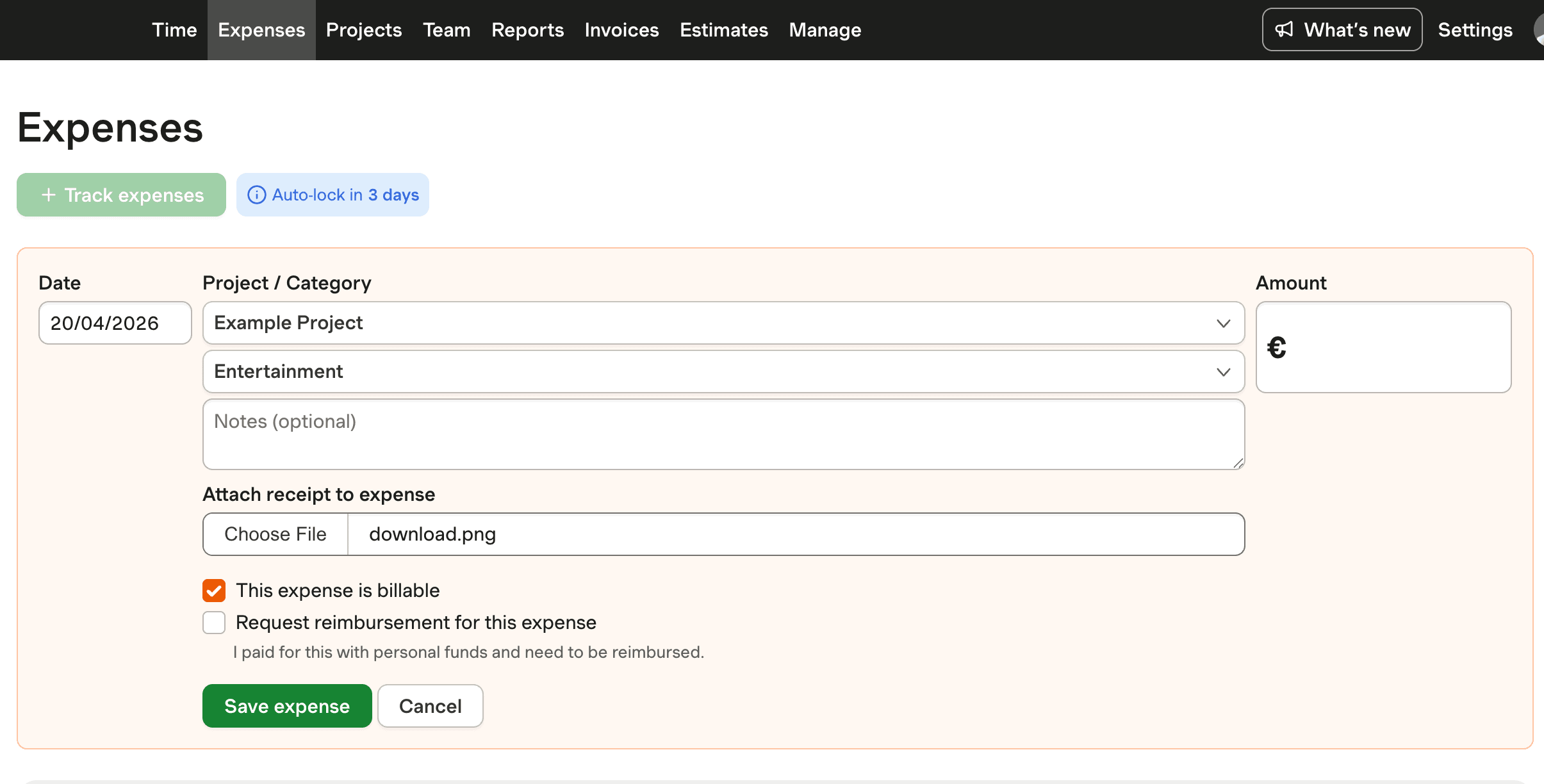
  • Attach receipts to projects & tasks
  • Turn tracked expenses into client invoices
  • Free 30-day trial, no credit card needed

or drag & drop • Images and PDFs, max 10 MB

The Challenges of Excel-Based Expense Tracking

Tracking expenses using Excel remains popular among small businesses due to its cost-effectiveness and customization options. However, this approach comes with significant challenges. Studies reveal that up to 88% of spreadsheets contain errors, posing risks to financial accuracy and compliance. Mismanaged expenses are a major contributor to the failure of nearly 50% of startups within five years, often due to cash flow issues. This highlights the need for more reliable and scalable solutions.

While Excel allows for detailed tracking through formulas and visual insights via charts, it lacks real-time data capabilities and can be labor-intensive. As businesses grow, the manual nature of Excel can become a bottleneck, reducing productivity and increasing the chance of human error. Automation in expense tracking has become essential, with 50% of companies seeing a positive ROI within a year of adopting automated solutions. Harvest offers a compelling alternative by enabling seamless project-based expense tracking, which can be exported to Excel for further analysis.
Effective Expense Tracking with Harvest

For businesses seeking to improve their expense tracking processes, Harvest offers a robust solution. While traditional Excel templates require manual input and ongoing updates, Harvest automates expense tracking, reducing the risk of errors and saving time. Users can generate detailed expense reports within the platform, which can then be exported to Excel for further customization and analysis.

Harvest's focus on project-based expense management ensures that all expenditures are documented accurately, providing clear insights into project costs and profitability. This approach addresses the common pitfalls of Excel-based tracking, such as data inaccuracies and a lack of scalability. By exporting reports to Excel, users retain the flexibility they value while benefiting from the accuracy and efficiency of Harvest’s automated systems.

Steps to Build an Excel Expense Tracker Dashboard

Building an effective Excel expense tracker dashboard can be simplified by following a structured process. To start, create a spreadsheet with essential headers such as Date, Category, Description, Amount, and Payment Method. Record each expense diligently to maintain accuracy.

Utilize Excel's formulas like SUM() and SUMIF() to automate calculations and apply conditional formatting to highlight significant expenses. Incorporate visual elements like charts to represent spending patterns and use PivotTables for advanced analysis, summarizing data into interactive reports. This structured approach can enhance data clarity and provide a comprehensive overview of financial health.

Despite these steps, Excel lacks real-time visibility and is prone to errors. Harvest addresses these shortcomings by offering automated expense tracking that integrates seamlessly with project management, ensuring up-to-date financial insights and reducing manual workload.

Best Practices for Excel Expense Management

To maximize the effectiveness of an Excel expense tracker, consider implementing best practices such as using predefined categories and dropdown lists to minimize input errors. Automation of calculations through embedded formulas ensures consistency across your data.

Regular updates and reviews of your Excel tracker are crucial to maintaining its relevance and accuracy. Integrating your Excel tracker with other business processes, such as accounting software, can further enhance data accuracy and streamline tax filing processes. However, for real-time updates and reduced manual intervention, leveraging tools like Harvest can provide significant advantages, allowing for detailed project-based tracking with the flexibility to export data for further Excel analysis.

Harvest Expense Tracking for Excel

See how Harvest automates expense tracking, with reports exportable to Excel for in-depth analysis.

Harvest expense tracking interface for Excel export capability

Expense Tracker Dashboard Excel FAQs

  • An effective expense tracker dashboard should include features like automated calculations, data visualization charts, and a clear categorization of expenses. Harvest provides detailed project-based expense tracking, exportable to Excel for further customization.

  • To customize an Excel expense tracker, use formulas for automatic calculations, apply conditional formatting for highlighting key data, and employ PivotTables for advanced data analysis. Harvest facilitates this by allowing export of detailed reports to Excel.

  • Best practices include using predefined categories, automating calculations with formulas, and integrating with accounting software for real-time updates. Harvest complements these practices by providing accurate project-based tracking and report exports.

  • Harvest automates project-based expense tracking, reducing manual input errors and providing real-time insights. Users can export detailed reports to Excel for comprehensive analysis, enhancing overall financial management.

  • Yes, Harvest allows users to export detailed expense reports to Excel, providing flexibility for further analysis and customization using Excel’s features.

  • Many businesses use Excel for its cost-effectiveness and customization options. However, it is prone to errors and lacks real-time tracking, which tools like Harvest can address by providing automated solutions.

  • The biggest challenge is the high error rate, with up to 88% of spreadsheets containing mistakes. This can be mitigated by using automation tools like Harvest for more accurate and efficient tracking.