
Harvest
Expenses
Sign up

Download Expense Tracker Excel

Harvest offers a streamlined way to track expenses with customizable categories and mileage tracking, perfect for small businesses managing project-based expenses.

EXPENSE REPORT DRAFT

Drop your receipts here or click to upload

Images and PDFs (max 10 MB each)

Date
Category
Merchant
Description
Amount
Total
$0.00

Customise report

Appearance

Show report title

Report settings

The Evolution of Expense Tracking: Why Excel Still Matters

Expense tracking has evolved significantly from manual ledgers to digital solutions like spreadsheets and advanced software. Despite the rise of mobile apps and cloud-based systems, Excel remains a popular choice for many due to its versatility and accessibility. Excel allows users to create customized expense trackers that can be tailored to specific needs, offering a cost-effective solution for individuals and small businesses.

The move from paper to digital has minimized errors and improved efficiency. In fact, businesses that have transitioned to automated systems report a 90% reduction in manual tasks and significantly faster reimbursement times. However, for those not ready to shift to full automation, Excel provides a middle ground—offering digital storage and automated calculations without the complexity of dedicated software.
Creating an Effective Expense Tracker in Excel

To build an effective expense tracker in Excel, start by setting up a spreadsheet with headers like Date, Category, Description, Amount, and Payment Method. This structure helps organize data efficiently and ensures all necessary details are captured. Using formulas such as =SUM() and =SUMIF() can automate total calculations, streamlining the tracking process.

Pro tips include creating drop-down lists for categories to maintain consistency and using charts for visual insights into spending patterns. A well-structured Excel tracker can prevent errors that, according to some studies, occur in all but one of the spreadsheets analyzed. By maintaining accurate and categorized records, businesses can avoid the pitfalls of manual entry errors and overlooked expenses, which can silently impact up to 20% of spending.

How Harvest Enhances Expense Tracking Beyond Spreadsheets

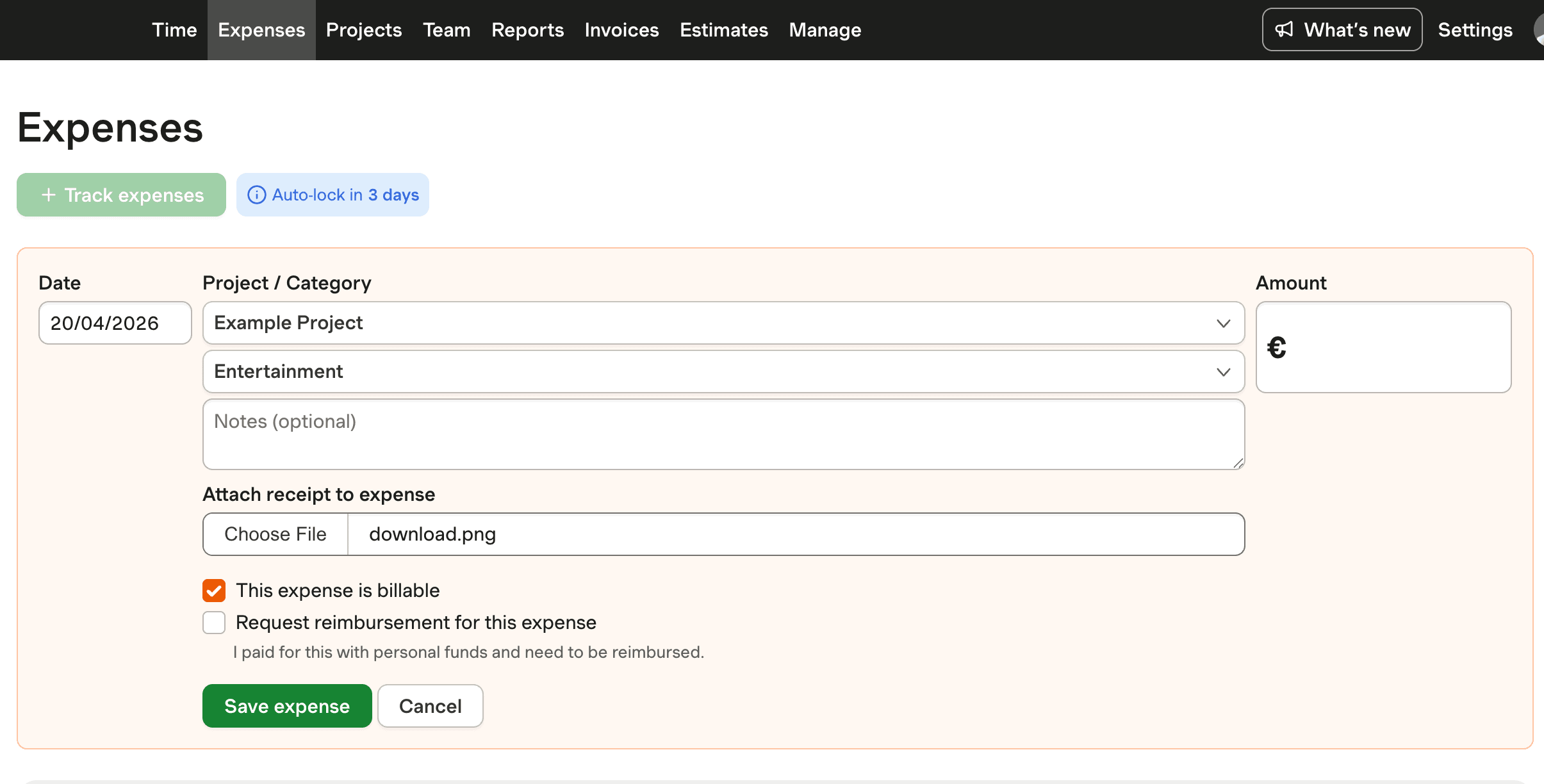
While Excel remains a powerful tool for expense tracking, Harvest offers enhanced capabilities that streamline the process further. Harvest supports tracking business expenses with customizable categories, such as meals, travel, and supplies, directly linking them to projects for accurate cost management. This feature is particularly beneficial for small businesses managing project-based expenses.

Moreover, Harvest allows users to track mileage for business travel by setting a per-mile rate and calculating totals based on entered distances. This functionality simplifies the often cumbersome task of mileage tracking, ensuring businesses don't miss out on legitimate reimbursement opportunities. By integrating these features, Harvest not only complements Excel but also provides a more comprehensive solution for expense management.

Integrating Harvest with Accounting for Seamless Financial Management

For businesses looking to integrate expense tracking with broader financial systems, Harvest offers compatibility with popular accounting software like QuickBooks Online and Xero. Though it does not sync expense entries directly, this integration facilitates seamless invoice copying, enhancing financial visibility and accuracy.

Integrating Harvest with accounting software allows businesses to streamline workflows and reduce manual data entry errors. This is vital for maintaining accurate financial records and supports real-time data analysis, enabling faster decision-making. By adopting such integrations, businesses can optimize their expense management processes and improve overall efficiency.

Download Expense Tracker Excel with Harvest

See how Harvest's expense tracking integrates with Excel templates for project-based management. Track mileage and categories seamlessly.

Harvest expense tracker interface with Excel download option

Download Expense Tracker Excel FAQs

  • To create an expense tracker in Excel, set up a spreadsheet with columns for Date, Category, Description, Amount, and Payment Method. Use formulas like =SUM() to calculate totals. This setup helps organize expenses and maintain accurate records.

  • Excel offers flexibility and customization, allowing users to tailor their expense tracking to specific needs. It enables automated calculations and digital storage, reducing errors compared to manual methods.

  • Harvest enhances expense tracking by offering customizable categories and mileage tracking, linking them to projects for accurate cost management. This complements Excel's capabilities by providing additional insights and automation.

  • Yes, Harvest supports tracking mileage for business travel. It allows you to set a per-mile rate and calculate totals based on entered distances, simplifying the reimbursement process.

  • Integrating Harvest with accounting software like QuickBooks Online and Xero streamlines financial management by reducing manual data entry and enhancing accuracy. This integration supports real-time financial visibility.

  • Look for features like customizable categories, automated calculations, and clear documentation fields. These features ensure accurate tracking and easy management of expenses.

  • To avoid errors, use drop-down lists for categories, apply formulas for calculations, and double-check data entries. Regular reviews and validation can also help prevent common mistakes.