Skip to content

Bulk Actions

Update multiple records at once

Bulk Actions changes many records in one pass, across people, projects, clients, contacts, invoices, time, expenses, tasks and saved reports. You filter a list, choose the change, and see a read-only preview of what will happen before anything is written. Apply the preview and every record gets its own result — applied, failed, or skipped with the reason. The preview expires four hours after it is created, and a newer preview replaces it.

  • Preview before you apply
  • A result for every record
  • Previews expire after 4 hours
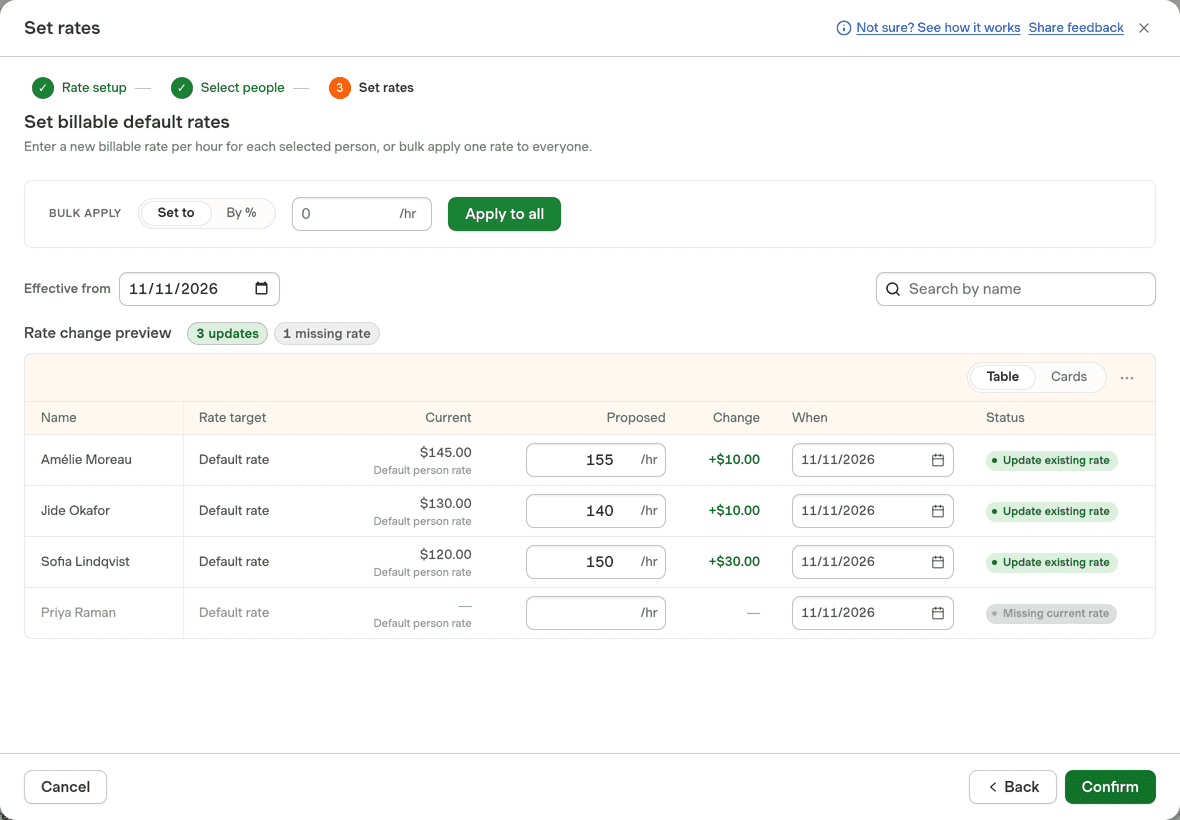
A rate change preview: four people listed with their current rate, the proposed rate and the change, three marked Update existing rate and one marked Missing current rate.
The preview, before anything is applied: the current rate, the new one, and who is left out.

How Bulk Actions works

One pass is four steps: narrow the list, look at what will change, adjust it if it is not right, then apply and read the results.

  1. Filter the records

    Pick the area first — people, projects, invoices, time entries, expenses, tasks, clients, contacts or saved reports — then narrow the list with that area’s filters. The filters are the same ones the area’s own list uses.

  2. Preview the change

    Choose an action and fill in what it needs. Nothing is written yet: the preview shows the records it matched and, for each one, the value before and after.

  3. Adjust the preview

    If a record should not change, take it out of the preview and look again. The preview is a draft of the change, not a log of one.

  4. Apply, then read the results

    Applying writes the change. Every record comes back as applied, failed, or skipped — a skipped record says why, so a partial pass is readable rather than mysterious. The run is then in your history.

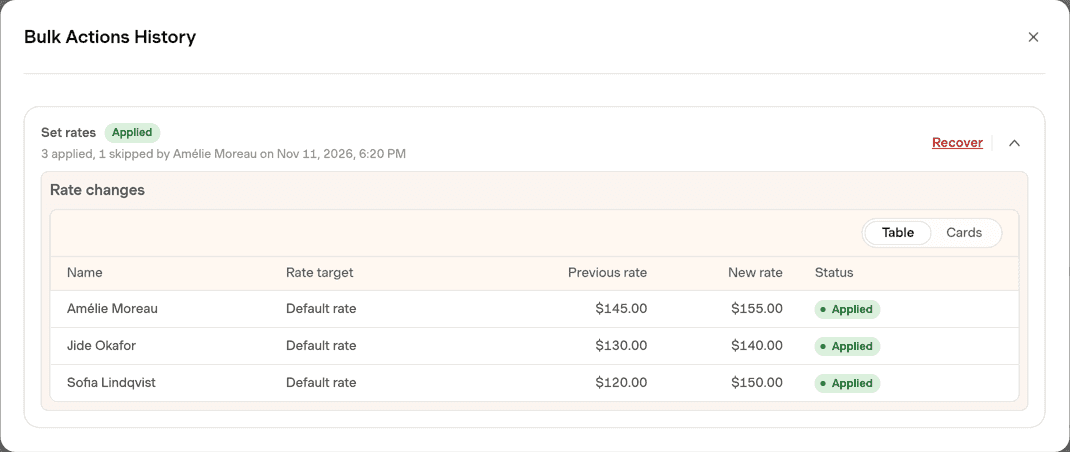
    Bulk Actions history showing a Set rates run marked Applied, 3 applied and 1 skipped, with a table of three people listing previous rate, new rate and Applied status.
    A rate change after it ran: the old and new value for each record it changed, and Recover.

Rules and settings

Only the fields an action actually supports appear in its form. The action list changes with the area, so the picker for invoices does not offer project rates.

Where you can use it

  • People — rates, role, department, weekly capacity, working hours, time zone, employee ID; assign to or unassign from projects; archive and reactivate.
  • Projects — type, bill-by, project rate, over-budget warning, tags; assign or unassign people and tasks; make tasks billable or non-billable; archive and reactivate.
  • Clients — archive and reactivate, with active projects flagged.
  • Contacts — delete.
  • Invoices — due date, payment terms, issue date; mark as sent; write off; record a payment; set or remove reminders; delete; download PDFs; copy to QuickBooks Online.
  • Time entries and expenses — delete.
  • Tasks — archive, which takes the task off every project it is on.
  • Saved reports — delete the reports you own.

Good to know

  • Access — the permission on the area being changed, not the admin role. The Bulk Actions hub in Settings additionally needs company-wide read access.
  • Reversible or not — archive and reactivate can be undone. Archiving a person stops their running timers and takes them out of active assignments without deleting them, so reactivating puts them back on the same projects. Archiving a task is different: it removes the task from every project, and restoring it from the archived list does not put it back — you re-add it to each project. Every delete action is permanent, and deleting a saved report takes it away from everyone it was shared with.
  • Previews — a preview lasts four hours from creation, and creating a new one replaces the old one. A preview covers up to 500 records in a pass.
  • History — you see the runs you started; company-wide read access shows the whole company’s.

What Bulk Actions is for

January · rate review

Raise 87 people’s billable rate

The increase applies to everyone, and doing it person by person is where a typo hides.

One pass lands the new rate for the whole team, and the preview shows each person’s old and new rate before anything is written.

Set rates · 87 people → 86 applied, 1 skipped

PersonBeforeAfter
A. Moreau$145$155
J. Okafor$130$140
S. Lindqvist$120$150
P. Raman—Skipped, no current rate
Illustration · Rate updates

March · someone leaves

Take 12 projects off the person leaving

A departing colleague’s projects block their replacement, and every one has to come off by hand.

Twelve projects come off in one pass instead of twelve edits, and the preview names each project it will touch. Their tasks are a second pass, because a run carries one action.

Remove from projects · 12 projects → 12 applied

ProjectPersonResult
Atlas rebrandR. VanceRemoved
Q1 auditR. VanceRemoved
Illustration · Assignments

June · quarter close

Archive 40 finished projects

Finished work should stop appearing in pickers, but a project with a running timer is not finished.

The quarter closes without opening forty project pages, and any project with a running timer comes back failed rather than archived.

Archive · 40 projects → 38 applied, 2 failed

ResultProjectsWhy
Applied38Archived
Failed2Running timer on the project
Illustration · Cleanup

September · invoice cleanup

Chase 15 overdue invoices in one pass

Overdue invoices are the ones worth chasing, and one that already has a reminder scheduled needs nothing more.

Reminders go out on the whole batch, and the two invoices that already have one scheduled are left alone.

Set invoice reminders · 15 invoices → 13 applied, 2 skipped

InvoiceStatusResult
INV-2041OpenReminder in 3 days
INV-2047Part-paidSkipped — already has a reminder
Illustration · Invoices

Common questions on Bulk Actions

Can I undo a bulk action?

Some of them. Archive and reactivate can be reversed by running the opposite action on the same records. Archiving a person stops their running timers and takes them out of active assignments without deleting them, so reactivating puts them back on the same projects. Archiving a task removes it from every project it was on, and restoring it later does not re-add it — that is by hand. Every delete is permanent: deleted time entries, expenses, invoices, contacts and saved reports cannot be brought back, so read the preview before you apply one.

How long does a preview last?

Four hours from when it is created. After that it is gone and you filter again. Creating a new preview replaces the previous one, so only the latest is available to apply. Runs you already applied stay in your history.

How many records can one pass cover?

A preview covers up to 500 records in a single pass. If your filter matches more, narrow it and run a second pass rather than expecting one apply to cover everything.

Who can use Bulk Actions?

Anyone who can run at least one bulk action on an area — it is the permission on that area that decides, not the admin role. The Bulk Actions hub in Settings is the exception: it needs company-wide read access, which most members do not have. The Help Center guide below still describes Bulk Actions as an administrator tool; this page is the more current of the two.

What happens to a record that cannot be changed?

It is skipped or failed, and the result says which and why — a project with a running timer, a person who would exceed the seat limit, a contact who receives the client’s invoices. The rest of the pass still applies.

Which areas support bulk actions?

People, projects, clients, contacts, invoices, time entries, expenses, tasks and saved reports. Each area offers its own action list, so what you can do to invoices is not what you can do to people.

Apply the same change to 500 records

Start with a filter and a preview: nothing is written until you apply it, and every record tells you what happened.