Skip to content

Account Consolidation

Stop paying for two accounts without losing your audit trail

Combine clients, active projects, and past hours into one paying account. Put the secondary account on hold for six months to keep historical invoices, receipts, and timestamps preserved before any final closure.

  • Six structured CSV imports for projects, people, time, and expenses
  • Revert an import run to permanently delete created records
  • Keep past invoices and receipts on hold for six months
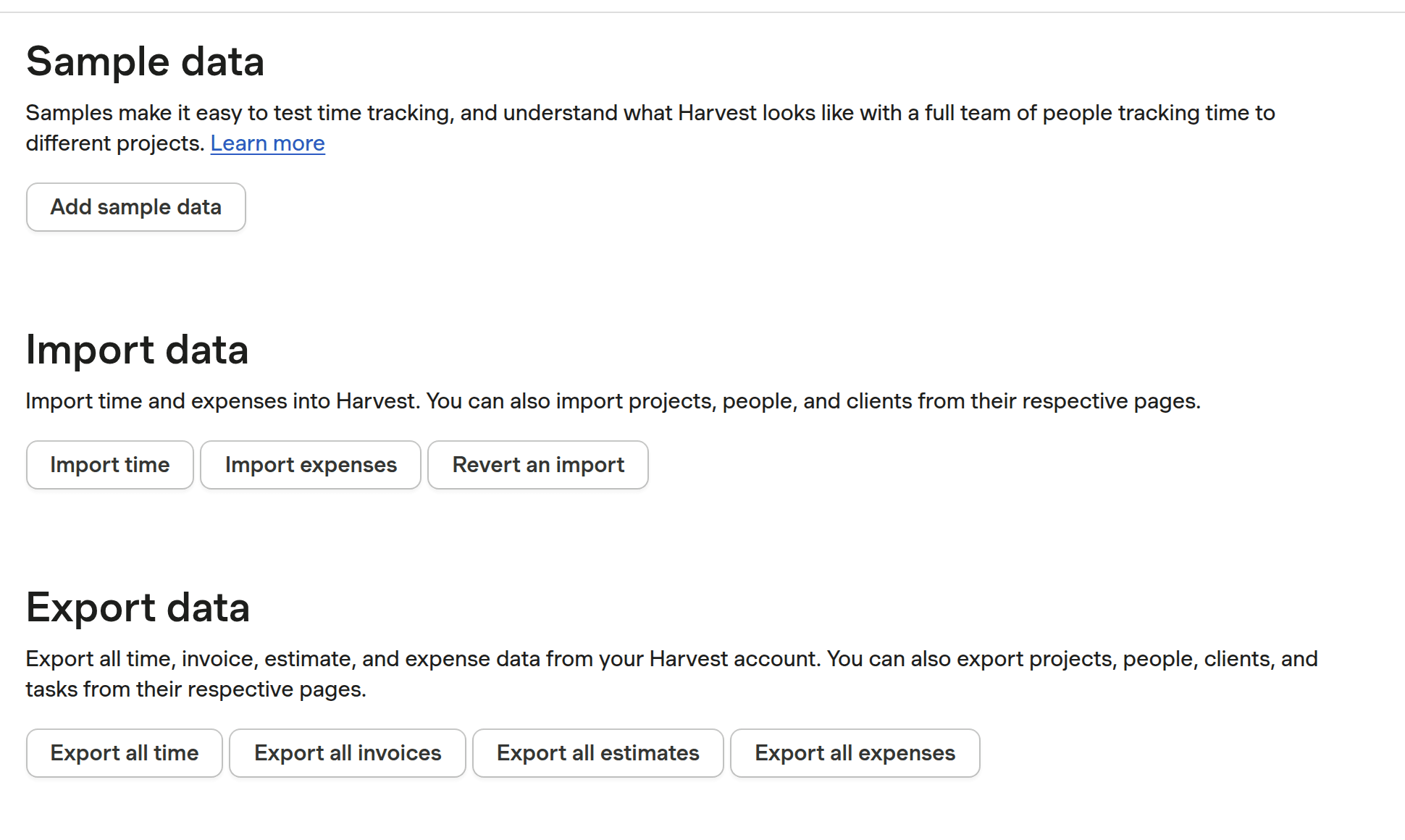
Settings → Import/Export on a paying account.

How it works

Harvest does not offer an automated merge button, because every account functions as a self-contained workspace. Consolidating two accounts means exporting records from your secondary account and importing them into your primary account using structured CSV files. Moving active clients, projects, people, and hours into one paying subscription eliminates duplicate seat fees, while keeping the secondary account on hold for six months preserves the invoices, receipts, and historical timestamps that files cannot transfer.

  1. Export the old account

    Open Settings to export all tracked time, expenses, invoice PDF packs, and estimates from your secondary account. Head to your Team, Projects, and Clients sections to download those lists separately. Download those files to keep an archive of your records before any changes begin.

    Settings → Import/Export on a paying account.
  2. Import the lists first

    Upload your client roster, contacts, project list, and team members into the primary account before importing hours. Time and expense imports match records against existing names, so adding people and projects first establishes the foundation they connect to.

    Settings → Import/Export on a paying account.
  3. Import time and expenses

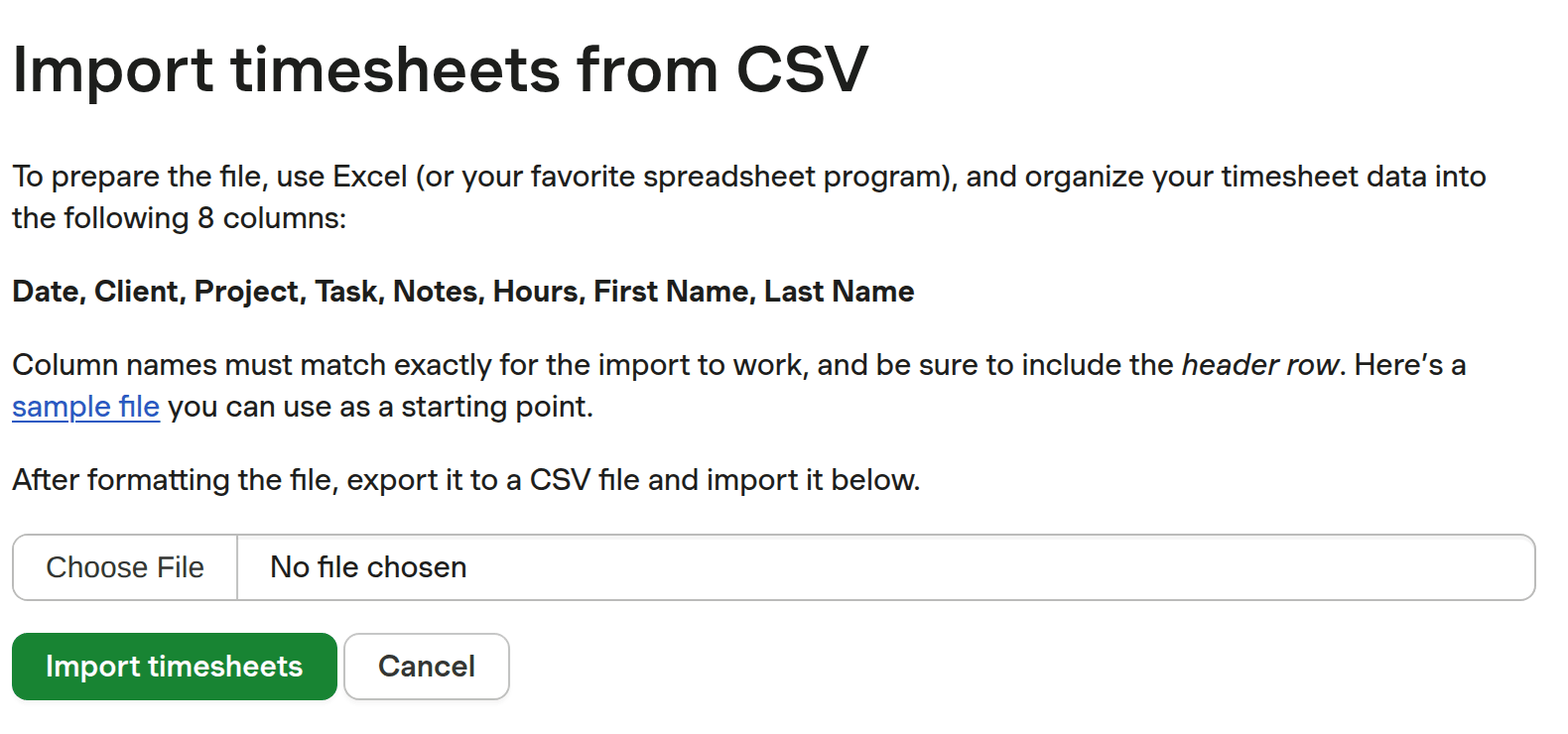
    Import your timesheets and expenses using the fixed-column CSV templates. The importer processes durations, project assignments, notes, and tasks while verifying each record. If any rows contain unmatched names or formatting issues, Harvest flags them in a downloadable error file so you can correct them quickly.

    The time import form.
  4. Check the run, and revert it if it is wrong

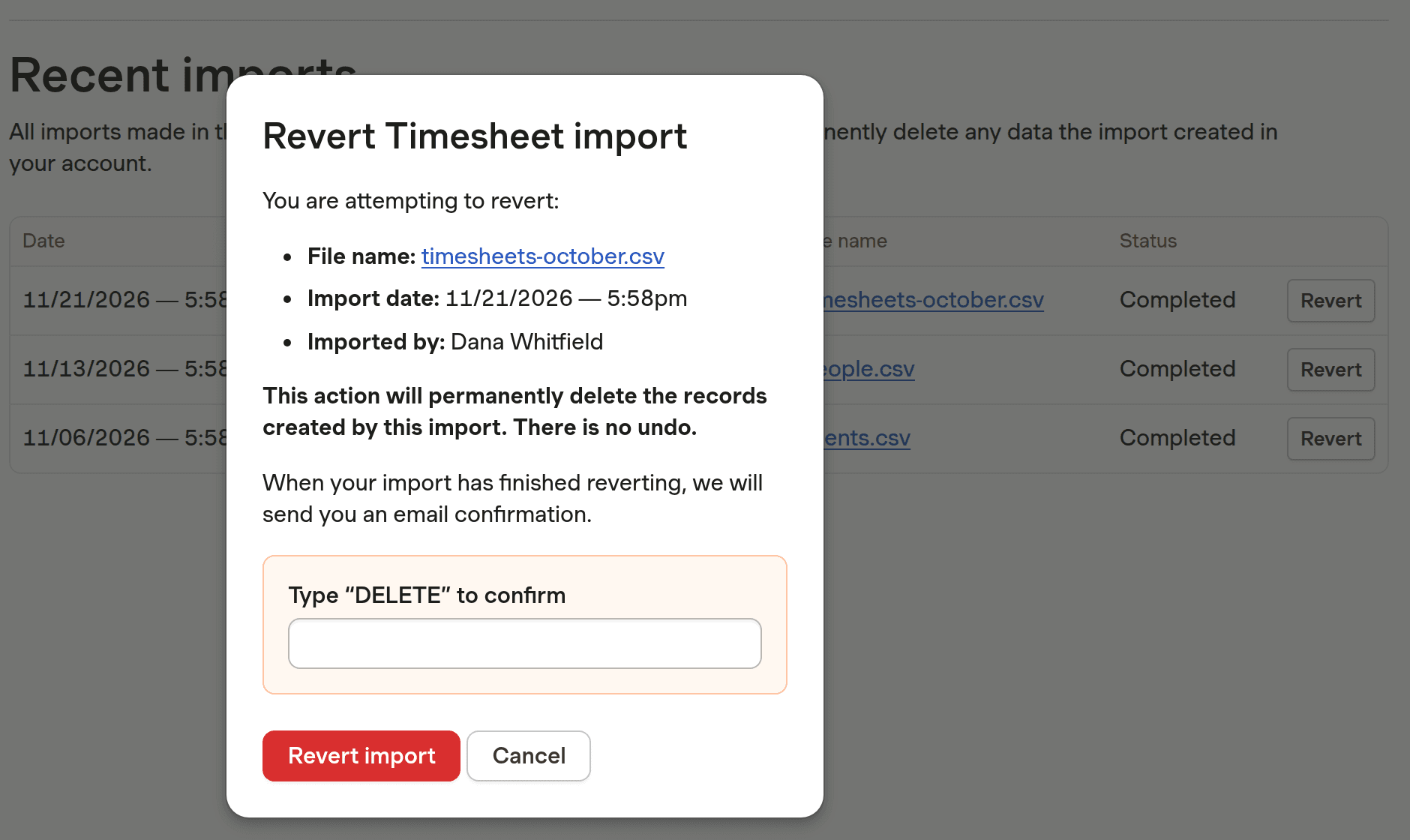
    The import result page confirms the rows and hours processed, while the Recent imports table tracks status and gives you a Revert button. If an import uploaded with mistakes, revert the run to permanently delete the records created by that specific file.

    The Recent imports table with the Revert dialog open.
  5. Decide what the old account keeps

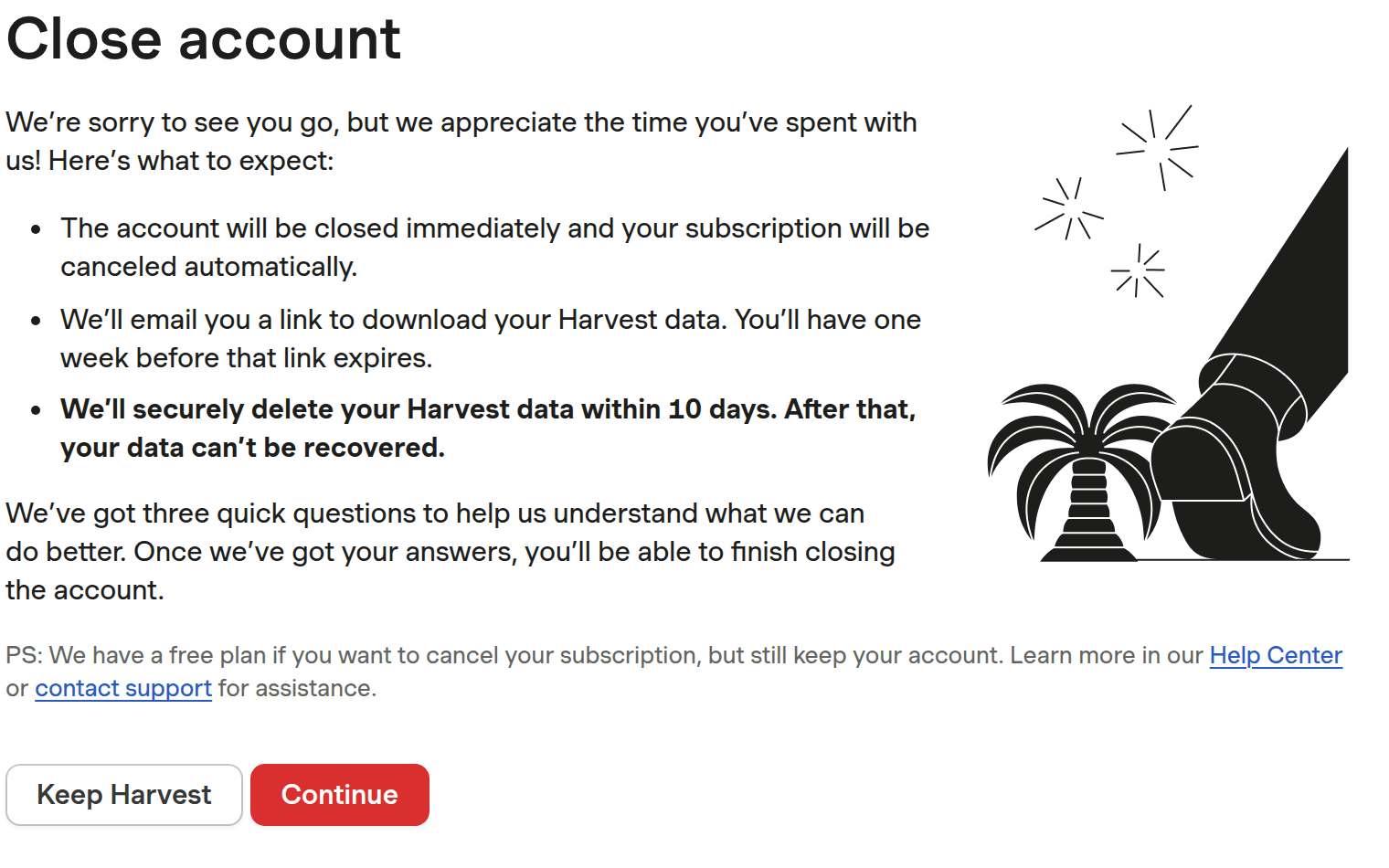
    Past invoices, estimates, and expense receipts remain in the original account rather than moving between accounts. Putting the secondary account on hold keeps its data for six months and allows you to reactivate it at any time in that window, rather than closing it immediately.

    The cancel page's close-now branch.

What consolidation protects in practice

April · the old account’s subscription renews

Stop paying for redundant seats without erasing past records

Retire duplicate seat bills without losing access to past billing records and tax files.

Instead of renewing duplicate seats just to keep past invoices and receipts accessible, you export full PDF packs and put the secondary account on hold. Your team eliminates unnecessary subscription costs while a six-month reactivation window keeps past data intact.
Duplicate seat renewals eliminated while reactivation safety protects past records

The cancel page's close-now branch.

February · the first payroll after consolidating

Transferred team members have their rates and capacity ready within your seat limit

Set billable rates, cost rates, and weekly capacities across the transferred team before logging hours.

A single people CSV sets cost rates, billable rates, weekly capacities, and roles for people moving over, up to your account’s seat limit. Transferred team members have their billable rates, cost rates, and weekly capacity established in the surviving account before logging hours.

Transferred team members tracking time with accurate cost and billable rates

Settings → Import/Export on a paying account.

March · a project manager asks why last year’s hours show no start and end times

Clear separation between imported hours and your detailed historical exports

Clarify what CSV imports carry over versus what remains in the detailed historical time export.

Imported timesheets bring across hours, tasks, and project links cleanly, while you download and store the detailed time export to preserve original start and stop timestamps before the 15-day export retention period ends. You know in advance which fields transfer and which live in your downloaded archive.

Projects track forward in one system with no surprises about historical entry details

The time import form.

What to know before consolidating accounts

  • Six months on hold before permanent closure

    Putting an account on hold keeps its data for six months, and the account can be reactivated at any time in that window before choosing permanent closure.

  • Reverting deletes created records

    Reverting an import permanently deletes the records that specific import created, with no undo.

  • Permission-based imports

    Data import is available on paying plans for anyone holding the matching permission: company write for time and expenses, clients write for clients and contacts, projects write for projects, and users read for people.

Account Consolidation

Bring your active projects and teams into one workspace

Move active projects, people, and hours into a single account, keep legacy records reachable, and run your team from one workspace.