Skip to content

Expense Reimbursements

Billable project expenses reach the invoice with receipts attached

Log project purchases with their receipt files as they happen, review them alongside weekly hours, and pull billable expenses directly onto client invoices with an attached receipt report, ending month-end spreadsheet chasing and manual retyping.

  • Project choices match assigned time tracking projects
  • Weekly reviews cover time and expenses together
  • Attach itemized receipt PDFs to client invoices
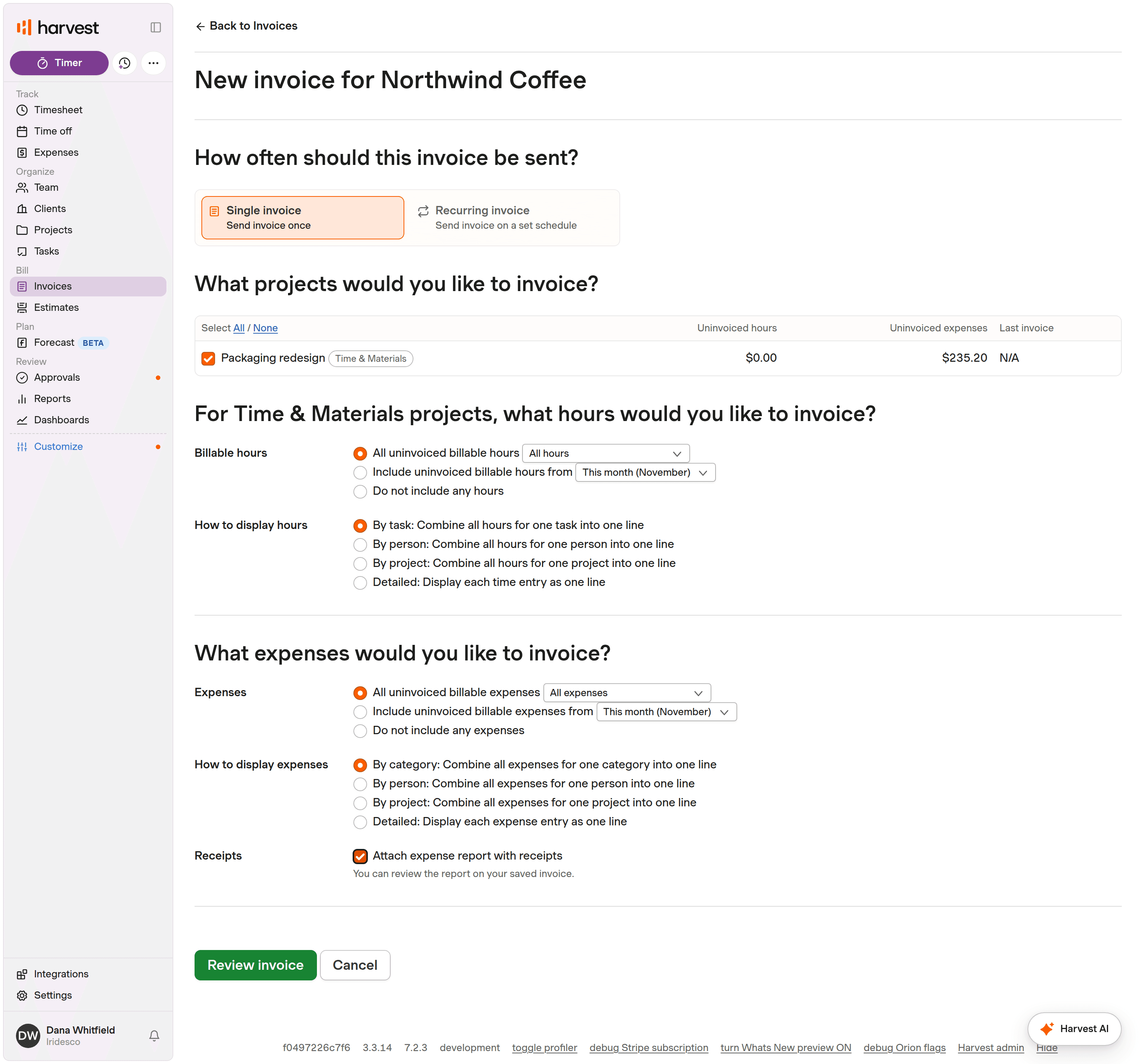
Invoice creation with uninvoiced expenses selected and Attach expense report toggled on

Pull billable expenses directly into client invoices

When billing day arrives, pass-through expenses need to reach client invoices alongside tracked time. With Harvest, expenses attach directly to the projects your team is already tracking time to. When you build a client invoice, uninvoiced billable expenses pull into line items, and switching on the expense report attaches an itemized PDF of the original receipts.

How it works

  1. Track expenses

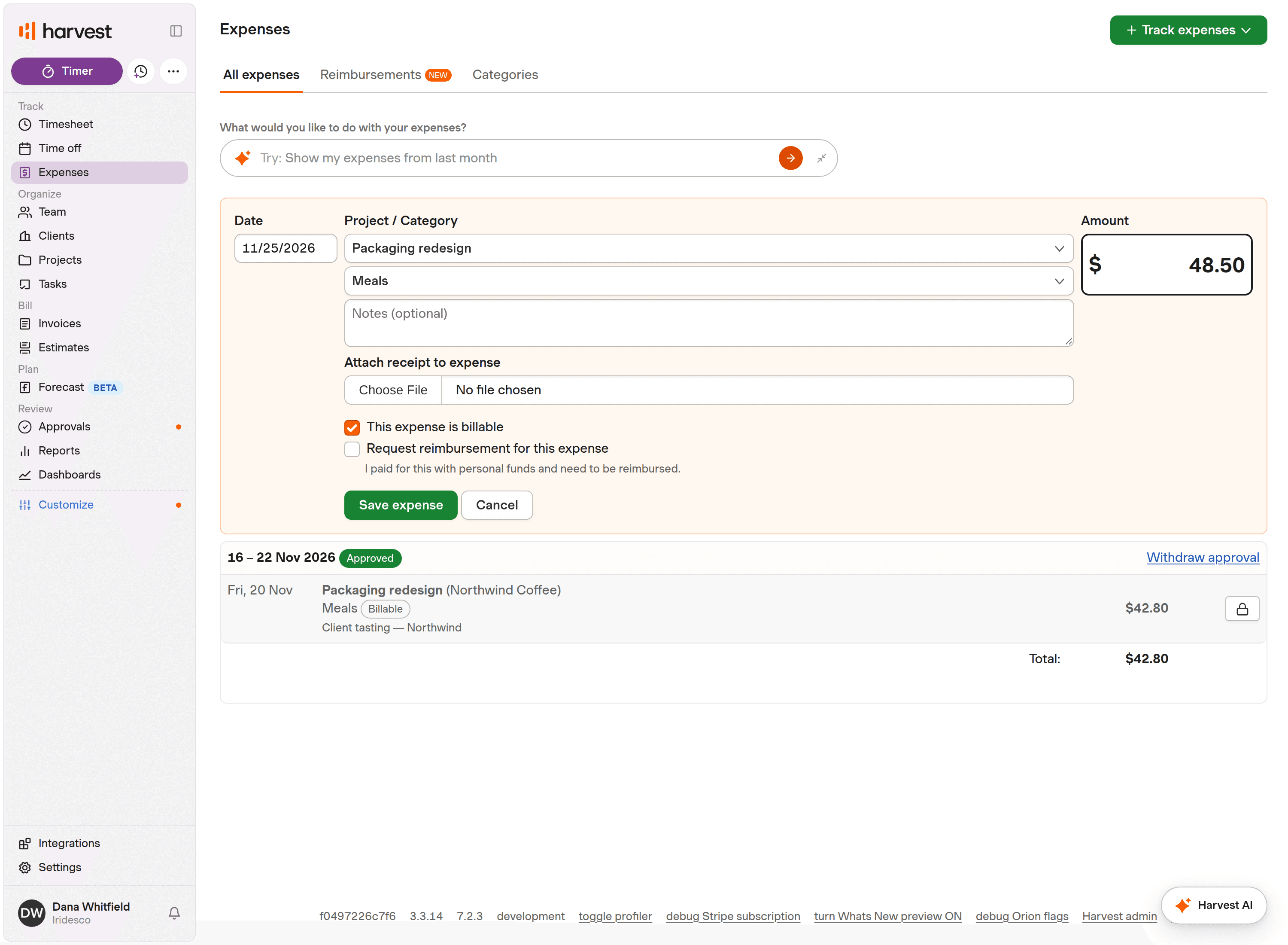
    Click Track expenses to record a purchase against an assigned project, select an expense category, enter the amount, and attach the receipt file.

    Track expenses form with project, category, amount, and receipt attachment
  2. Submit for review

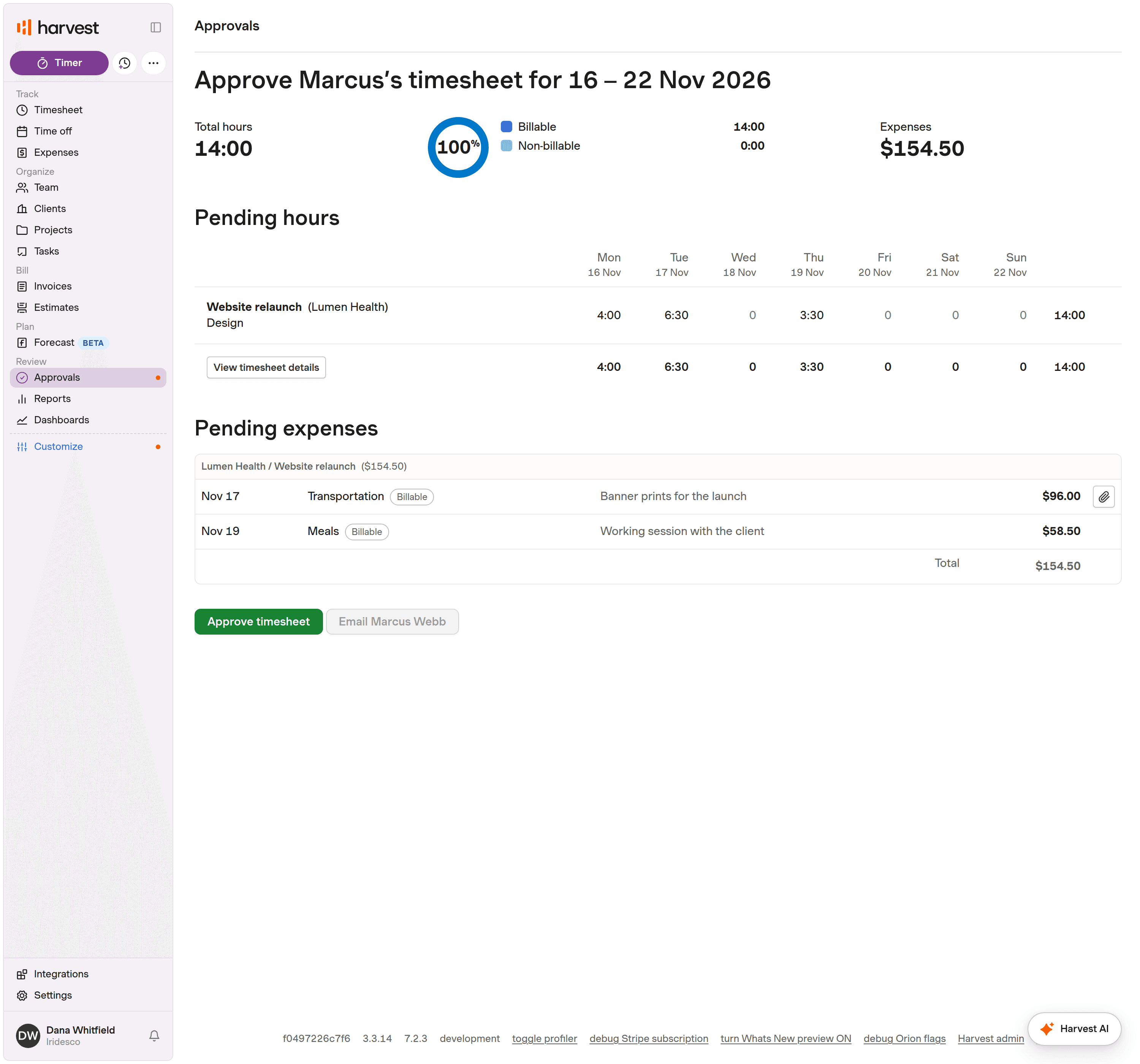
    Submit the week for review so approvers can inspect pending expenses and receipt images alongside tracked hours before sign-off.

    Approval review showing pending expenses and attached receipt images
  3. Create the invoice

    Create the invoice and select All uninvoiced under Expenses to include, then switch on Attach expense report to bundle receipts with your bill.

    Invoice creation with uninvoiced expenses selected and Attach expense report toggled on

Where project expenses connect to billing

Month-end billing · creating client invoices

Billable project costs land on the invoice with receipts attached

When drafting client invoices, select ‘All uninvoiced’ under Expenses to include to pull uninvoiced billable expenses into line items. Toggle ‘Attach expense report’ to bundle a clean PDF of the original receipt images with the invoice.
Itemized billing lines and original receipt images ready in one pass

Invoice creation with uninvoiced expenses selected and Attach expense report toggled on

During the project · logging client purchases

Team members record costs against their assigned projects as they spend

Consultants choose from the exact projects they track time to, enter the amount and category, and attach receipt files. Billable defaults match the project settings so pass-through costs stay tied to the right client from day one.

Receipts and amounts linked to active project records

Track expenses form with project, category, amount, and receipt attachment

Weekly review · timesheet and expense sign-off

Managers inspect receipts alongside hours before anything locks

Submitted expenses appear in the same weekly approval view as tracked time. Approvers click the paperclip icon to inspect receipts in place, and approving the week locks both hours and expenses against accidental edits.

Verified receipts locked before client billing begins

Approval review showing pending expenses and attached receipt images

Controls that protect your records

  • Approval locks the details

    When an approver signs off on the week, the expense date, project, and category are locked against edits.

  • Invoicing protects the entry

    An expense billed to an invoice cannot be edited or deleted until it is marked uninvoiced from the detailed expense report.

Expense Reimbursements

Send client invoices with attached receipt reports

Start tracking project expenses alongside weekly time, and pull billable costs and receipt PDFs directly onto client invoices.