Skip to content

Fixed Fee & Time & Materials

Bill hybrid contracts on one clean invoice

Combine fixed milestone fees and tracked hourly time on a single client invoice. Set recurring hour blocks that refresh automatically, and watch project caps flag overruns before they reach billing. Your team tracks time as usual while every contract model bills accurately without side spreadsheets.

  • Fixed fees and hourly time on one invoice
  • Advisory warnings as entries pass the cap
  • Monthly hour budgets reset on the first
The new invoice project picker.

Stop reconciling contracts across side spreadsheets

When client agreements combine fixed deliverables, hourly phases, and monthly retainers, billing them usually requires hours of spreadsheet reconciliation and merged PDFs. In Harvest, project types and budgets are separate settings. You can agree to a fixed fee for core delivery, bill discovery by the hour, and pull both projects onto the same client invoice in one pass.

Instead of calculating billable splits manually or discovering an overrun weeks after the deliverable shipped, your team tracks time against each task normally. Budgets track fees or hours in the background, and monthly blocks refresh on the first of the month without manual resets.

Three contract models on standard timesheets

Invoice draft · billing a hybrid engagement

Fixed milestones and hourly phases land on one client invoice

Agreed delivery fees and hourly phases must appear on a single invoice without manual PDF splicing.

Select both the fixed-fee deliverable and the hourly project for the same client in one draft. Tracked time and fee milestones pool into a single itemized bill, ending the need to maintain parallel spreadsheets or stitch separate PDF invoices together.
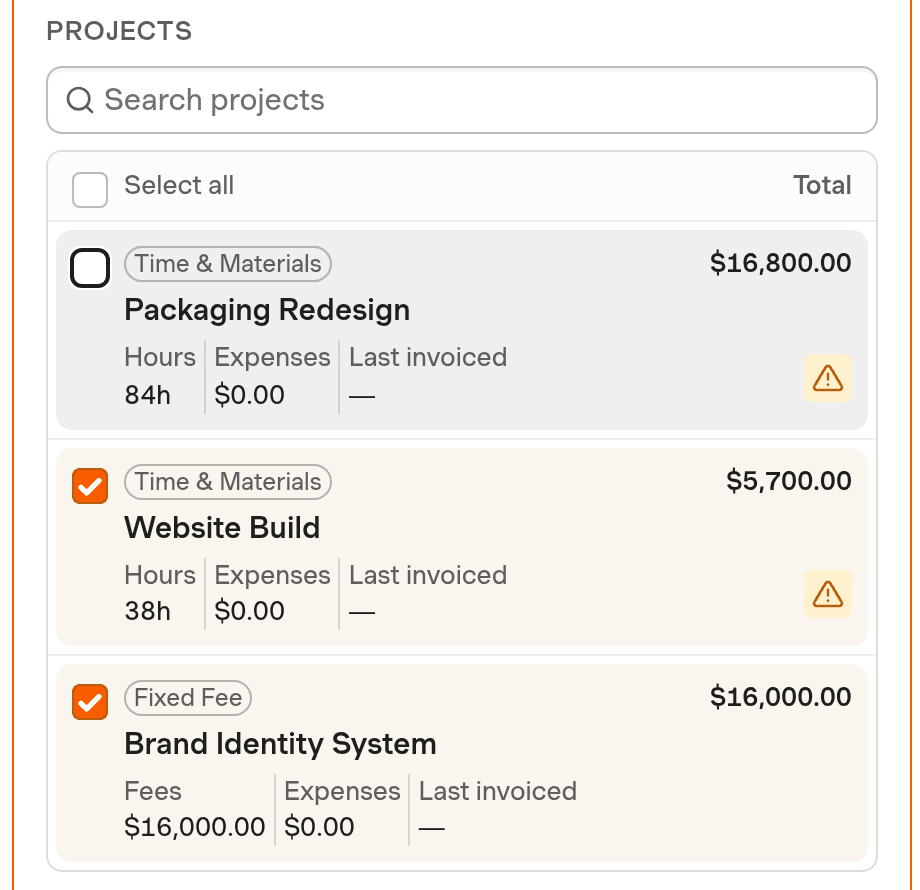
One unified client invoice without manual spreadsheet splicing

The new invoice project picker.

The 1st of the month · tracking block hours

Monthly hour blocks reset on schedule without recalculation

Monthly block hours must refresh on schedule without losing past project history.

Set an hours budget configured to reset each month for recurring client blocks. As each calendar month starts, time spent resets to zero against the new period, giving your team an instant count of remaining hours without digging through past sheets.

An accurate remaining hours block on the first of every month

The Budget panel on the project edit page.

Timesheet entry · logging time on a budgeted project

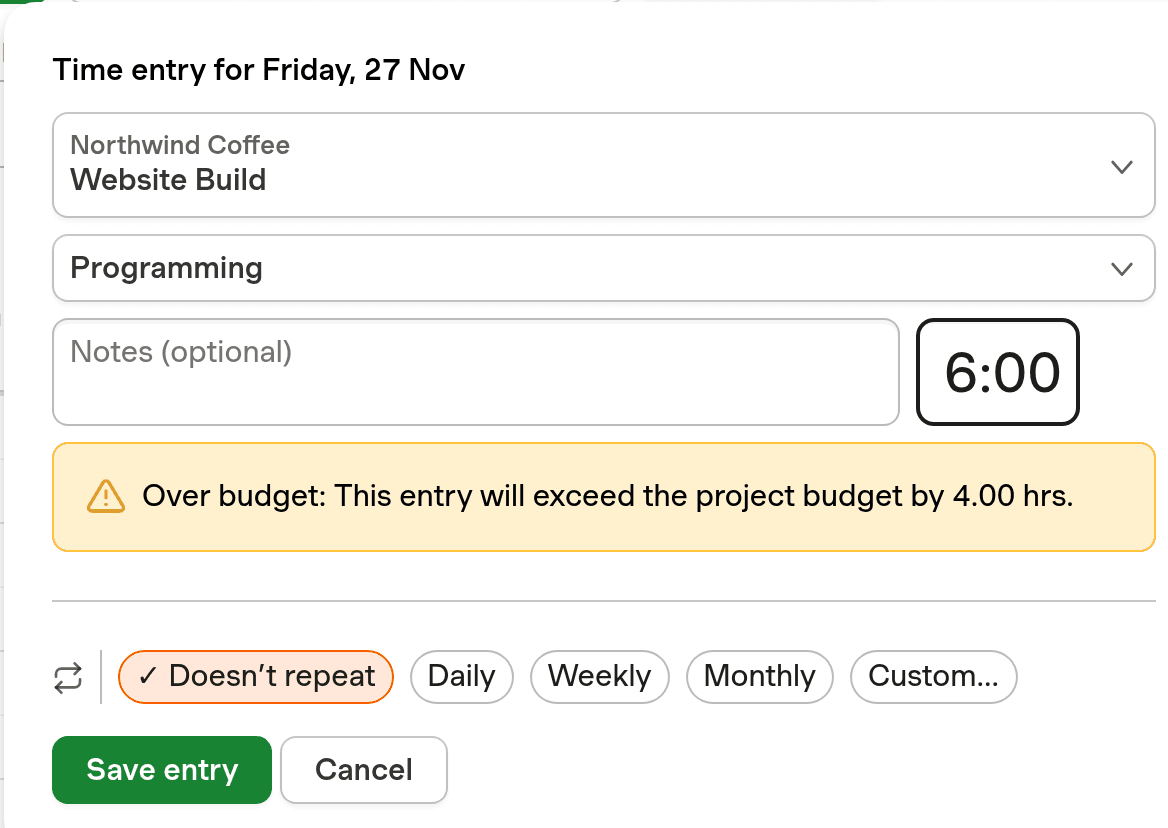
Advisory warnings flag budget caps as an entry passes the limit

Teams need to catch overruns during delivery rather than during invoice preparation.

When a team member types an entry that takes an hours budget over the cap, an amber warning appears right in the time entry window. The time entry is still saved without stopping work, while email alerts fire at the percentage of the budget you choose.

Overruns surfaced in the timesheet as entries are logged

The time entry window with the over-budget warning.

How it works

  1. Choose the project type

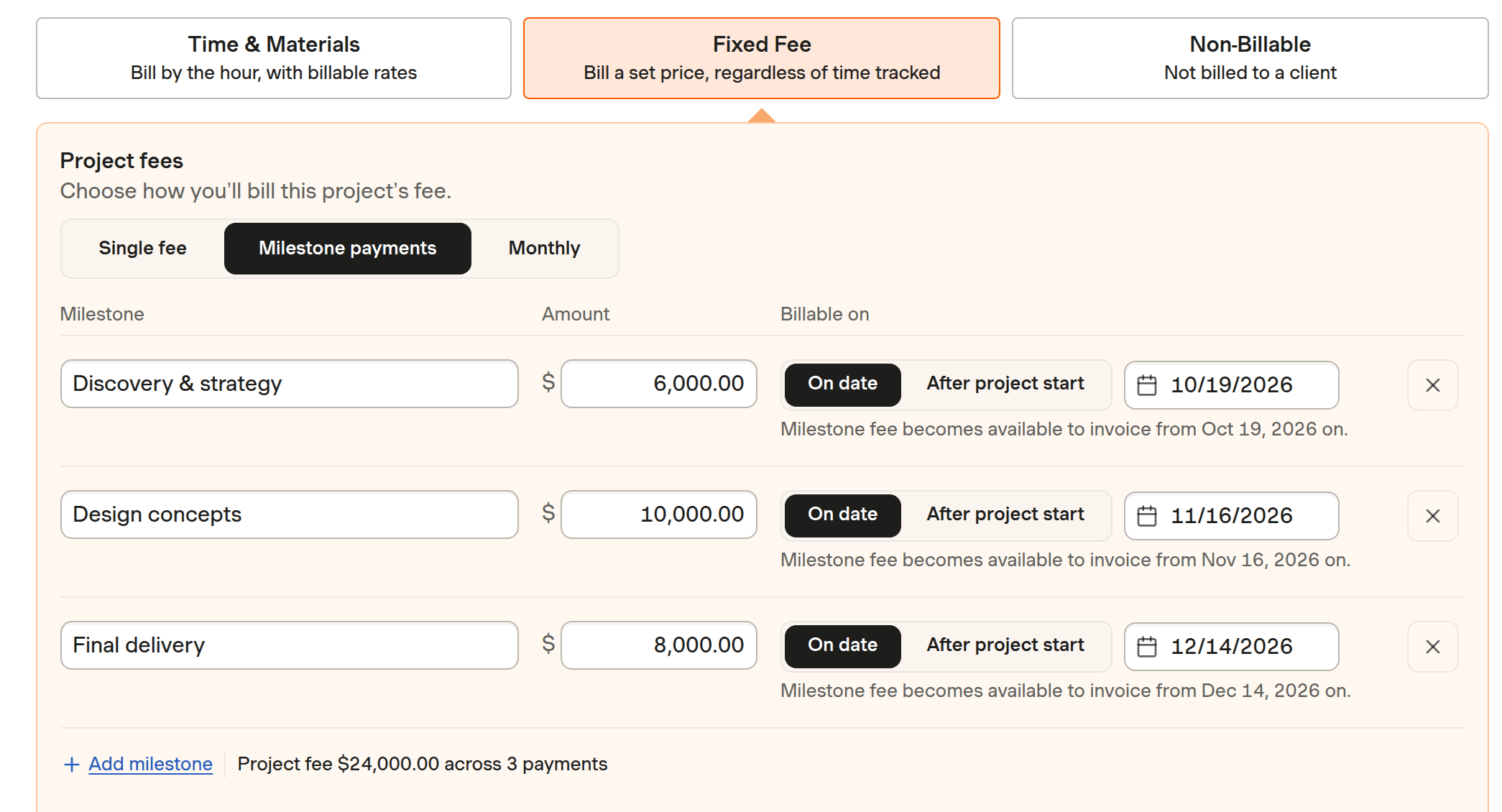
    Pick Time & Materials, Fixed Fee, or Non-Billable on the project edit screen. Time & Materials bills tracked hours at your agreed rates, while Fixed Fee bills a set contract price regardless of how many hours your team logs.

    The Project type section of the project edit page with Fixed Fee selected.
  2. Set the rate or fee schedule

    Assign billable rates by project, person, or task for hourly scopes. For fixed-fee agreements, enter the total fee and choose your billing schedule: a single charge, a monthly recurring fee, or named milestone payments with specific amounts and dates.

    The Project type section of the project edit page with Fixed Fee selected.
  3. Configure the budget

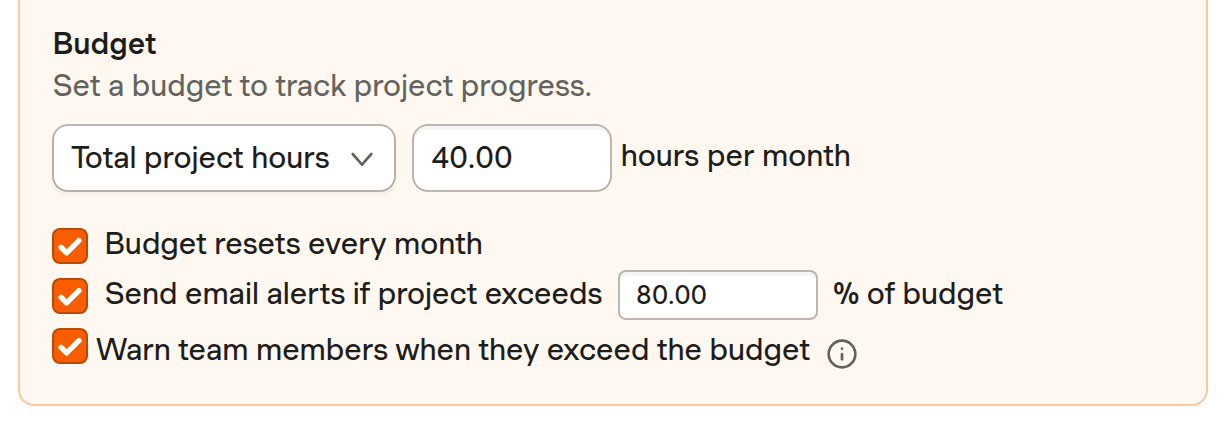
    Set a separate budget in hours or fees for the total project, per task, or per person. If the agreement covers a monthly block of hours, check the monthly reset option so the target refreshes on the first of every calendar month.

    The Budget panel on the project edit page.
  4. Turn on threshold alerts

    Set an automatic email alert when tracked time reaches a chosen percentage of your budget. You can also turn on timesheet warnings so team members see an advisory notice as they type an entry that passes the agreed cap.

    The time entry window with the over-budget warning.
  5. Track progress against the cap

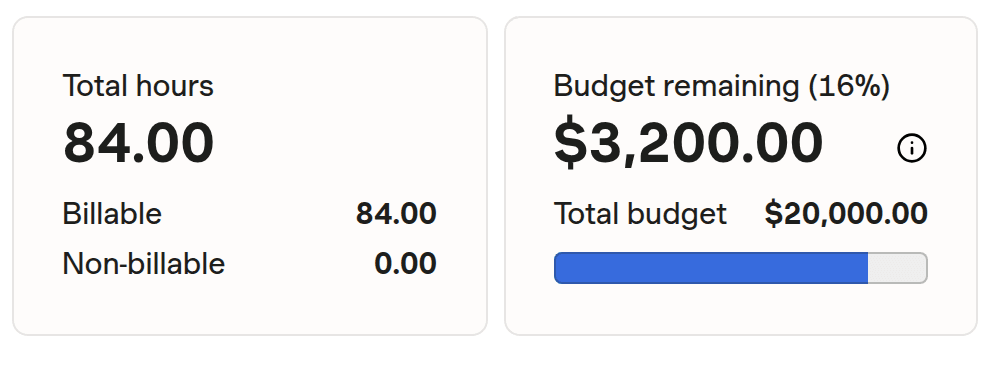
    Review budget remaining, budget spent, and progress meters on the project summary. On fixed-fee projects, the analysis page shows what the work would have billed hourly, comparing tracked time directly against your agreed fee.

    The project page summary cards.
  6. Invoice mixed projects together

    Draft an invoice from tracked time and expenses, then select both Fixed Fee and Time & Materials projects for the same client. Both project types pool onto one clean bill without needing separate invoices.

    The new invoice project picker.

Agreed caps without interrupted work

  • Time tracking never halts when a cap is reached

    Budget alerts and timesheet warnings are advisory notices. Team members see when an entry crosses an agreed ceiling, but their time entries and timers are never refused or locked.

  • Monthly hour blocks refresh without manual rollover

    Monthly budgets reset automatically on the first day of each calendar month. The current month measures only new hours logged, while all previous project history remains intact.

  • Client retainers draw straight onto itemized invoices

    Prepaid retainer balances apply directly to invoices built from tracked time and expenses, keeping client prepayments connected to the actual work delivered.

Fixed Fee & Time & Materials

Bill every client contract accurately from day one

Start a free trial to combine fixed fees and hourly phases on one invoice, set monthly hour blocks that refresh on schedule, and keep project overruns in plain sight.