Skip to content

Placeholders in Forecast

Schedule the contractor role before you hire the person

Book project weeks against named placeholders with their own weekly capacity, hand the scheduled bars to your freelancer with one field change, and buy seats only when real people take the work.

  • Named slots with weekly capacity and roles
  • One field swaps the slot for a person
  • Booked weeks stay locked without extra seats
The Team view of the planning board, with the three placeholder rows expanded above the studio.

Plan unfilled roles directly on the live schedule

On the Forecast board, placeholder rows sit alongside your team with their own weekly capacity and role tags. You can book upcoming project weeks against named unfilled slots before signing contracts, keeping client commitments visible without paying for seats nobody uses or running a disconnected contractor spreadsheet.

Where teams use placeholders

Monday staffing meeting · planning next month’s retainer

Unfilled contractor roles sit right on the team timeline

Upcoming freelance demand must be visible on the board before contracts are signed.

Placeholder rows sit above your staff with their own weekly capacity and role tags. You schedule bars across upcoming weeks against “Senior Designer” before anyone is contracted, seeing studio over-commitments without buying a single extra seat.
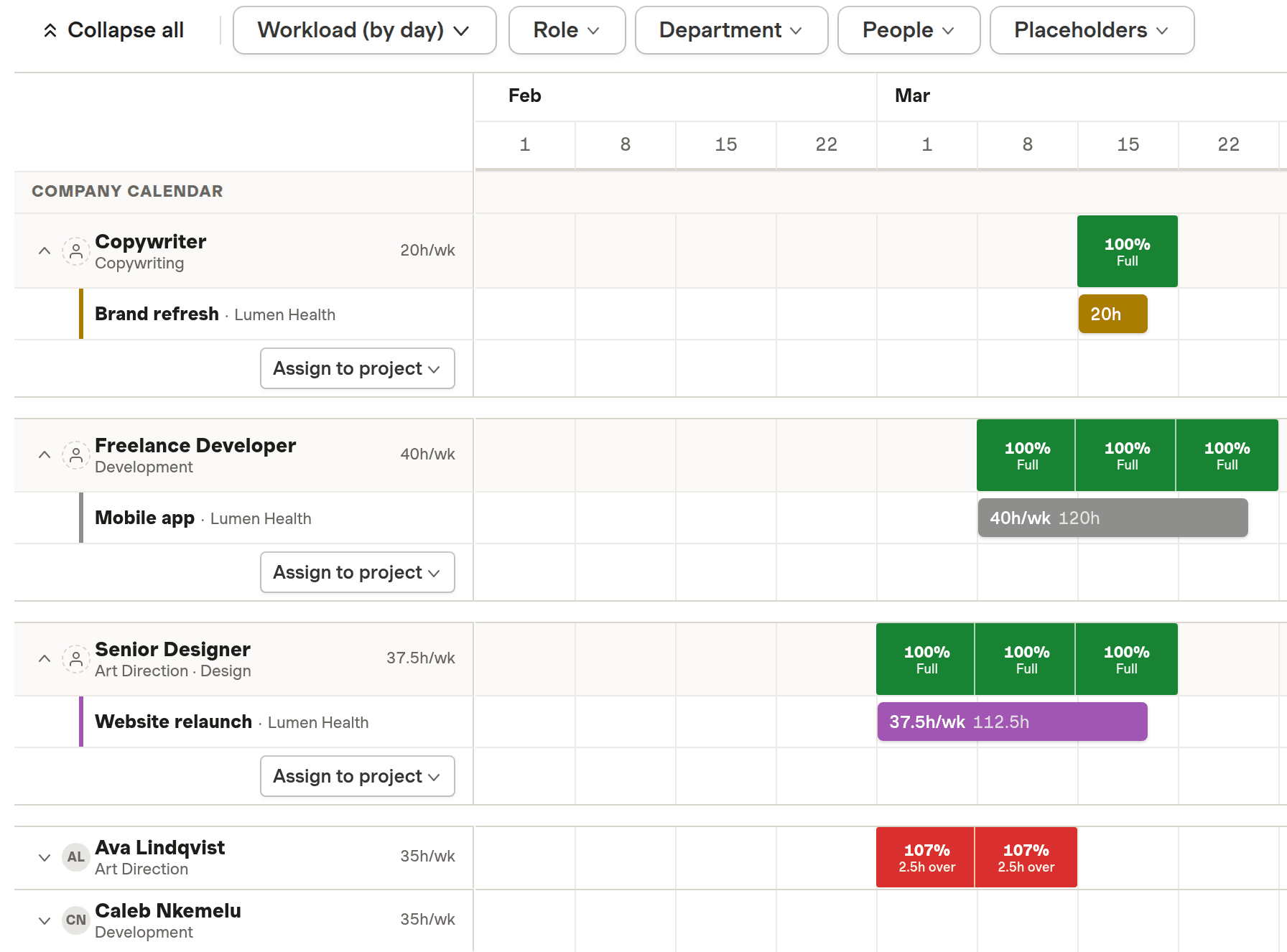
Upcoming freelance demand visible on the schedule without seats or spreadsheets

The Team view of the planning board, with the three placeholder rows expanded above the studio.

Contract signed · handing scheduled weeks to a freelancer

Swap the placeholder for a real person in one field

Switching assignments must not lose dates or require rebooking.

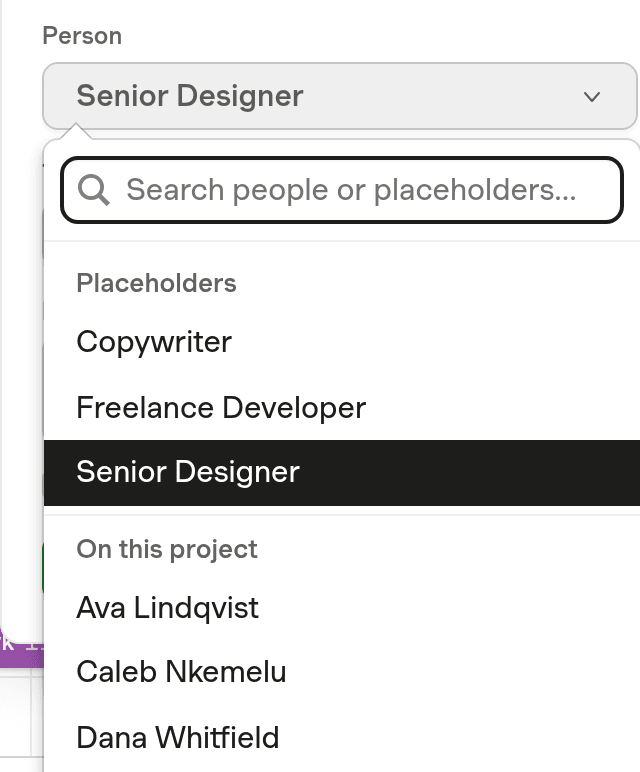
When your freelance specialist signs on, open the scheduled bar. The Person picker lists placeholders and teammates in the same control: switch the assignee from the placeholder to the person, and every booked week stays intact on the timeline.

Scheduled dates and hours stay locked as the slot becomes a person

The assignment editor’s Person field, open on a bar booked against Senior Designer.

Onboarding external specialists · assigning their schedule

Contractors who never sign in take a seat without an account

Contractors who do not track time still need their availability scheduled.

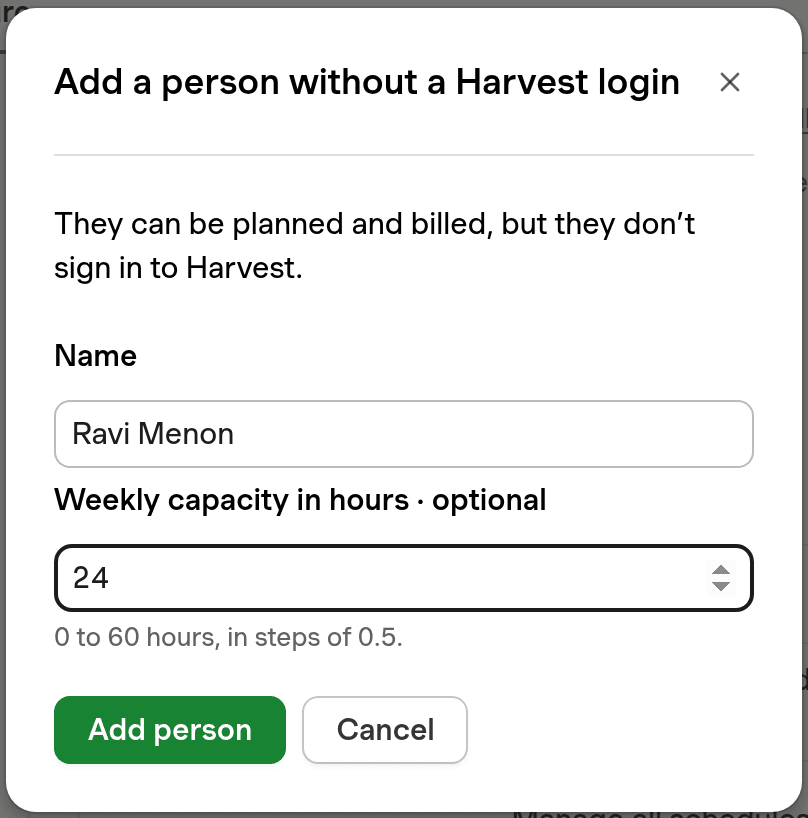
When an external specialist must appear on the schedule but will never log in to Harvest, add them as a person without a login. They draw a Forecast seat from your purchased pool so their weeks can be planned, leaving your user directory untouched.

External roster plannable on the board without managing unnecessary logins

Configure > Seat Assignments, the Add people menu’s “Add person without a Harvest login” dialog.

How it works

  1. Open Configure > Placeholders

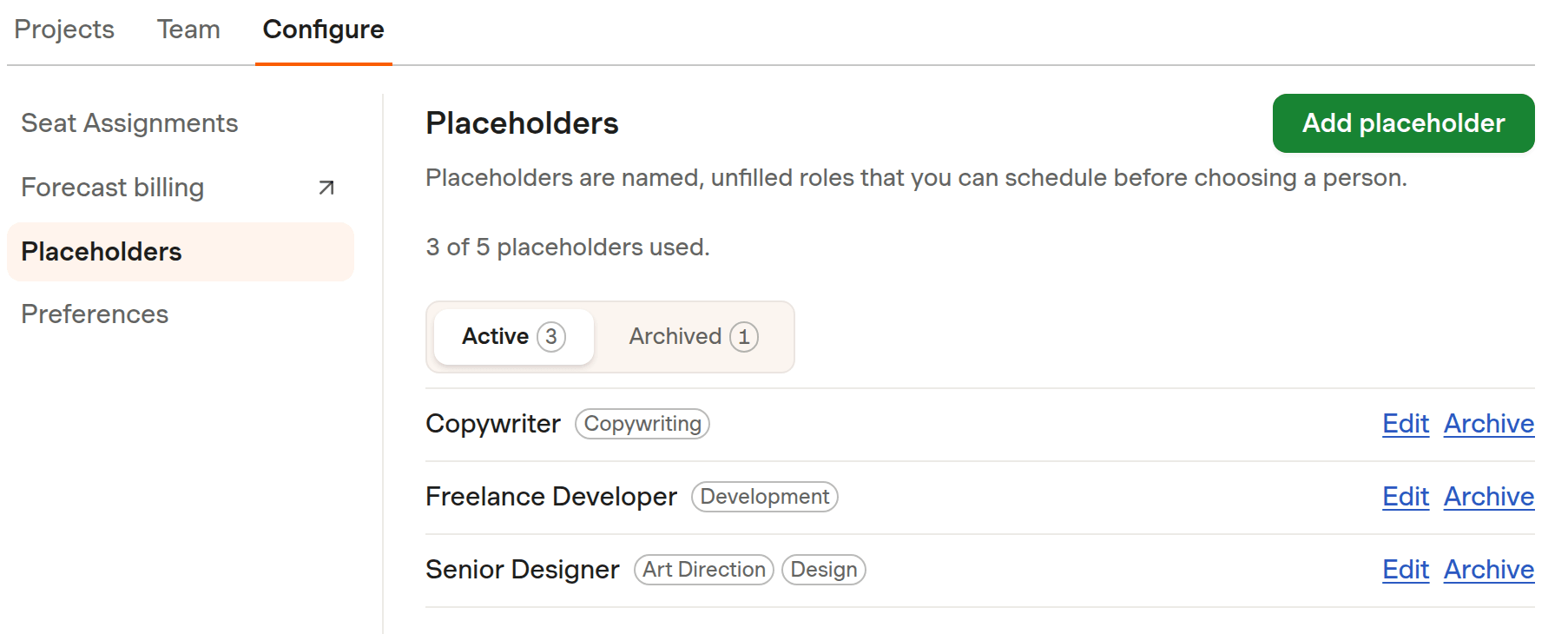
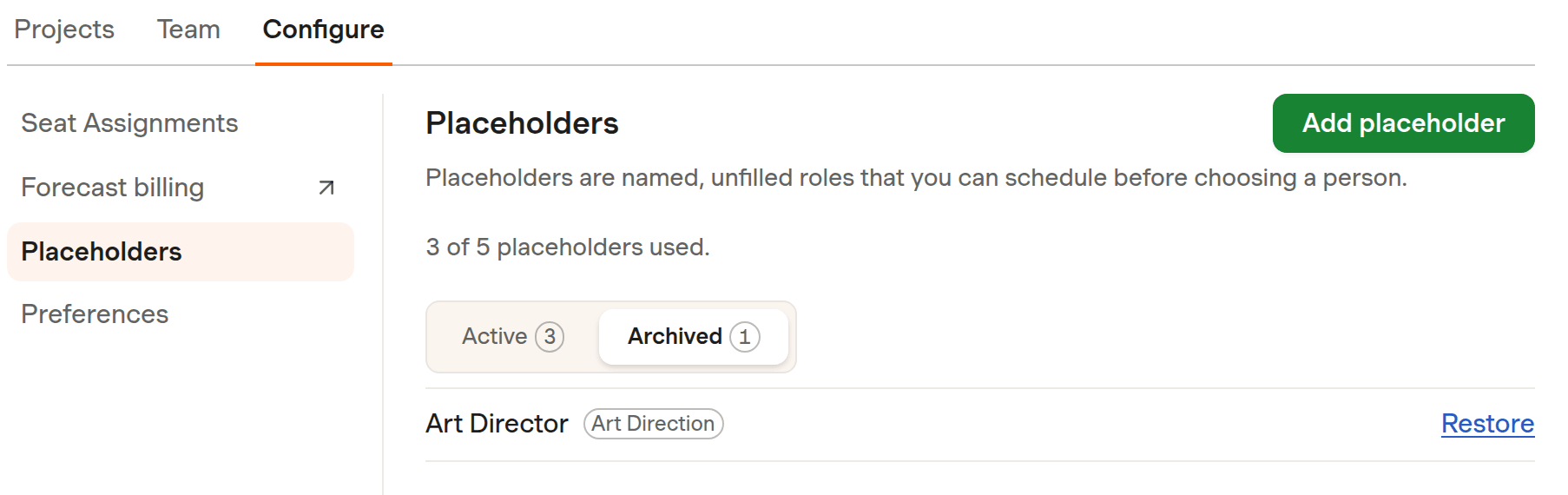
    View your active and archived placeholders alongside the allowance your account holds.

    Configure > Placeholders, Active tab.
  2. Name the slot

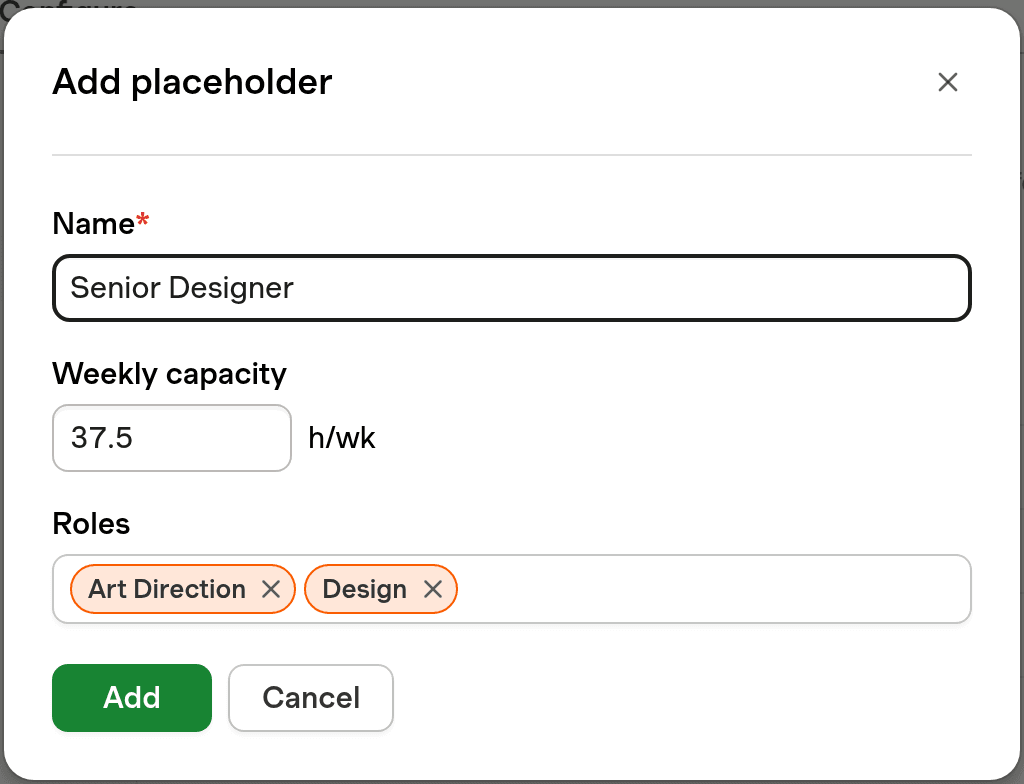
    Add a placeholder with a name, a weekly capacity, and any matching company roles.

    The Add placeholder dialog.
  3. Schedule it like a person

    Find the placeholder in the Person picker or draw project bars directly across its row on the team board.

    The Team view of the planning board, with the three placeholder rows expanded above the studio.
  4. Decide whether a seat is needed

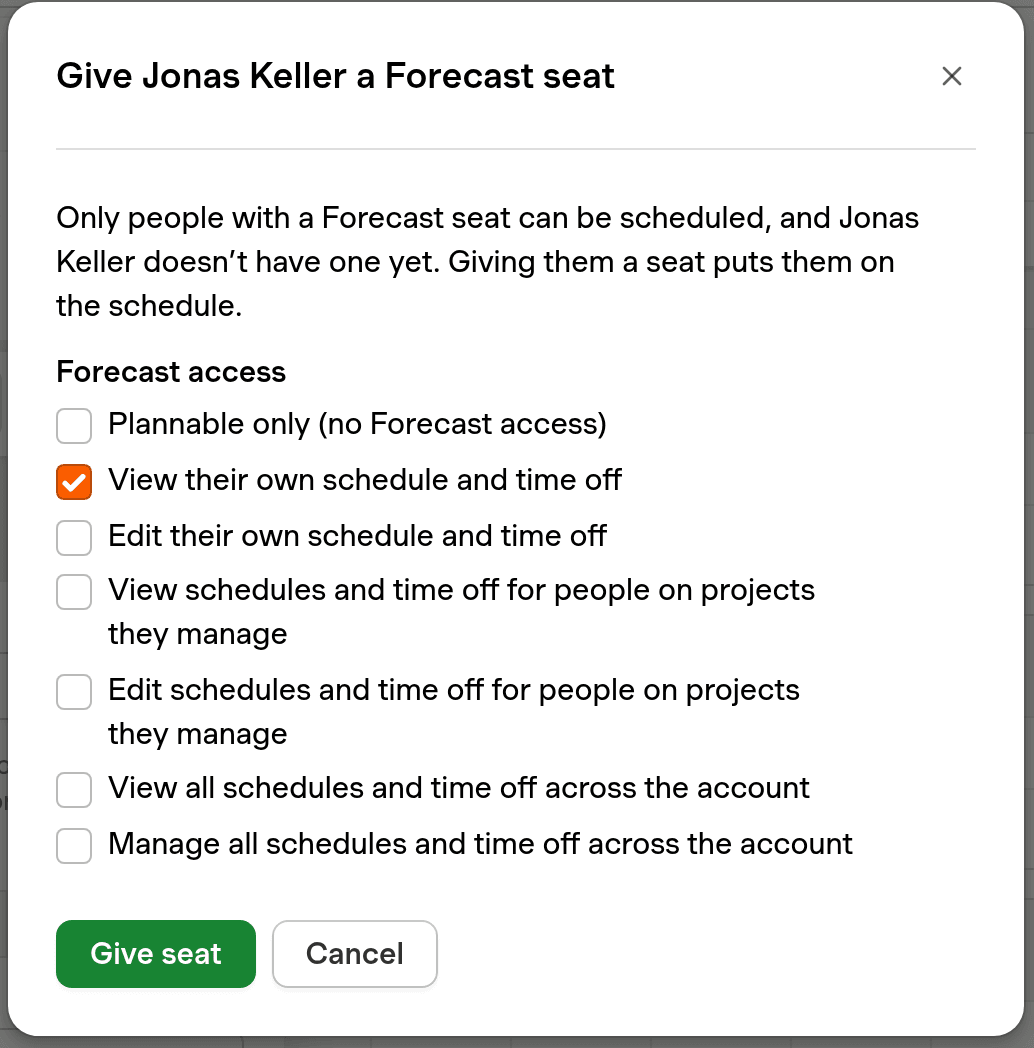
    Placeholders take no seat. When scheduling a real person, grant them a seat or add non-logging contractors from Configure > Seats.

    The seat dialog opened from the Person picker.
  5. Swap the slot for the person

    When your contractor joins, select their name in the Person field on the bar. The booked dates and hours stay in place.

    The assignment editor’s Person field, open on a bar booked against Senior Designer.
  6. Archive instead of delete

    Archive slots you no longer need. Their past booked weeks and capacities remain safe, ready to restore anytime.

    Configure > Placeholders, Archived tab.

Seat rules and placeholder limits

  • Included placeholders with every seat

    Every account includes two free placeholders, plus one more for every four purchased Forecast seats. Placeholders use no seats and cost nothing extra.

  • Seats belong to real people

    Anyone scheduled as a person must hold a Forecast seat. Teammates who will never log in can be added as scheduled non-users, using a seat without requiring account credentials.

  • Archived slots keep their history

    Placeholders are archived rather than deleted. An archived slot retains its roles, capacity and past booked weeks, and can be restored whenever you need it again.

Placeholders in Forecast

Stop scheduling freelancers in a shadow spreadsheet

Book unassigned roles on your live board today, keep project commitments accurate, and assign seats only when contractors start work.