Skip to content

Invoice Approval

Know which invoices are ready to send before dispatch

Sign off draft invoices directly in Harvest so your team knows what is cleared to leave the door. Filter the invoice list to approved drafts, and send client bills without checking a side spreadsheet.

  • Approved badge with the sign-off date
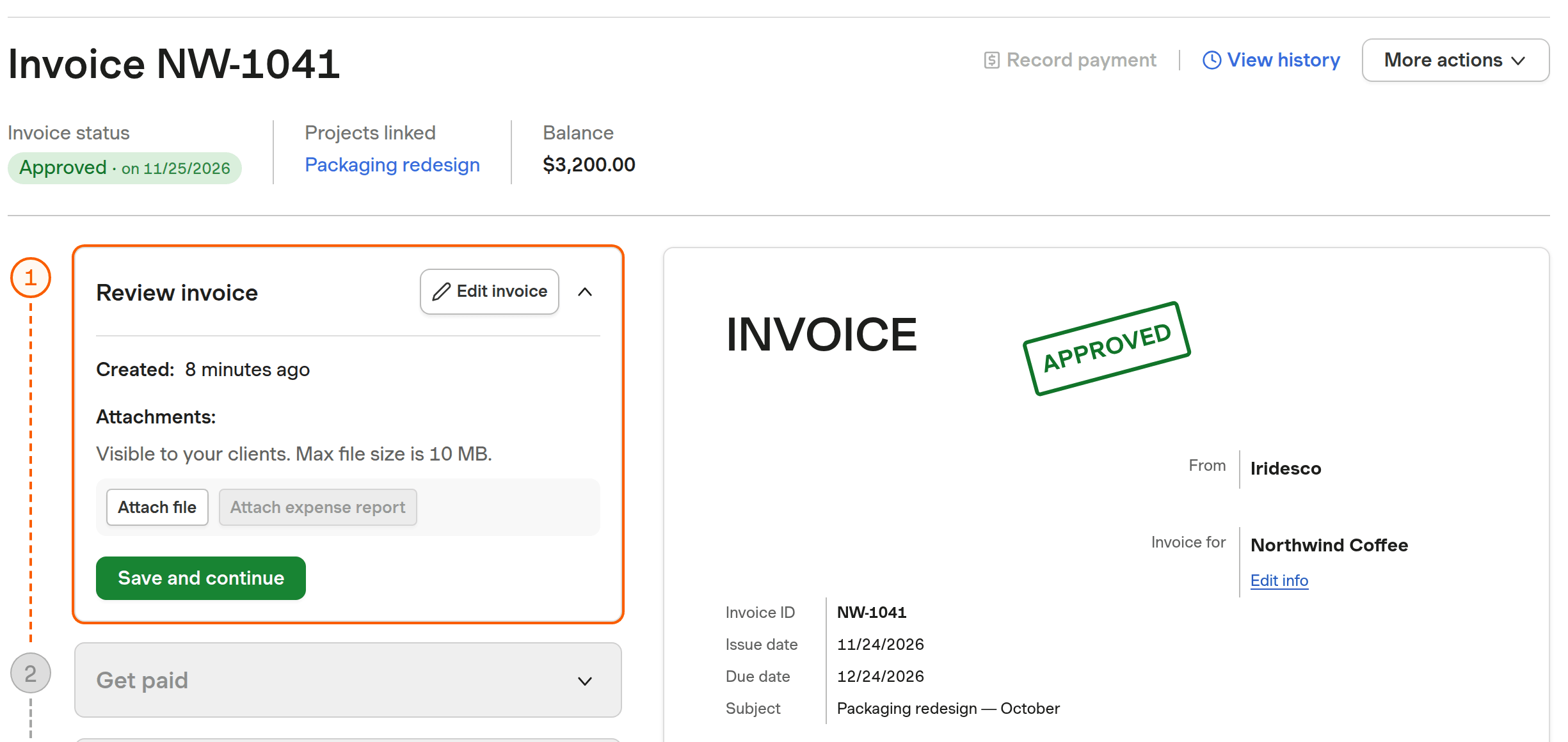
  • Approved stamp on the document preview
  • Status filter isolates drafts cleared for dispatch
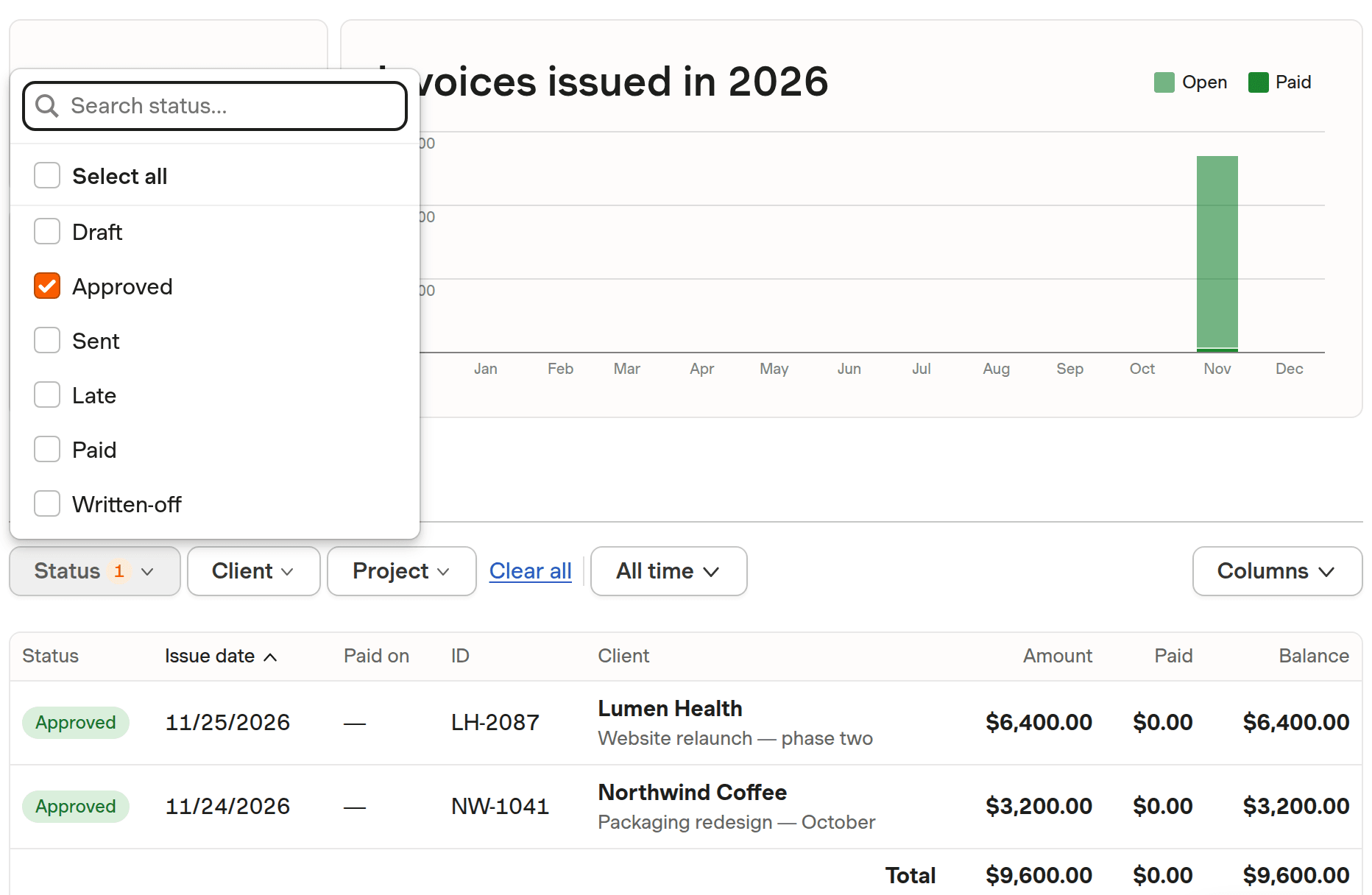
The Invoices overview on the All invoices tab, with the Status filter open on Approved and the approved drafts it returns.

End the billing-morning spreadsheet

On billing morning, every unsent invoice carries the same Draft label. Without an internal sign-off on the record itself, finding out which client bills are cleared to send means cross-referencing side spreadsheets, checking chat threads and interrupting project leads. Invoice approval records the sign-off right on the draft invoice in Harvest, so your team can filter the overview to approved bills and dispatch them with confidence.

Where sign-offs keep billing moving

Billing morning · checking what is cleared to send

Every signed-off draft separated from invoices still in progress

The dispatch team needs to know which drafts are cleared without opening external spreadsheets.

Instead of checking a side spreadsheet or chasing project leads in chat, filter the overview by Approved. Every invoice cleared to leave the door is gathered in one view.
A dispatch-ready list without cross-referencing external notes

The Invoices overview on the All invoices tab, with the Status filter open on Approved and the approved drafts it returns.

Mid-week · reviewing a draft invoice

A clear sign-off recorded directly on the draft

The project lead needs to sign off on billable totals directly on the record.

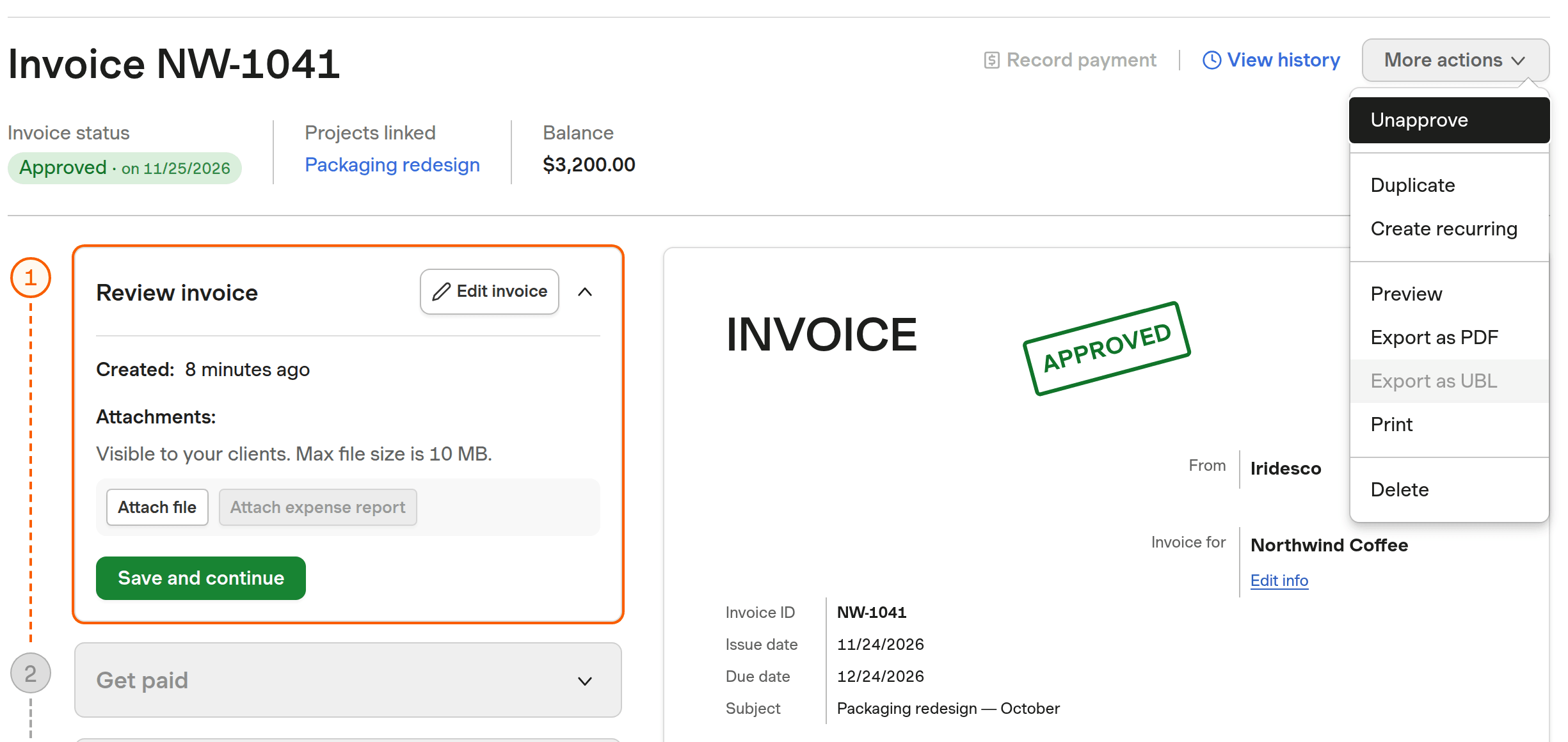
When a project lead checks a draft, selecting Approve marks the invoice with a green badge and an on-screen stamp. The date is preserved right on the document so anyone opening it knows it was inspected.

Documented sign-off on the invoice itself without email threads

The invoice page for an approved draft, with the Approved badge in the header and the stamp on the preview.

Pre-send check · catching a last-minute edit

Sign-offs that withdraw cleanly if details change

A retainer change requires clearing the sign-off so corrected numbers can be reviewed again.

If an agreement changes before dispatch, Unapprove clears the sign-off back to Draft immediately. If a sent invoice is ever marked back to draft for adjustments, the stored approval clears so the corrected invoice has to be signed off again.

Complete control to re-review invoices whenever numbers change

The More actions menu on an approved draft, showing Unapprove.

How it works

  1. Open the draft invoice

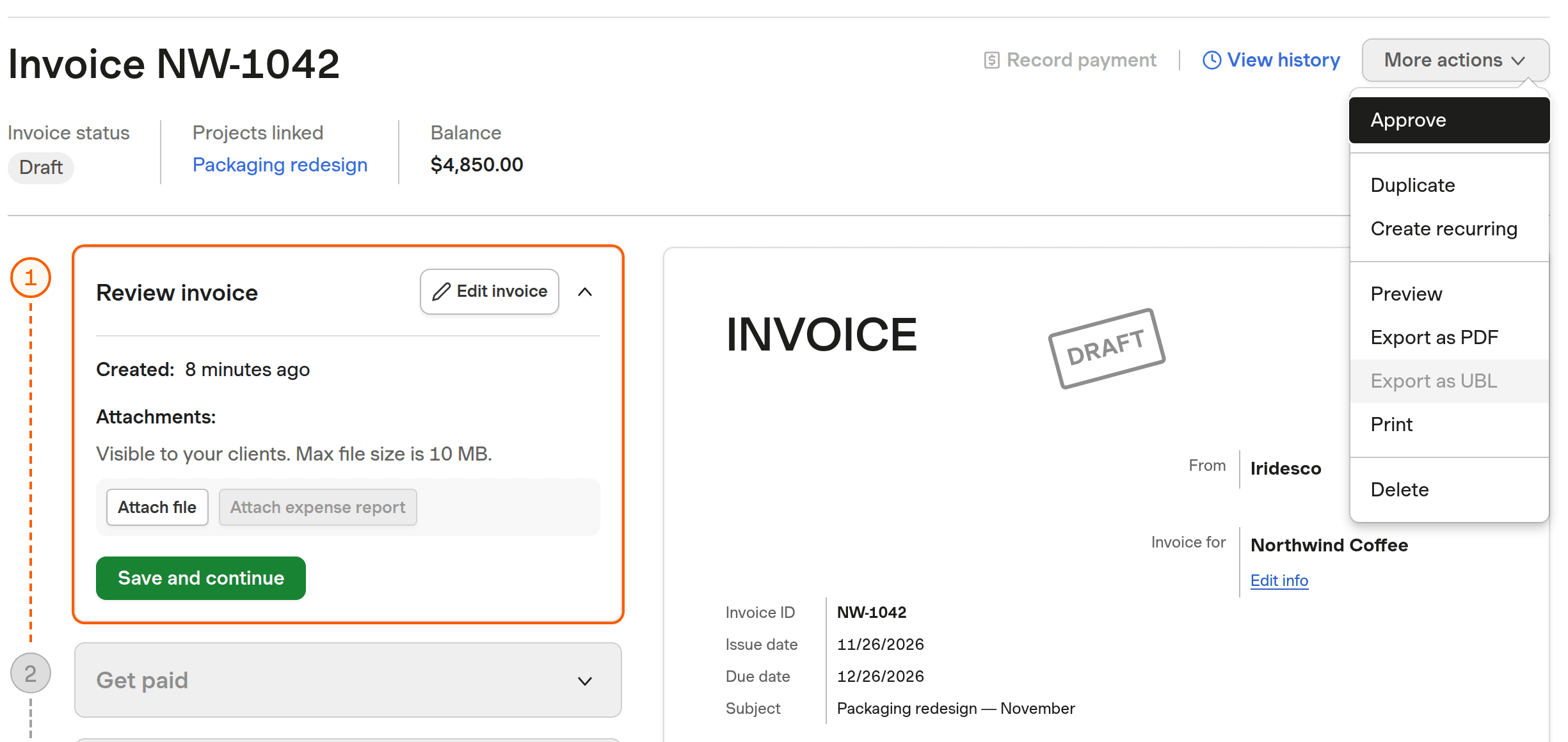
    Open a draft invoice that has not yet been approved and select the More actions menu in the header. The Approve option appears in the menu, letting project reviewers sign off on billable hours without leaving the page.

    The invoice page header with the More actions menu open on a draft invoice.
  2. Mark the invoice approved

    Select Approve to record your sign-off. Harvest records the date, updates the header with a green Approved badge, and places an Approved stamp over the invoice preview for internal inspection.

    The invoice page for an approved draft, with the Approved badge in the header and the stamp on the preview.
  3. Filter the overview by approved bills

    Open the Status filter on the Invoices overview or Invoice report and choose Approved. Every invoice signed off by your leads appears together, separating cleared bills from drafts still in progress.

    The Invoices overview on the All invoices tab, with the Status filter open on Approved and the approved drafts it returns.
  4. Withdraw sign-off if needed

    If a sign-off needs to be withdrawn before dispatch, open More actions and choose Unapprove. The sign-off clears immediately and the invoice returns to standard draft status.

    The More actions menu on an approved draft, showing Unapprove.
  5. Dispatch the invoice to your client

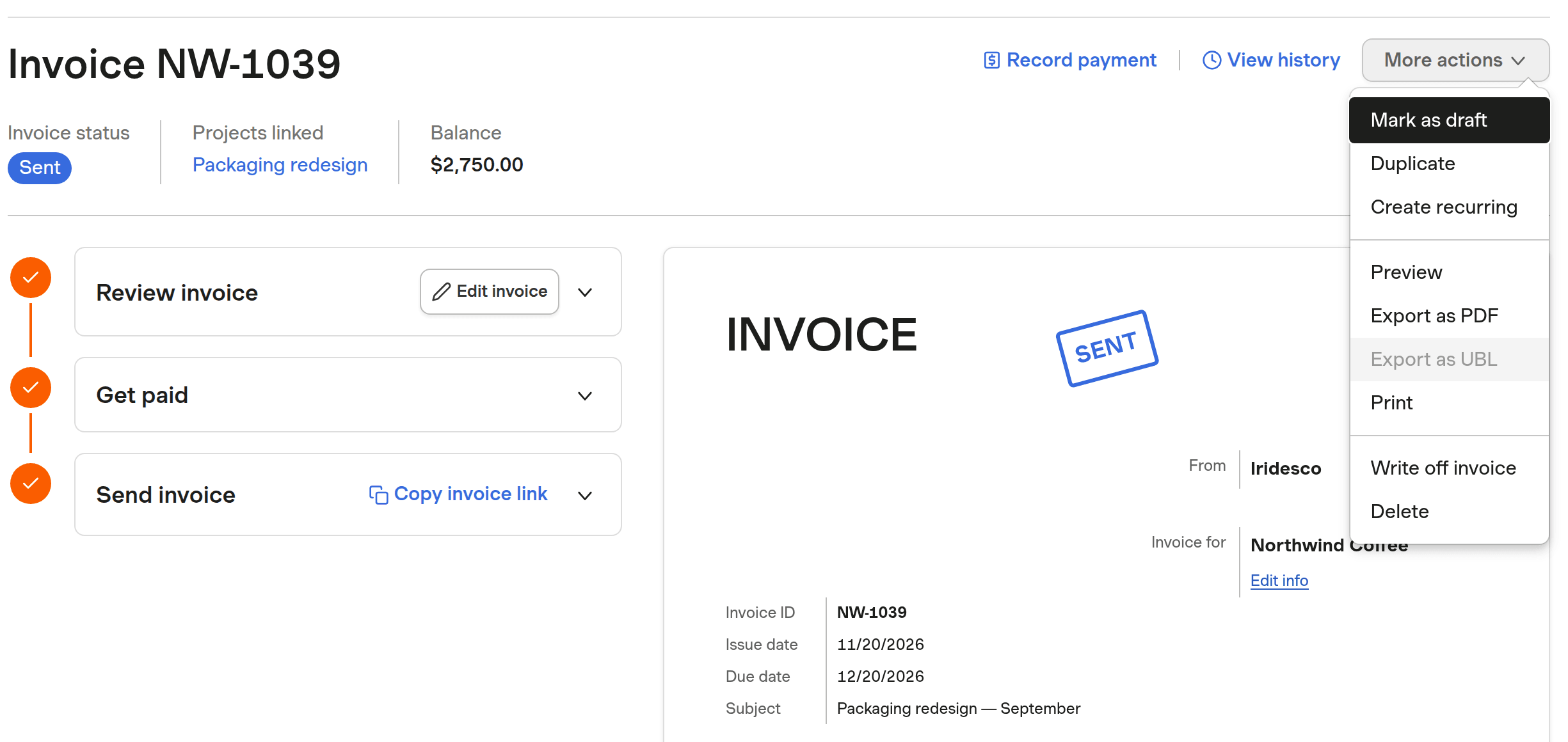
    Send the invoice when you are ready. The Approved badge gives way to Sent, and the internal stamp remains completely hidden from the client’s web invoice and PDF.

    The header of an invoice that was approved and then sent, with the More actions menu open.

Built for internal sign-offs

  • Client invoices remain untouched

    Approval stamps and status badges are strictly internal. Your clients see only their clean invoice, with no approval marks on their web invoice or PDF.

  • Flexible draft editing

    Approving a draft does not lock the document. You can still adjust line items or details if needed, and marking an invoice back to draft clears the approval so revised bills are re-checked.

  • Optional view-only sign-off

    Approving follows invoice edit access by default. An optional setting widens approval to anyone who can view the invoice, so a reviewer can sign a draft off without being able to change it.

Invoice Approval

Send client invoices with complete confidence

Sign off on drafts directly on the invoice, filter your list to approved bills, and send client invoices without checking a side spreadsheet.