Skip to content

Timesheet Lock

Closed periods stay sealed against backdated entries

Lock past timesheets and expenses at a company cutoff so new entries cannot be backdated into closed periods. A single lock date protects past dates across your whole firm, while letting you invoice unbilled hours whenever you are ready.

  • One company cutoff locks time and expenses
  • Invoicing stays separate from calendar locks
  • Uninvoiced hours remain billable without opening past dates
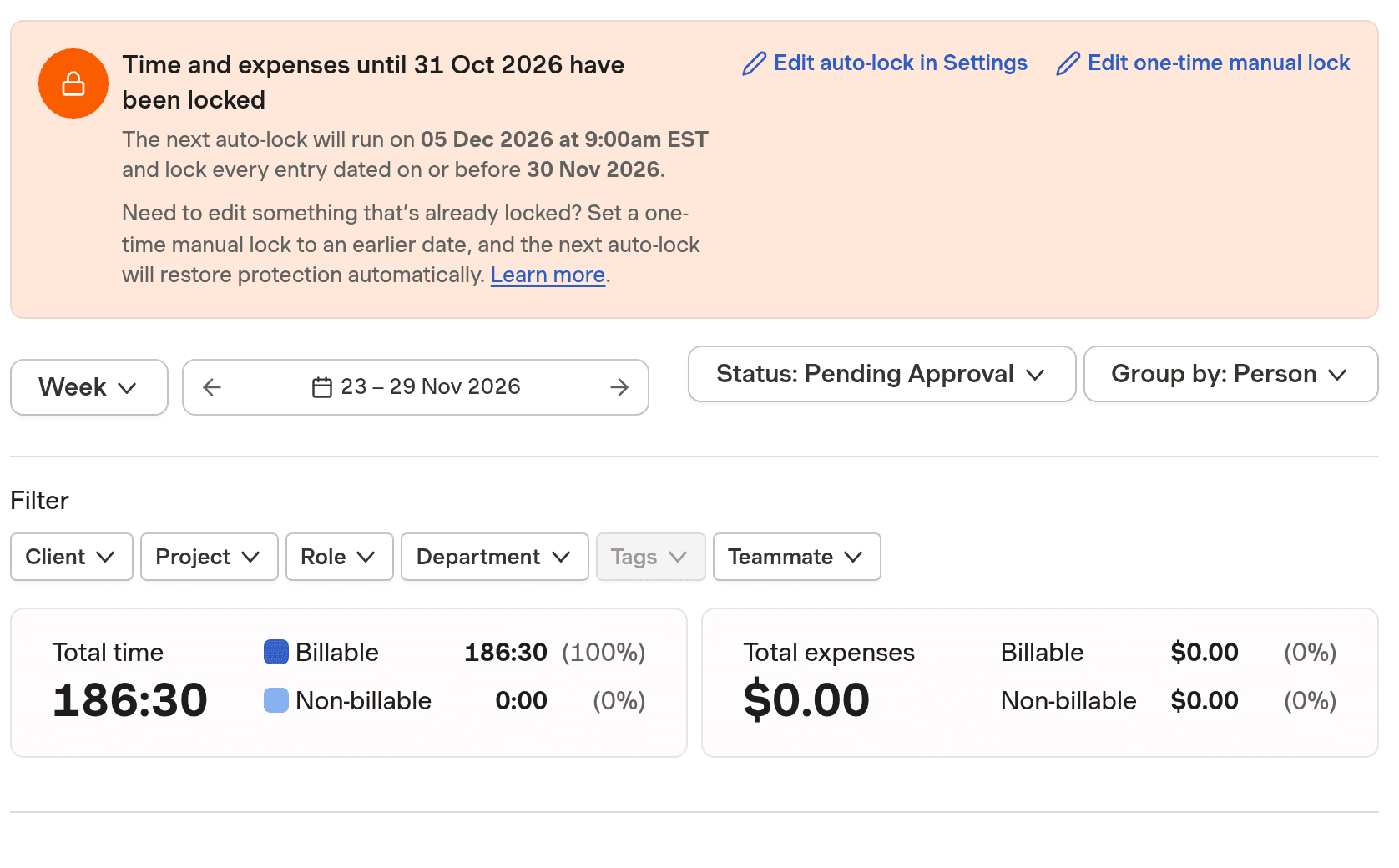
The lock status banner at the top of Time › Approval, with the period and queue totals beneath it.

How it works

An invoice’s timeframe filter decides which unbilled hours and expenses belong on a bill, but it does not seal the calendar against new entries. A timesheet lock sets a single cutoff date across your entire company, closing past dates so team members cannot backdate hours into completed months. The entries behind your billing stay in place, while uninvoiced work remains ready to bill whenever you choose.

  1. Choose where the lock comes from

    Apply a one-time manual lock from the Approval page, or turn on auto-lock in Preferences to protect past periods on a recurring schedule.

    The lock status banner at the top of Time › Approval, with the period and queue totals beneath it.
  2. Set the cutoff

    Pick a date for a manual lock, or schedule auto-lock to run after your deadline, for the previous week, or for the previous month.

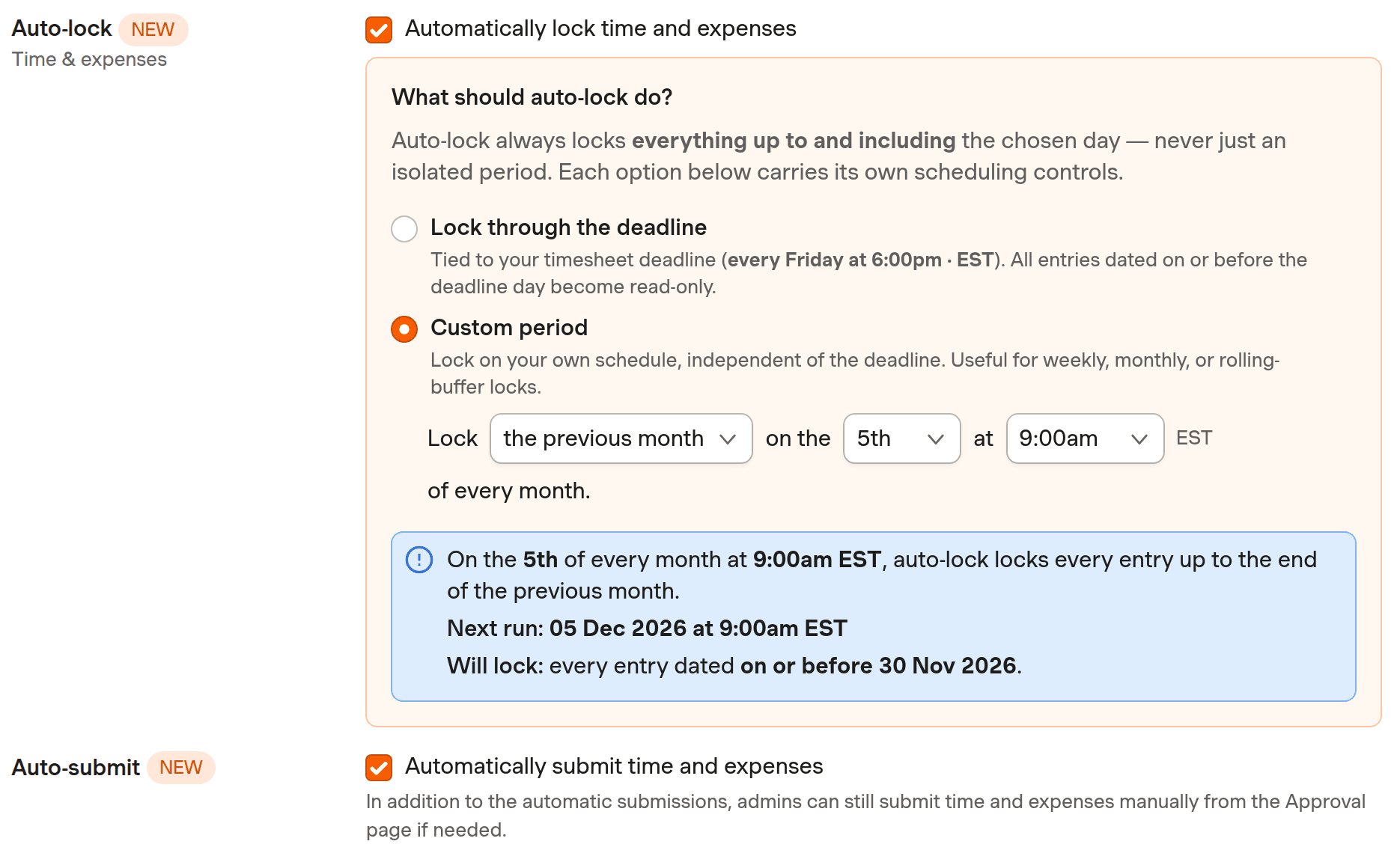
    The Auto-lock and Auto-submit cards in Settings › Preferences.
  3. The lock runs

    When the lock takes effect, Harvest stops running timers on those dates and makes entries read-only for team members while administrators retain Day view editing.

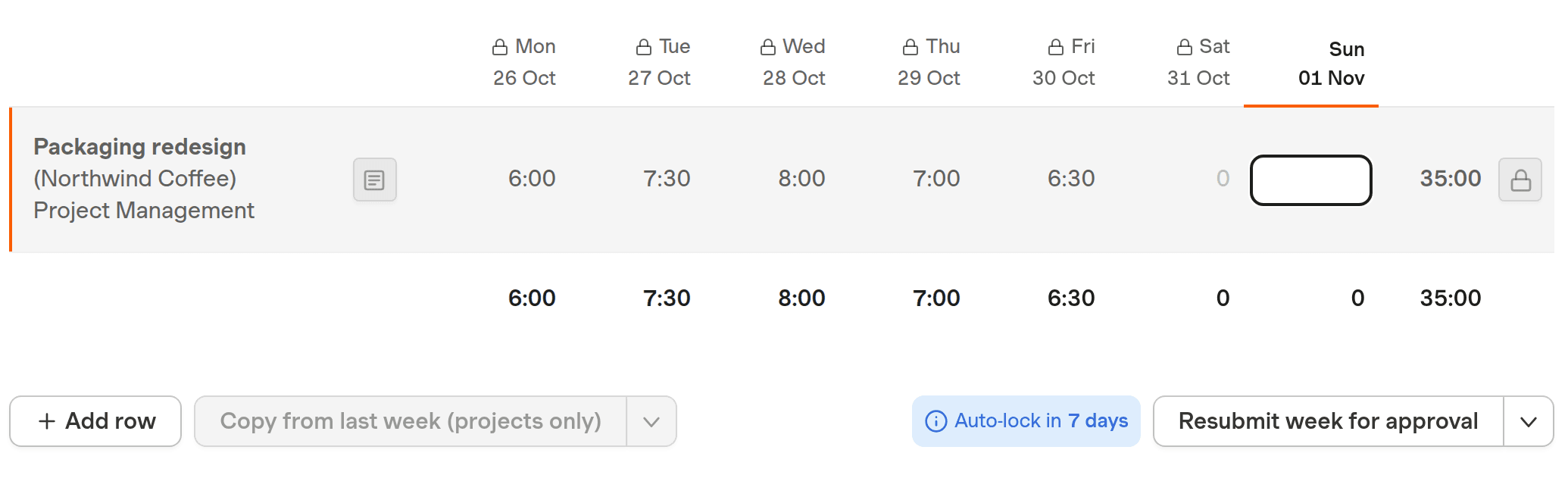
    The timesheet week view for the week of 26 October – 1 November 2026.
  4. Optionally submit what it covers

    Turn on auto-submit or select the option during a manual lock to submit pending time and expenses for approval as soon as the cutoff applies.

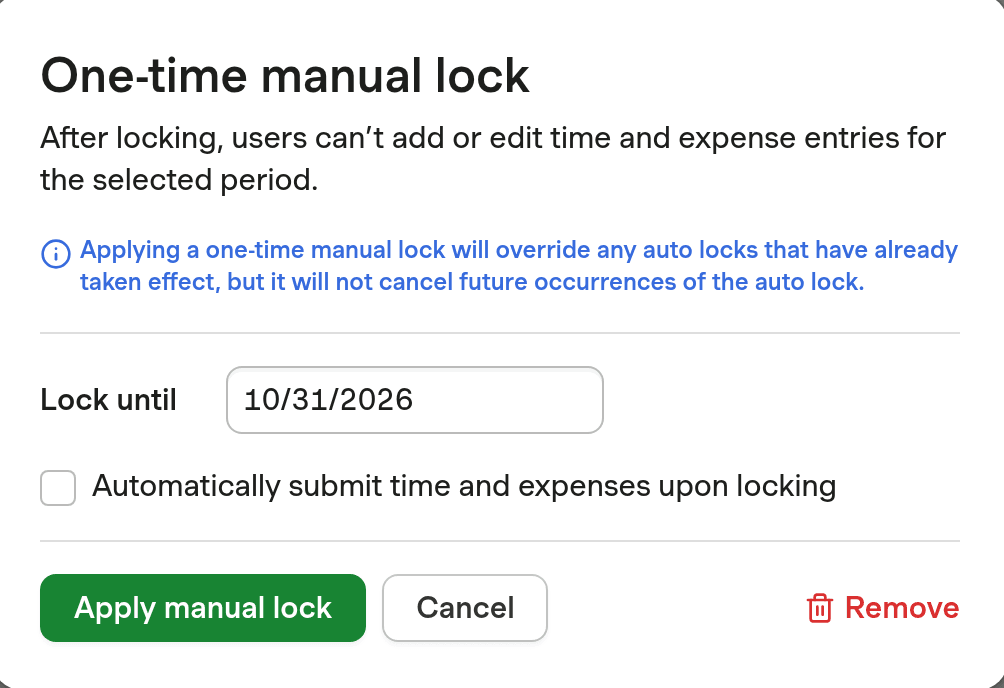
    The one-time manual lock dialog opened from the Approval page banner.
  5. Invoice the closed period

    Use the timeframe filter on a new invoice to pull unbilled time and expenses into line items. Invoicing marks those entries invoiced, keeping billing separate from your calendar lock.

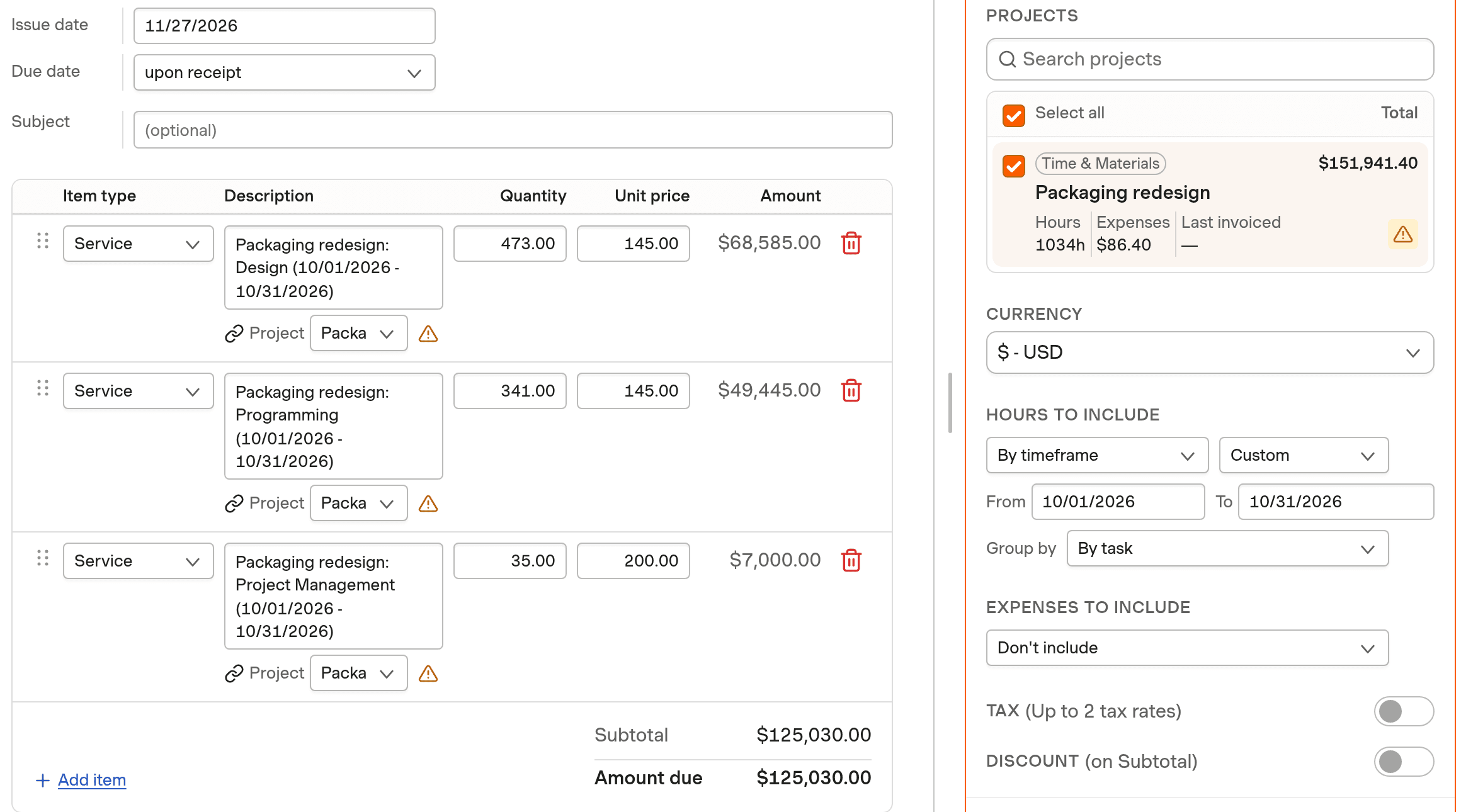
    The “Hours to include” filter on a new invoice, beside the line items it produced.
  6. Reopen a period if something needs fixing

    Adjust or remove a manual lock if you need to reopen past dates, or mark hours uninvoiced from a detailed report. The next auto-lock restores protection automatically.

Where period control protects your business

The 5th of the month · closing the previous month

Past dates stay closed against backdated entries

Closed periods must stay protected against backdated entries.

Once the lock cutoff date passes, team members cannot add or edit hours in the closed period, while administrators can still correct entry notes and durations in Day view. The hours behind your closed month remain fixed, preventing forgotten time from appearing in dates you already closed.
Hours in the closed period stay in place without surprise backdated entries

The lock status banner at the top of Time › Approval, with the period and queue totals beneath it.

Invoice drafting · setting the billing timeframe

Invoices pull unbilled work without leaving the calendar open

Invoices need to pull unbilled work on flexible schedules without leaving past dates unprotected.

An invoice’s timeframe filters which uninvoiced hours and expenses are pulled onto the bill, while the company lock seals the calendar against new entries. You can bill in phases or hold hours over, confident that team members cannot add or edit entries in the closed period.

Flexible billing schedules backed by a sealed calendar

The “Hours to include” filter on a new invoice, beside the line items it produced.

A new quarter starts · setting the close cadence once

The close schedule runs on time without manual reminders

The close schedule must run predictably without chasing timesheets.

Set auto-lock in Preferences to seal the previous week or month automatically after timesheet deadlines pass. The cutoff stops running timers on those dates and can submit pending hours in the same pass, so periods stay protected without chasing team members.

Past periods close on schedule without manual reminders

The Auto-lock and Auto-submit cards in Settings › Preferences.

Control and flexibility during month-end close

  • Administrators can correct notes without reopening the calendar

    Administrators can still update notes and durations in Day view if an entry needs a correction, without changing the date, project, or task, and without opening past dates to new entries.

  • One company-wide cutoff protects every project

    Harvest sets a single lock date across all projects and team members, giving your finance team one dependable boundary for the accounting close.

  • Only administrators can manage the lock

    Setting, changing, or removing a lock requires administrator access with company write permission on accounts with Approvals enabled. Team members can see the cutoff date on their timesheet but cannot alter it.

Timesheet Lock

Keep closed periods sealed from the first close

Keep closed periods sealed against backdated hours, keep client billing flexible, and maintain one reliable close date across your entire company.