Skip to content

Month-End Close

Lock and approve billable hours before monthly billing begins

Set automatic cutoffs that freeze timesheets on schedule, route tracked hours into approvals, and block backdated entries before billing starts. Your team gets clear deadlines, and finance drafts client invoices from verified numbers.

  • Auto-lock through the previous month on a recurring schedule
  • Review unbilled hours and expenses by client before invoicing
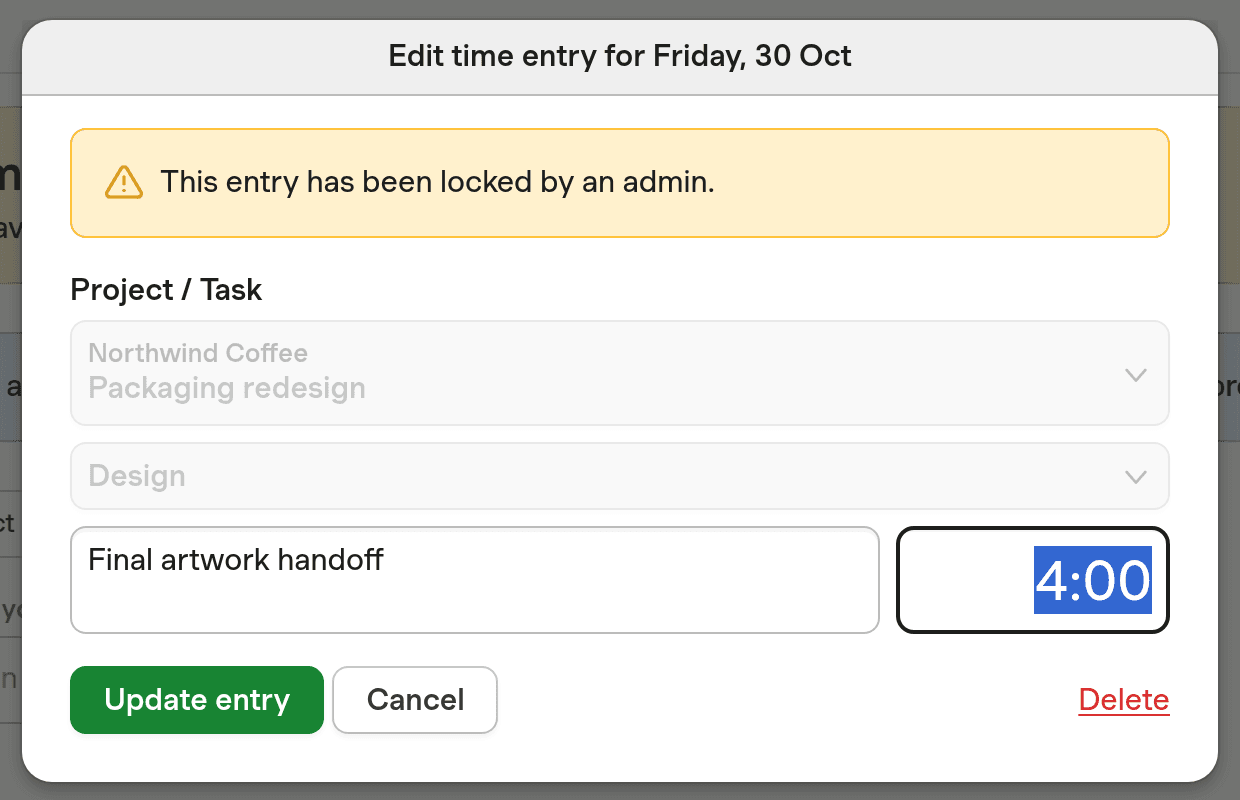
  • Administrators can update notes or duration on locked entries in Day view
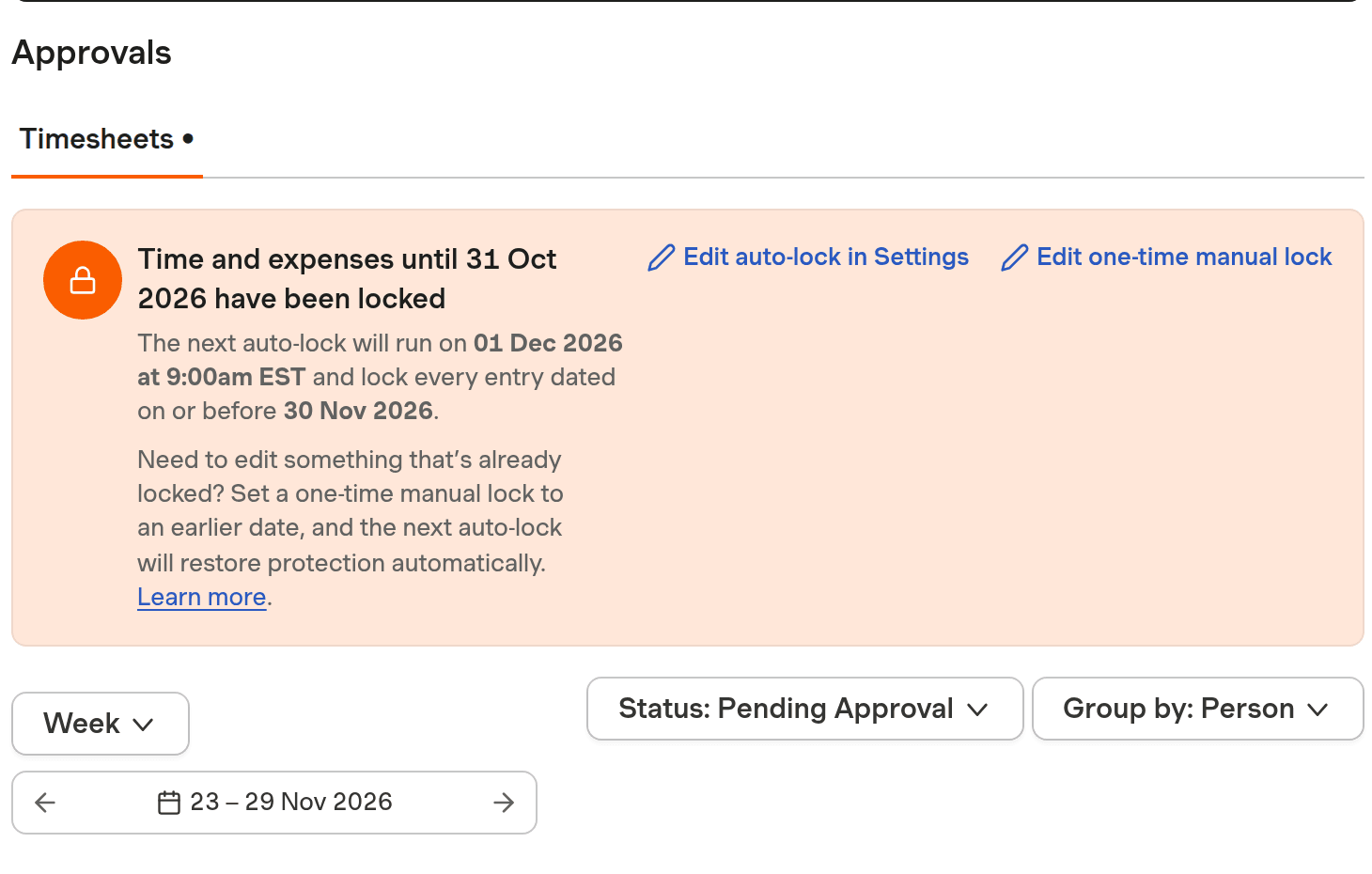
The lock status banner at the top of the Approvals page.

How month-end close works

When the month turns, operations leads often spend days chasing late timesheets while invoice drafting waits. Setting an automatic cutoff closes past time and expenses on schedule, with optional auto-submission that routes tracked hours directly into the approval queue. Because new entries on or before the lock date are blocked for everyone, team members cannot add untracked hours while you reconcile unbilled work and draft client invoices.

  1. Schedule the recurring cutoff

    Set auto-lock to seal entries through the previous month or your timesheet deadline on a set schedule. Automated reminders prompt team members before the deadline, and an optional grace period gives everyone time to submit before the cutoff locks the calendar.

    Settings › Preferences, Auto-lock enabled with “the previous month” selected.
  2. The lock advances automatically

    When the scheduled cutoff day arrives, the lock date advances across every project. Adding new entries on locked dates is blocked for everyone, while unsubmitted time can automatically route straight into approvals so no tracked hours are left behind.

    The lock status banner at the top of the Approvals page.
  3. Approve submitted time

    Approvers review submitted time and expenses on the Approvals page, grouped by person, project or client. Approving an entry confirms the work and locks it for billing, while withdrawing an approval returns it to submitted status whenever a manager requests adjustments.

  4. Review unbilled balances

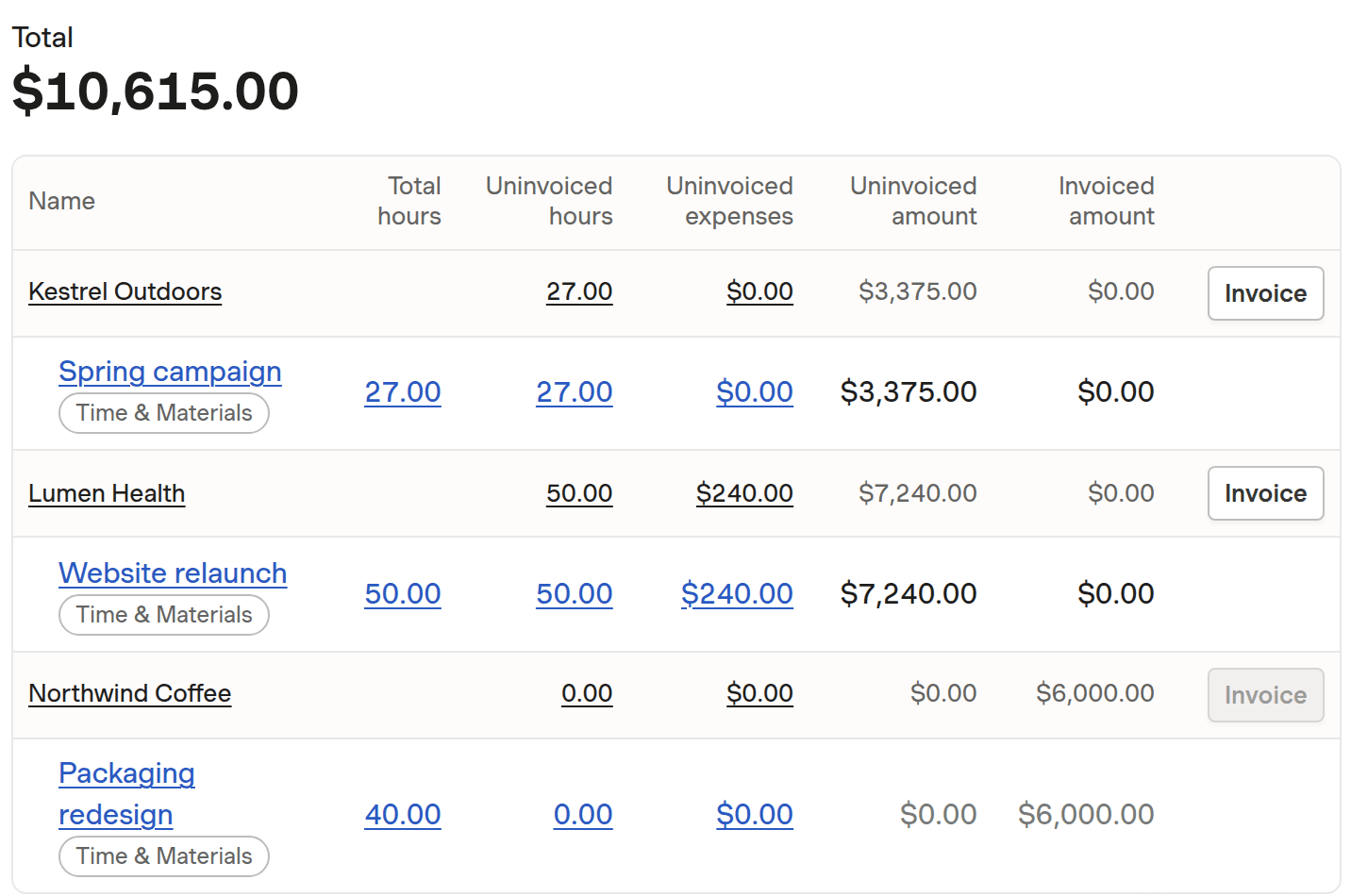
    Open the Uninvoiced report to inspect uninvoiced hours, expenses and billable totals across every client and project. Closed dates block new entries from team members while finance prepares invoice drafts.

    Reports › Uninvoiced for October 2026.
  5. Invoice and seal the period

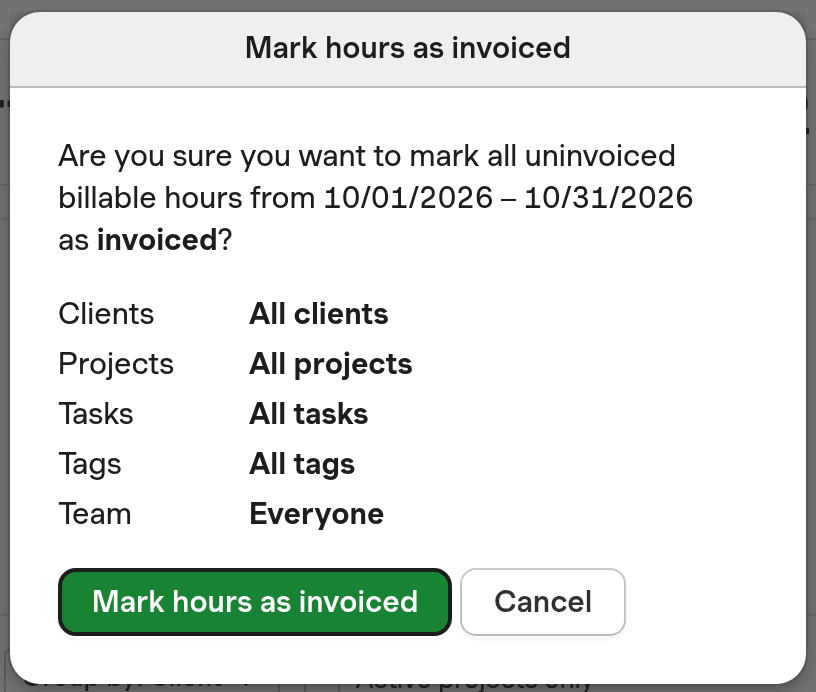
    Generate client invoices from uninvoiced time or mark hours as invoiced directly from a detailed time report. Invoicing locks those entries against accidental edits and protects sent billing.

    Reports › Detailed time with the “Mark hours as invoiced” dialog open.

How teams manage the monthly close

The 1st of the month · the timesheet cutoff

Last month seals automatically without anyone chasing hours

Missing timesheets delay client billing and force operations leads into hours of manual follow-up.

Instead of spending the morning messaging consultants one by one for timesheets, auto-lock closes the previous month on schedule. Team members receive reminders around the deadline, and unsubmitted hours can route automatically into the approval queue.
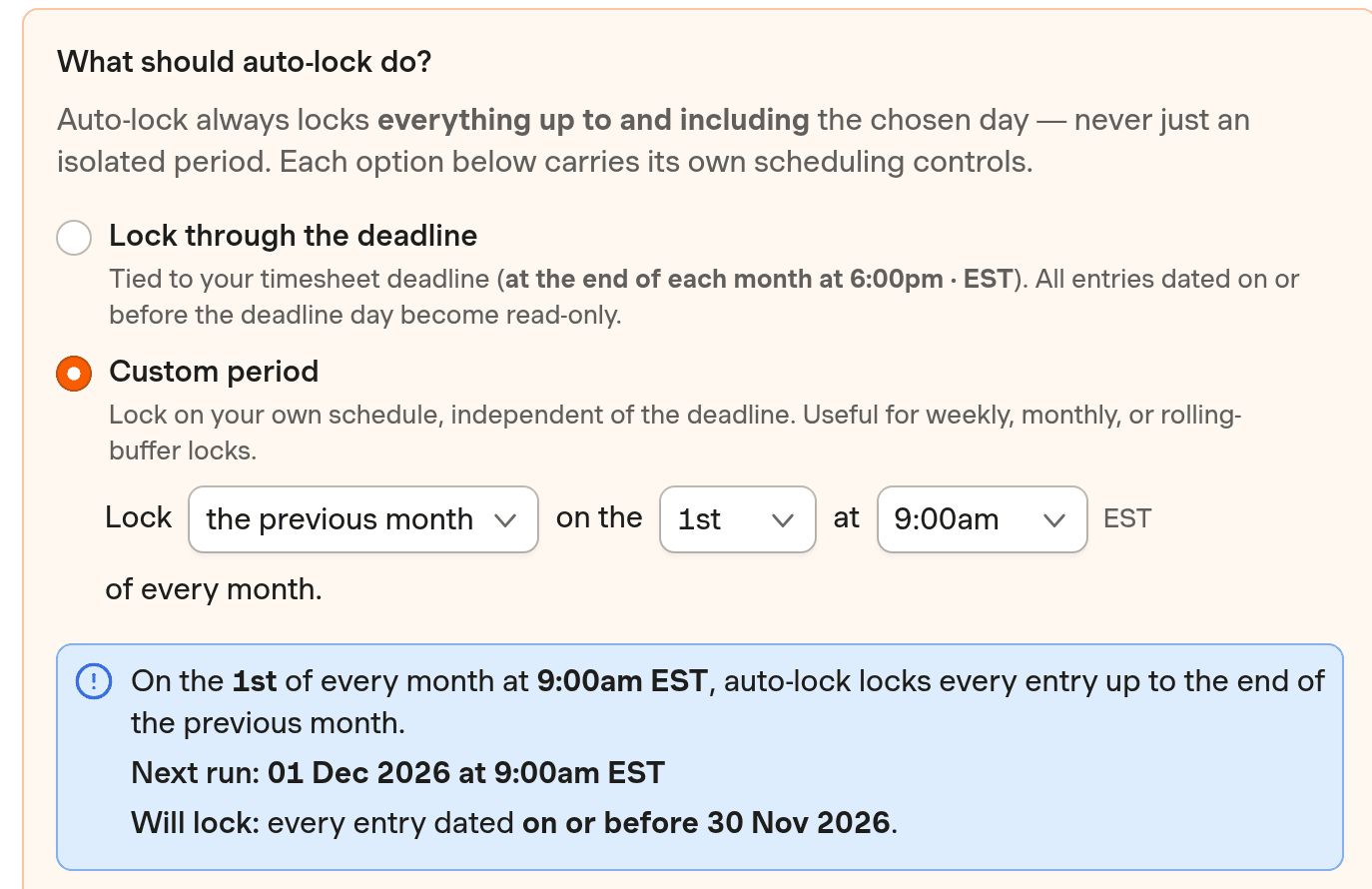
Last month is locked and ready for approval without manual chasing

Settings › Preferences, Auto-lock enabled with “the previous month” selected.

The 2nd of the month · unbilled reconciliation

Review unbilled project balances before invoices are drafted

Finance cannot draft accurate invoices if project totals shift while drafts are being compiled.

With previous-month dates locked against new entries, the Uninvoiced report gives finance a clear breakdown of billable hours and expenses by client and project. You see what remains unbilled before assembling invoice drafts.

A clear breakdown of unbilled work ready for invoice drafting

Reports › Uninvoiced for October 2026.

The 3rd of the month · a late time correction

Administrators update locked entries directly or shift the lock date

Legitimate typos and forgotten hours happen, but fixing them should not reopen the entire month.

When a team member catches a typo or an incorrect duration on a tracked entry, an administrator can edit notes and duration directly in the Day view without changing the lock date. If untracked hours must be added, an administrator moves the company lock date back to allow the entry, and the next auto-lock restores the cutoff.

Existing entries updated in Day view or the cutoff date shifted for additions

The Day view entry dialog for a locked entry, viewed as an administrator.

How adjustments work after the monthly cutoff

  • Controlled administrator access

    Only administrators with company write permission can schedule, adjust or remove a lock date. Team members and managers see the cutoff status but cannot alter lock dates.

  • Adjustments without reopening sent bills

    Removing a lock date makes unapproved entries editable, but invoiced and approved hours remain protected. Marking hours uninvoiced allows editing without altering the existing invoice.

  • Unified company cutoff

    Your account maintains one company-wide lock date at a time. Moving the lock date forward seals entries through that day, and moving it back temporarily creates a window for needed corrections.

Month-End Close

Bring calm to your next month-end close

Start your free trial to set automated cutoffs, review unbilled balances, and bill client projects without the end-of-month scramble.