Skip to content

Over-Servicing Retainers

Catch retainer overages before they turn into write-offs

Track billable spend against recurring monthly fees in real time without rebuilding rate cards in Excel. See remaining budget on the project page as hours are logged, and catch overages before they turn into end-of-month write-offs.

  • Fees reset monthly adds one full fee per active calendar month
  • Billable time and expenses measure against accrued budget
  • Overages highlight automatically on the project page
The Brand retainer project’s budget card.

How to track monthly retainer burn in Harvest

When clients pay a recurring monthly fee, tracking burn in a separate spreadsheet means discovering overages weeks after the work happened. Setting your fixed-fee project to reset monthly accrues one full fee each active calendar month, turning your retainer into a live budget where tracked time and expenses compare directly against earned fees.

  1. Set the monthly fee and reset

    Choose Fixed Fee on your project, enter the agreed monthly amount, and check Fees reset monthly. This marks your project start date as required so accruals begin from a defined point, giving your retainer a reliable financial baseline from day one.

  2. Accrue fees automatically each month

    For a money-budgeted retainer, the project budget stops showing the total contract and becomes fees accrued to date. It adds one full fee for every active calendar month, ensuring spend is measured against what has actually been earned so far.

    The Brand retainer project’s budget card.
  3. Check remaining budget on the project page

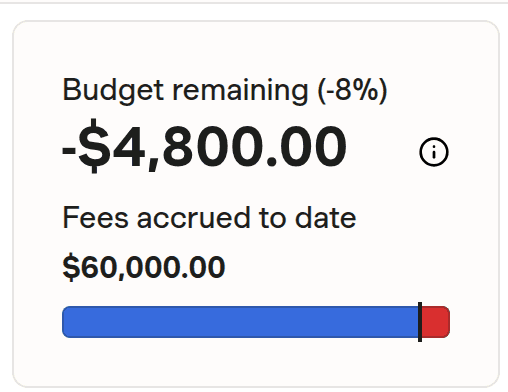
    The project summary compares the billable value of logged time and expenses against your accrued monthly fees. You see Budget remaining with a percentage, a budget meter, and a warning icon the moment cumulative spend passes the accrued budget.

    The Brand retainer project’s budget card.
  4. Pinpoint crossing points on the progress graph

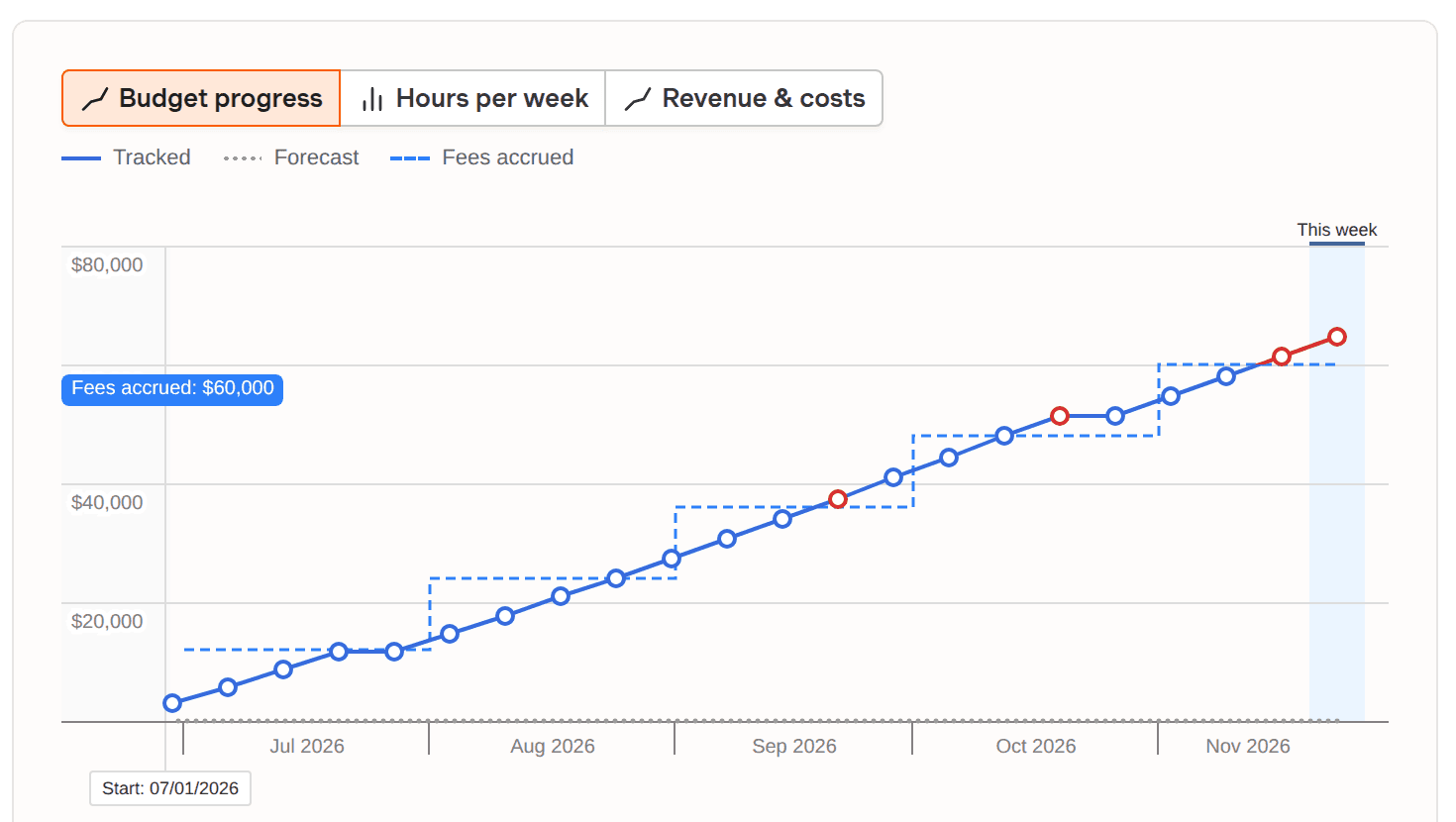
    The progress graph charts cumulative spend against your stepped monthly budget over the project’s lifespan. Harvest shades the line whenever spend passes the accrued fee, giving you immediate visual proof of when work accelerated.

    The Brand retainer project’s progress graph.
  5. Review uninvoiced balances across retainers

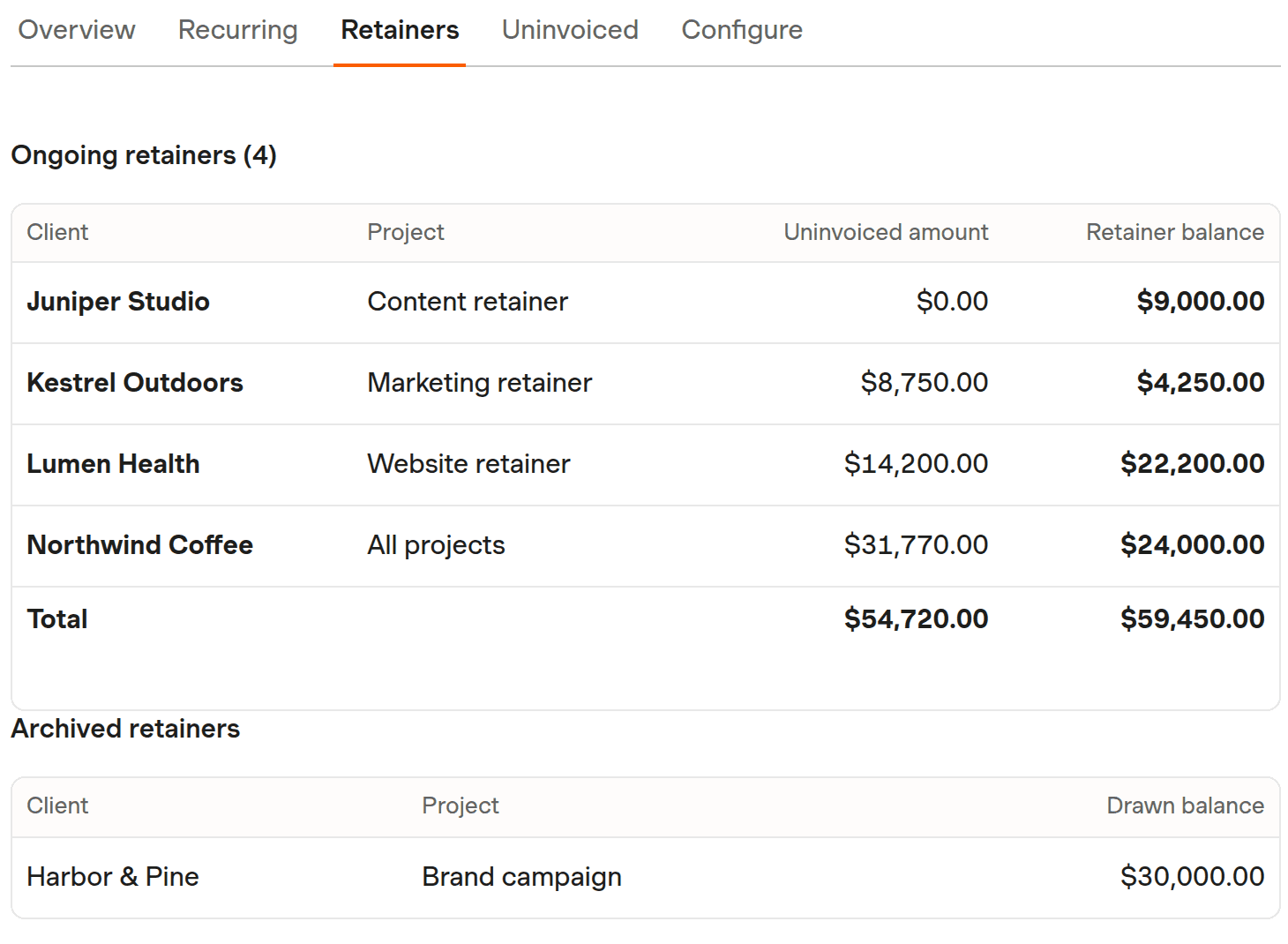
    The Retainers dashboard displays ongoing retainer balances alongside unbilled work, separating uninvoiced time, fixed fees, and expenses. Each figure links directly to the report behind it, so you can verify billable totals before creating invoices.

    The Retainers page.
  6. Export custom budget reports to Excel

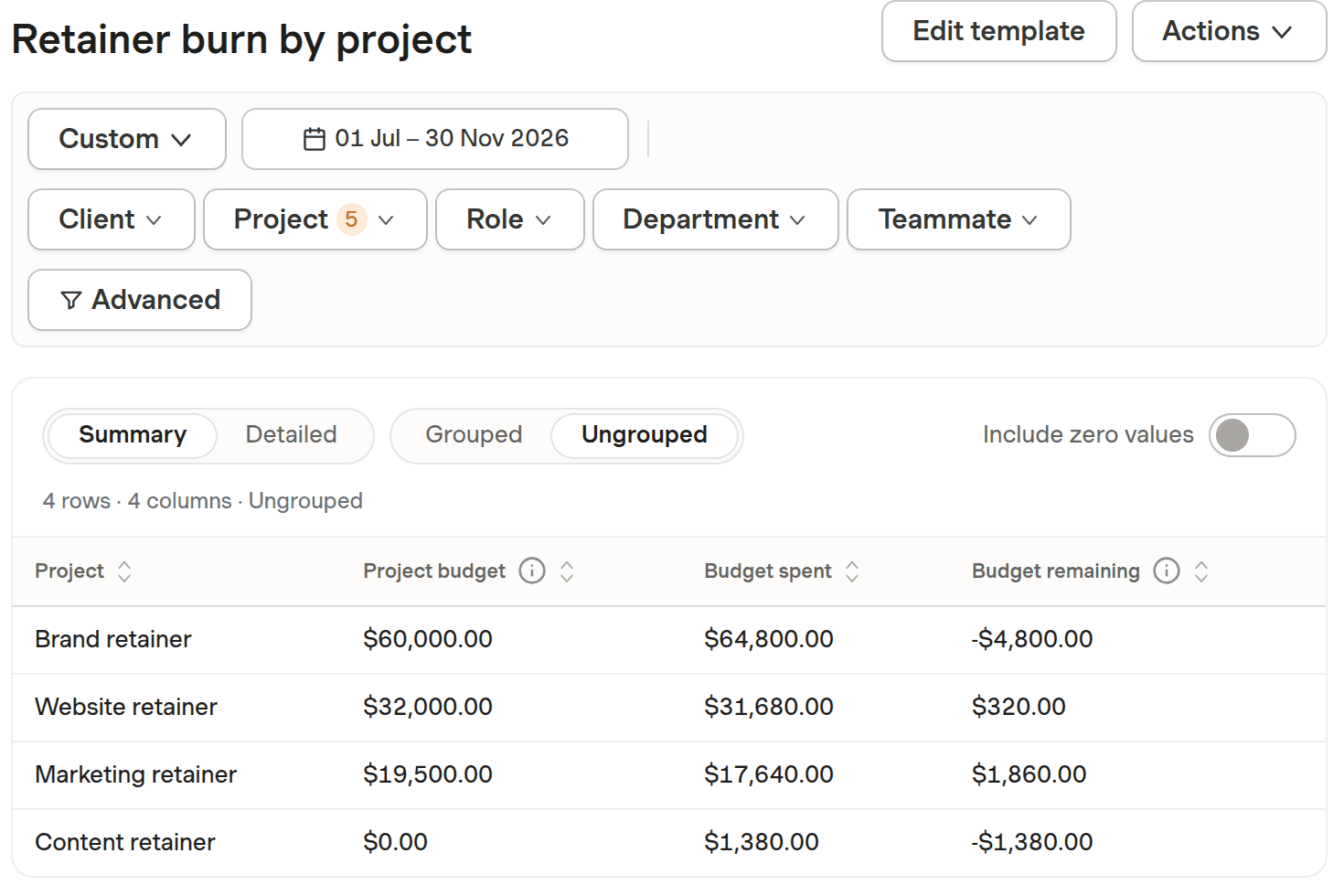
    Add Project budget, Budget spent, and Budget remaining metrics to a custom report to review performance across clients or teammates. Harvest lets you group rows, review live numbers, and export clean workbooks directly to Excel.

    The saved custom report “Retainer burn by project”.

How teams track retainer burn across common client scenarios

Mid-month check-in · a client asks how their retainer is pacing

Check remaining retainer budget without recalculating rate cards

Teams need an immediate burn answer without pulling spreadsheets.

Instead of dumping raw timesheets into Excel to multiply each teammate’s hours by their billable rate, read the project card. It tracks the billable value of logged time against the accrued monthly fee and shows exact budget remaining.
An immediate answer on retainer burn with zero spreadsheet math

The Brand retainer project’s budget card.

Scope expansion · client requests push spend past the monthly fee

Pinpoint the day a retainer crosses into over-servicing

Account leads need visual evidence to pause work or negotiate an extension.

The progress graph plots billable spend against the stepped monthly fee over time and shades the over-budget portion, giving account leads visual evidence to pause work or negotiate an extension instead of swallowing extra hours.

Clear visual proof of overage ready for the client conversation

The Brand retainer project’s progress graph.

Weekly operations review · auditing retainer burn across every account

Review budget spent across every retainer without maintaining custom formulas

Leadership needs cross-account budget visibility without maintaining fragile formulas.

Pull active retainers into a custom report with project budget, budget spent and budget remaining columns grouped by client or project. When leadership wants the raw data, export the finished table straight to Excel.

A clean cross-account burn report ready in seconds

The saved custom report “Retainer burn by project”.

Keep retainer budgets accurate and rates protected

  • Billable rate permissions stay protected

    Fee-based budgets and remaining balances are visible only to team members with permission to view billable rates, keeping internal pricing private.

  • Accrual stops when projects end or archive

    Monthly fee accrual stops automatically on the project’s end date or as soon as you archive the project, so completed retainers never keep accruing.

  • Calendar-month accrual without proration

    Retainer projects accrue one full monthly fee for each active calendar month without day proration, keeping pace with standard monthly billing cycles.

Over-Servicing Retainers

Stop recalculating retainer burn by hand

Track your monthly retainer spend as time is logged, catch overages before invoices go out, and export formatted budget workbooks whenever stakeholders ask.