Skip to content

Overtime Tracking

Every overtime split ready before payroll cutoff

Review daily state thresholds and overnight shifts already split into regular, overtime, and double overtime, then send them straight to your payroll approval queue.

  • California, Alaska, and Colorado daily thresholds
  • Preview every split before hours leave Harvest
  • Pending time sheets ready for Gusto payroll approval
The Choose people step with an employee whose 13-hour California day is split into regular, overtime and double overtime.

Stop recalculating daily overtime by hand

Every payroll Friday usually starts the same way: exporting time entries into spreadsheets, writing formulas to separate California daily thresholds, and untangling shifts that crossed midnight so payroll does not reject them. Harvest applies supported state daily overtime rules and reconciles overnight hours before anything leaves the app. You review the split on screen, confirm the project mapping, and send clean, pending time sheets straight into Gusto.

How teams handle overtime and midnight shifts

The morning after a late client delivery · payroll cutoff

Thirteen-hour days split into regular, overtime, and double time automatically

Daily state overtime rules require multi-tiered arithmetic that is slow and error-prone when calculated by hand.

An editor logs 13 hours wrapping a launch deliverable. Instead of building formulas to separate the 8-hour daily overtime and 12-hour double-time thresholds, Harvest reads their California work address and presents the standard split side by side.
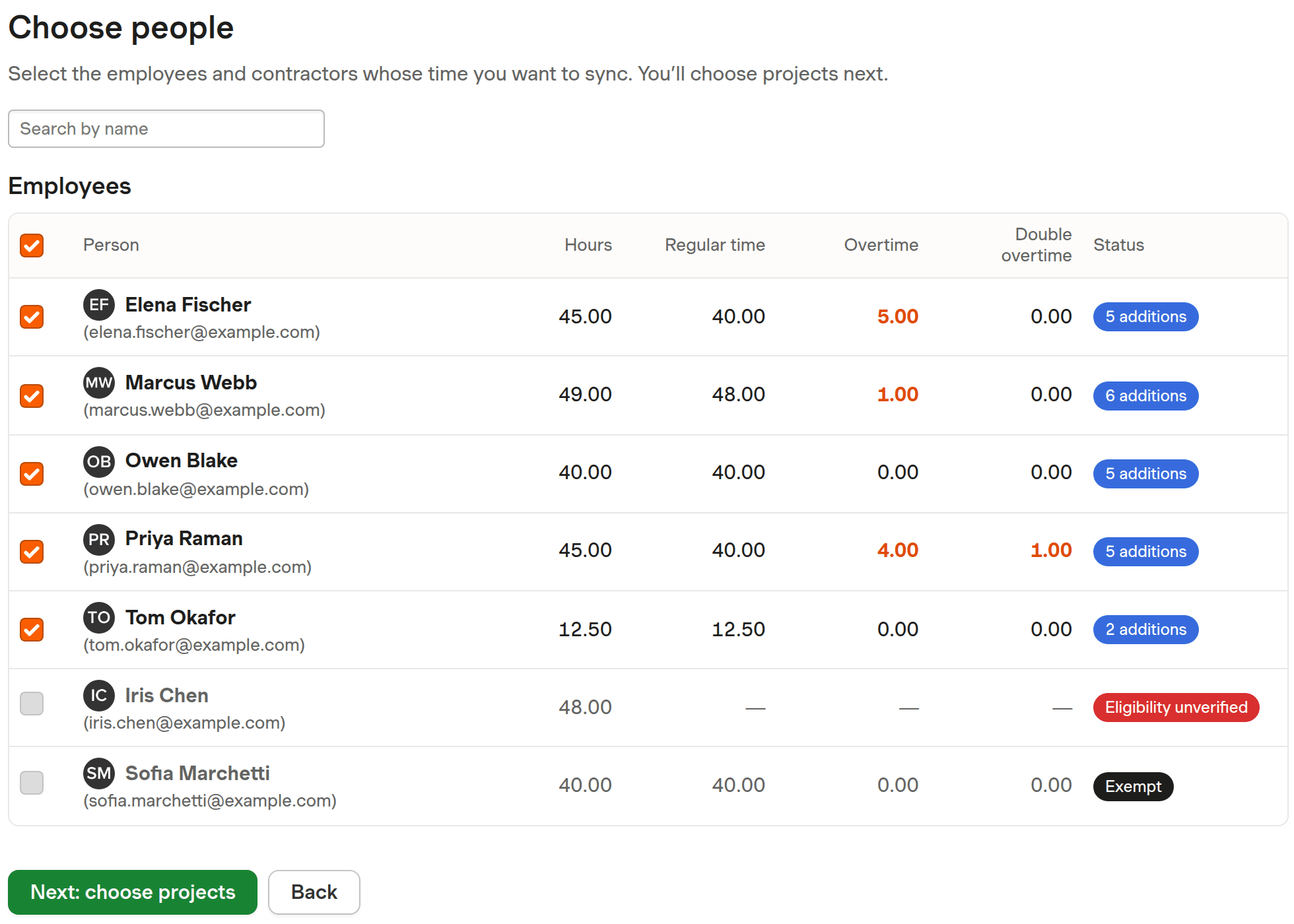
8 regular, 4 overtime, and 1 double overtime hour ready to review

The Choose people step with an employee whose 13-hour California day is split into regular, overtime and double overtime.

Midnight wrap · overnight shift logging

Shifts crossing midnight arrive as one continuous window

Shifts crossing midnight often fail payroll import validation by appearing as negative or zero durations.

A crew wraps delivery at 2:30 a.m. Instead of carving the overnight work into two calendar days or fixing rejected negative durations in payroll, the shift window rolls forward into a clean, positive-duration record.

Overnight entries accepted without manual workarounds

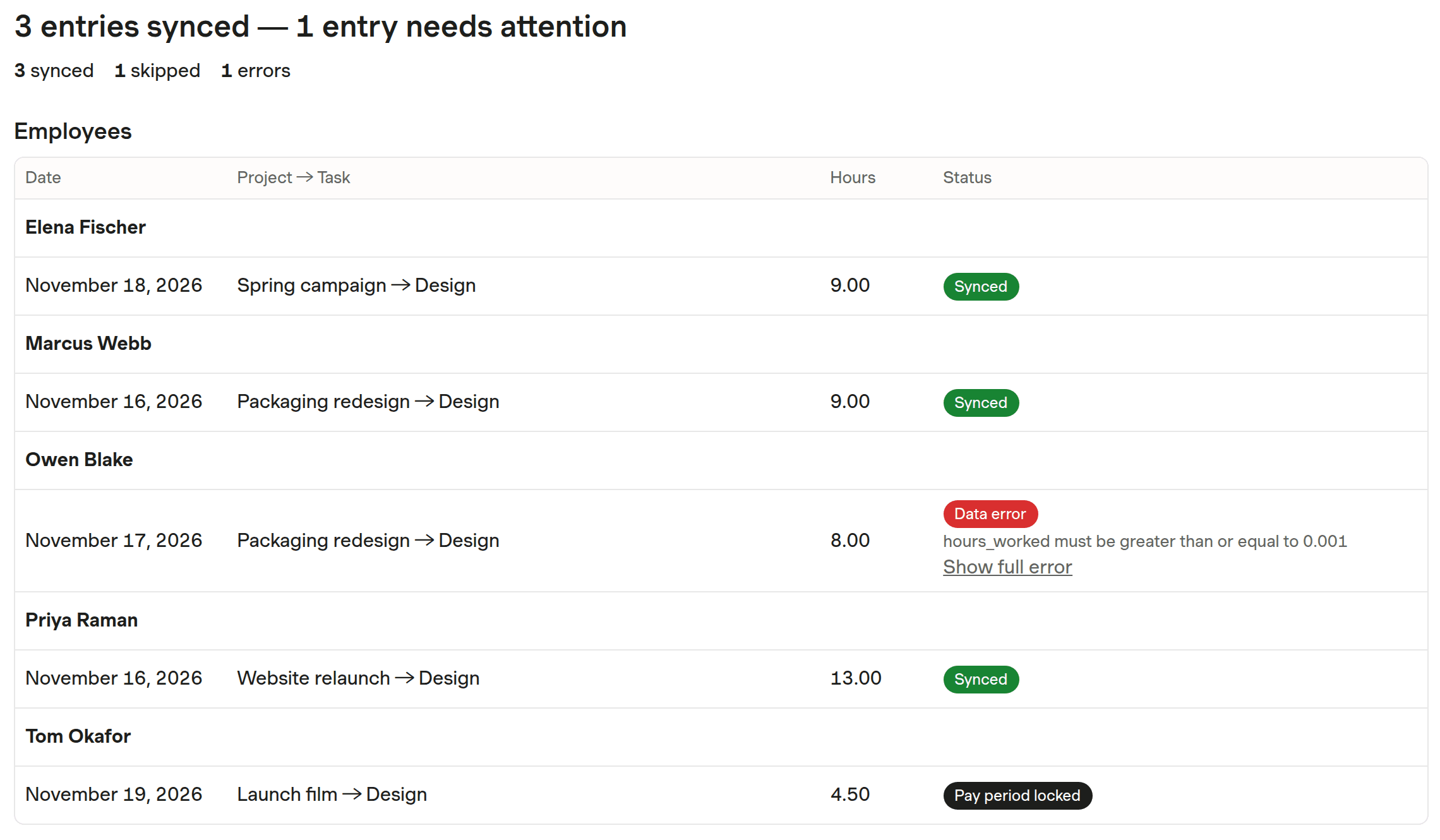
The results page after a run with a mix of outcomes.

Payroll morning · reviewing the preview

Unverified classifications are held back before anything sends

Syncing unconfirmed FLSA employee classifications introduces payroll errors and compliance liabilities.

Before hours leave Harvest, the preview flags anyone whose FLSA status cannot be confirmed. Unverified records stay out of the sync with an explicit reason, while eligible team members move cleanly into pending payroll time sheets.

Zero guessed classifications sent to payroll

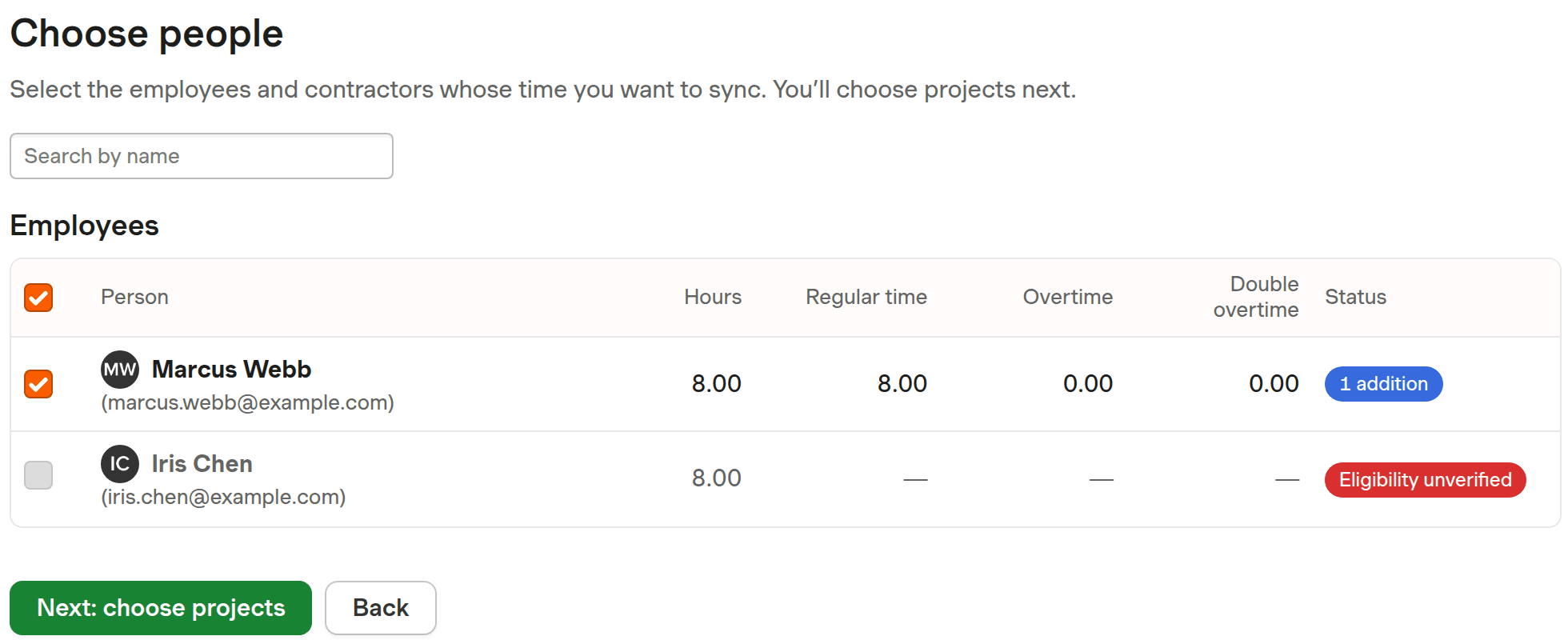
The same table with an employee held back and a red Eligibility unverified chip.

How it works

  1. Open the sync

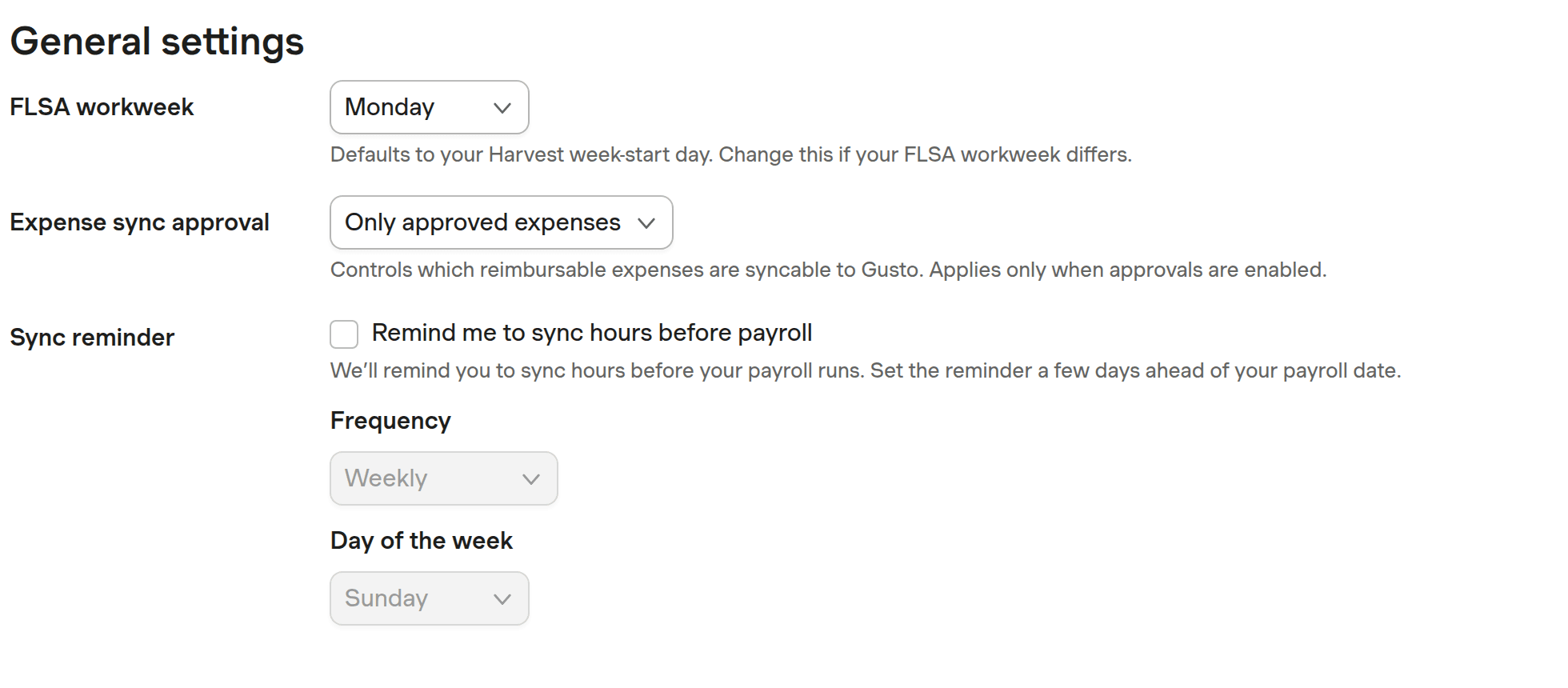
    Navigate to Settings, select Integrations, and open Gusto to click Sync time. This page also lets you configure your company’s FLSA workweek anchor day and set recurring sync reminders so your team stays on schedule before payroll cutoff.

    The Gusto settings page with the FLSA workweek select and the sync reminder.
  2. Pick the pay period

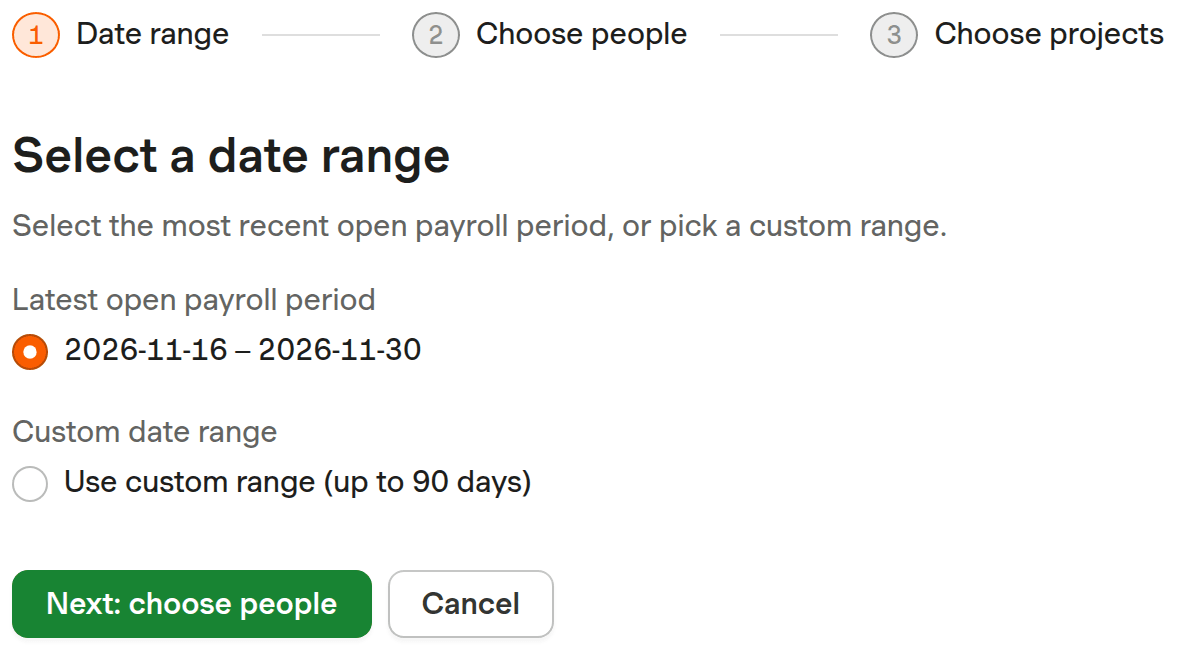
    Choose your latest open payroll period or specify a custom date range. Already processed pay periods appear disabled with a Closed badge, so you never accidentally recalculate past payroll runs that are already finalized.

    Step 1 with an open payroll period selected.
  3. Review the split per person

    Review each employee’s tracked time broken down into regular, overtime, and double overtime hours side by side. Harvest reads each person’s work state and FLSA status directly from Gusto, applying supported daily rules or the federal 40-hour standard so you can verify the numbers before anything exports.

    The Choose people step with an employee whose 13-hour California day is split into regular, overtime and double overtime.
  4. Match projects to Gusto jobs

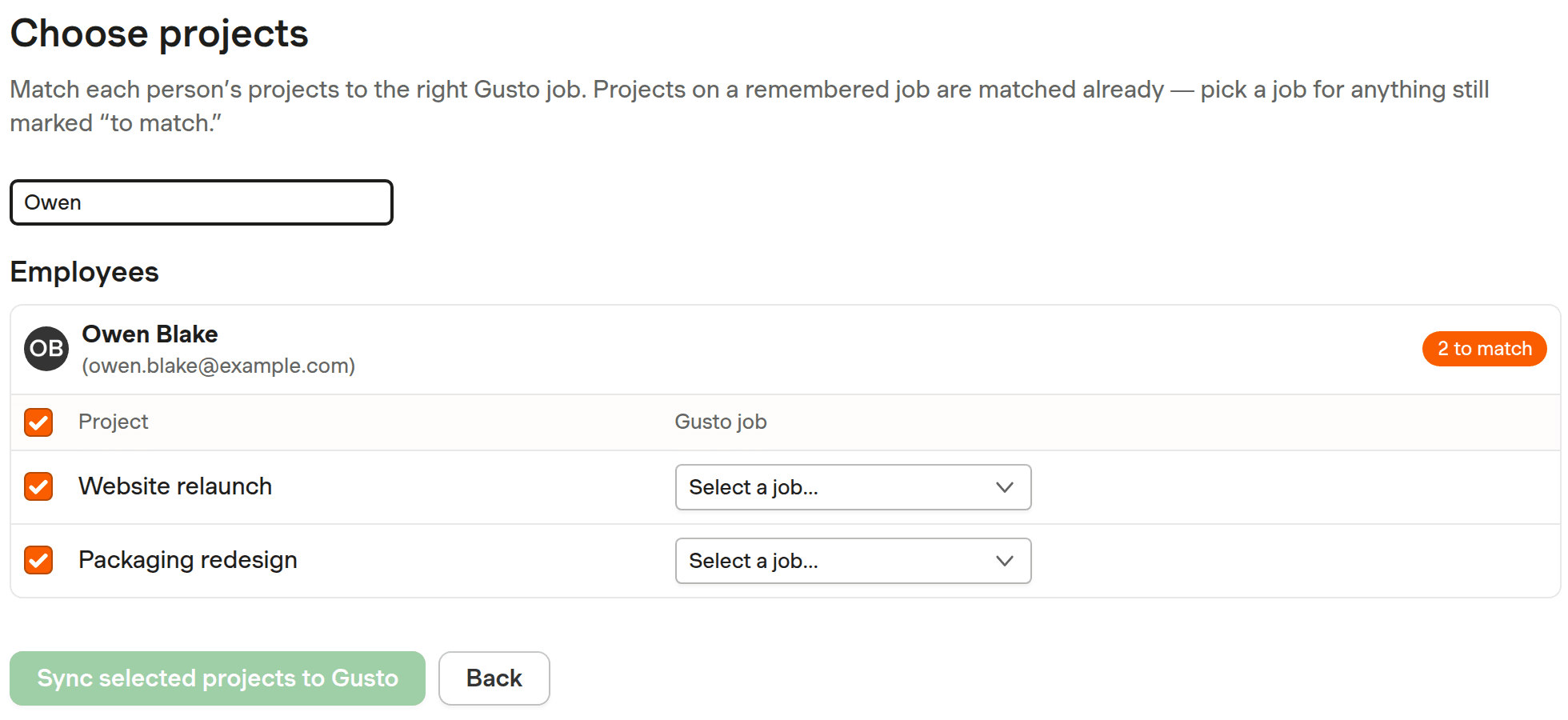
    Select the client projects you want to include and assign the corresponding Gusto job for anyone working across multiple roles. The sync button remains disabled until every required job is mapped, ensuring no unallocated hours slip through into your payroll records.

    The Choose projects step with a person who still needs a Gusto job matched.
  5. Confirm and let it run

    Confirm the mapped hours to queue the sync in the background so you can safely leave the page. Harvest processes every entry asynchronously and sends the administrator an email notification with a direct link once the run finishes.

  6. Read the results

    Review the status badges for every submitted time entry grouped by person on the results screen. You can audit exactly which entries synced into Gusto as pending time sheets, which were skipped, and the specific reasons for any records held back.

    The results page after a run with a mix of outcomes.

Confidence before anything reaches payroll

  • Time sheets land as pending records

    Harvest creates pending time sheets in Gusto rather than submitting or approving them. Your administrator keeps full control by reviewing and approving the hours in Gusto before payroll commits.

  • Unconfirmed classifications stay paused

    When an employee’s FLSA status cannot be verified from Gusto, Harvest holds their entry back with an explicit reason chip instead of guessing.

  • Processed payroll periods stay protected

    Days that fall inside a Gusto payroll that has already been processed are skipped per day, so past payroll figures remain untouched while open days in the same week sync cleanly.

Overtime Tracking

Send verified overtime straight to payroll

Start your free trial to preview daily overtime splits, reconcile overnight shifts, and sync time into Gusto without spreadsheet arithmetic.