Skip to content

Pitch Hours

Turn pitch time into billable hours without retyping timesheets

Move tracked proposal entries onto the live client project, re-pricing them at your agreed rates in one confirmation. When it is time to bill, pull the converted hours straight onto the kickoff invoice as detailed line items.

  • Move entries across projects or switch the pitch to Time & Materials
  • Previews entry counts, total hours and assigned team members
  • Pulls converted hours into invoice line items at destination rates
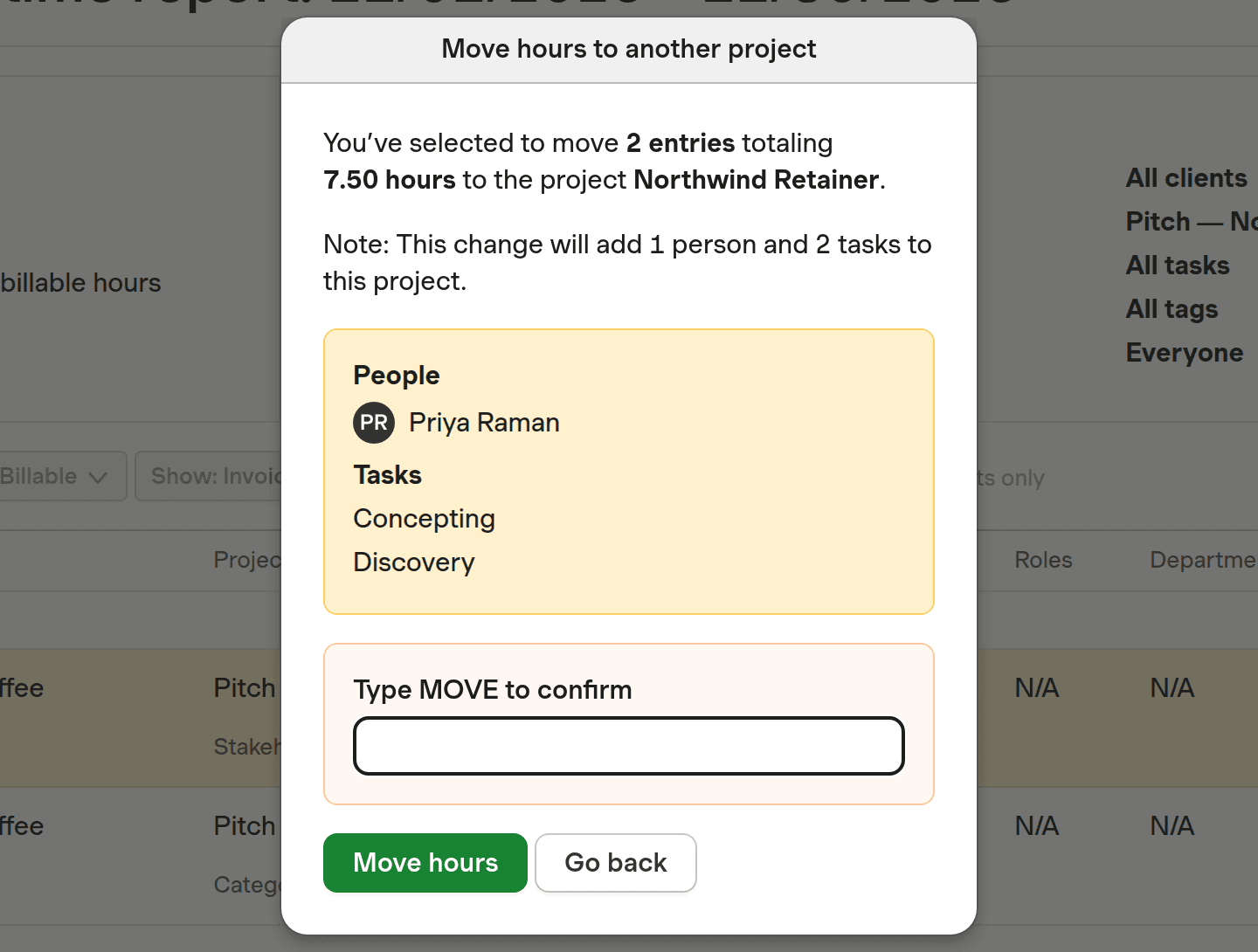
The Move hours to another project confirmation step, with the Northwind Retainer chosen as the destination.

What happens when you win the pitch

The Monday after a pitch win · moving discovery hours

Every pitch entry moves to the live client project in one action

Proposal time needs to sit on the live client project without re-entering each timesheet entry.

Select the tracked pitch entries on the detailed time report and choose the client project as the destination. The confirmation dialog counts the hours, previews the move, and automatically assigns any team members and tasks not yet on the client project.
Pitch entries reassigned with team members and tasks added automatically

The Move hours to another project confirmation step, with the Northwind Retainer chosen as the destination.

Contract sign-off · pricing existing time

Hours recalculate at client rates the moment they land

Tracked hours must reflect agreed contract rates before invoicing starts.

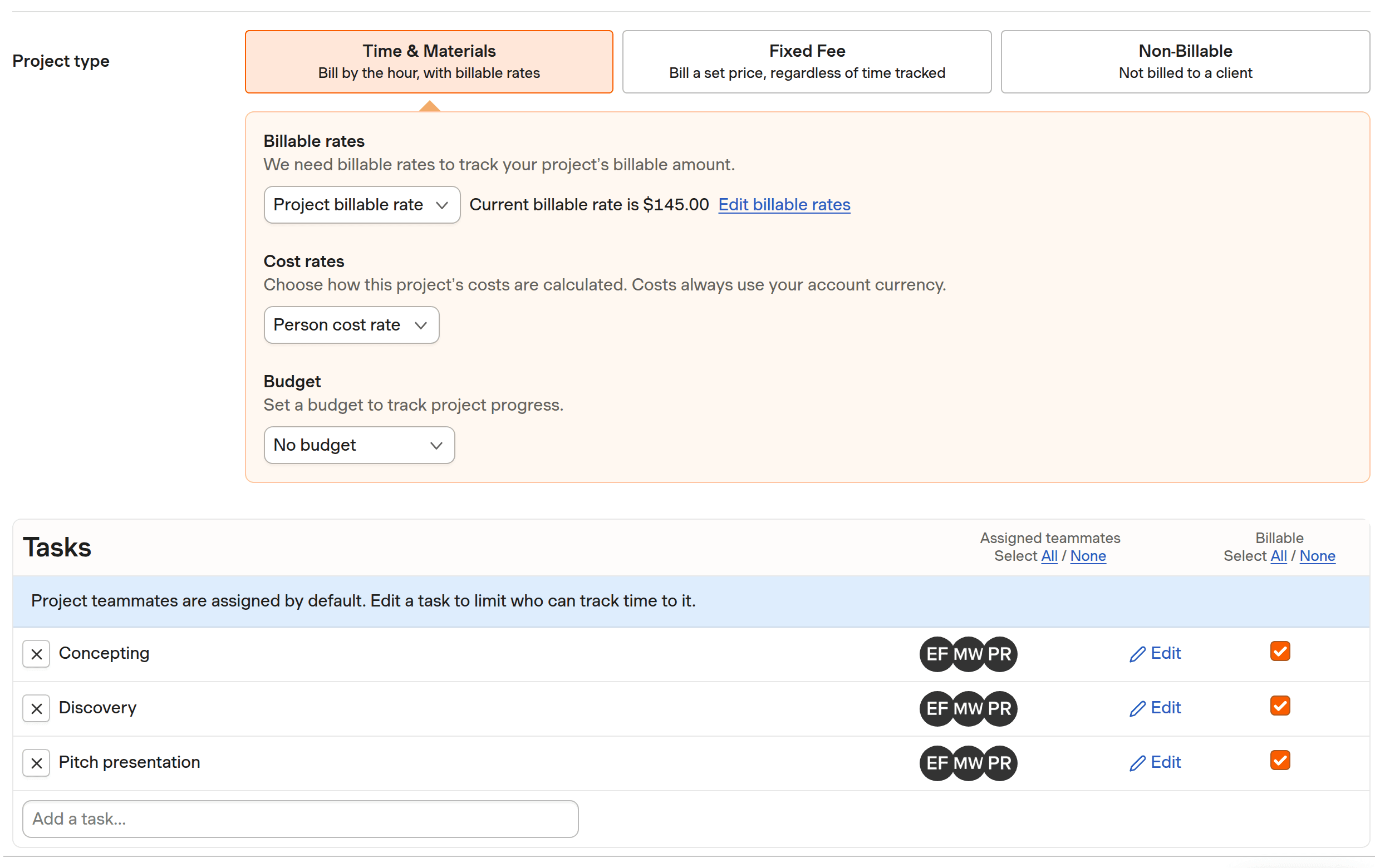
Whether you move entries to billable tasks or switch the pitch project itself to Time & Materials with billable tasks and rates, existing hours re-price against the new project, person or task rates without editing individual timesheet logs.

Historical hours priced at agreed client rates

The same Project type section with Time & Materials selected and the project billable rate that prices the existing hours.

Kickoff billing · generating the first invoice

Tracked pitch hours pull straight into the client invoice

Agreed pitch time should flow onto the kickoff invoice without manual line-item adjustments.

Creating a new invoice from uninvoiced time pulls the moved pitch entries directly into detailed line items, locking the entries as invoiced as soon as you save.

Pitch time billed and locked on the invoice without manual line items

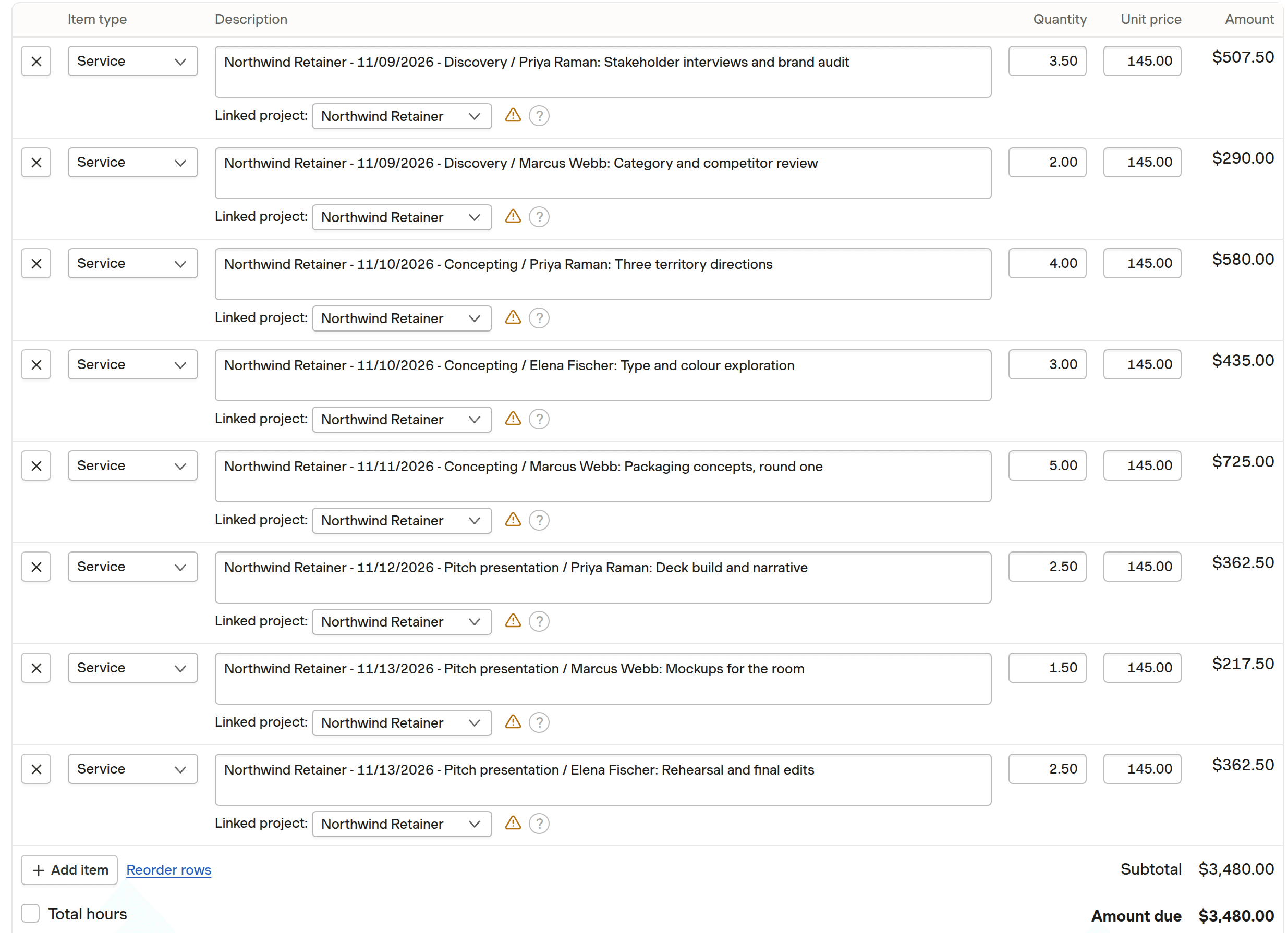
The invoice built from the tracked pitch hours, with each converted entry as its own line item at the retainer’s rate.

How it works

Harvest gives you two ways to bill proposal time once a contract is signed. If the pitch becomes the client engagement, switch the project from Non-Billable to Time & Materials, set your rates and make sure tasks are marked billable; saving re-derives the billable flag and rates across your existing entries. If proposal work rolls into an existing retainer, select the entries in your detailed time report and move them across. Harvest adds any unassigned team members and tasks to the destination project for you, so your kickoff invoice pulls in your billable proposal time.

  1. Track the proposal time

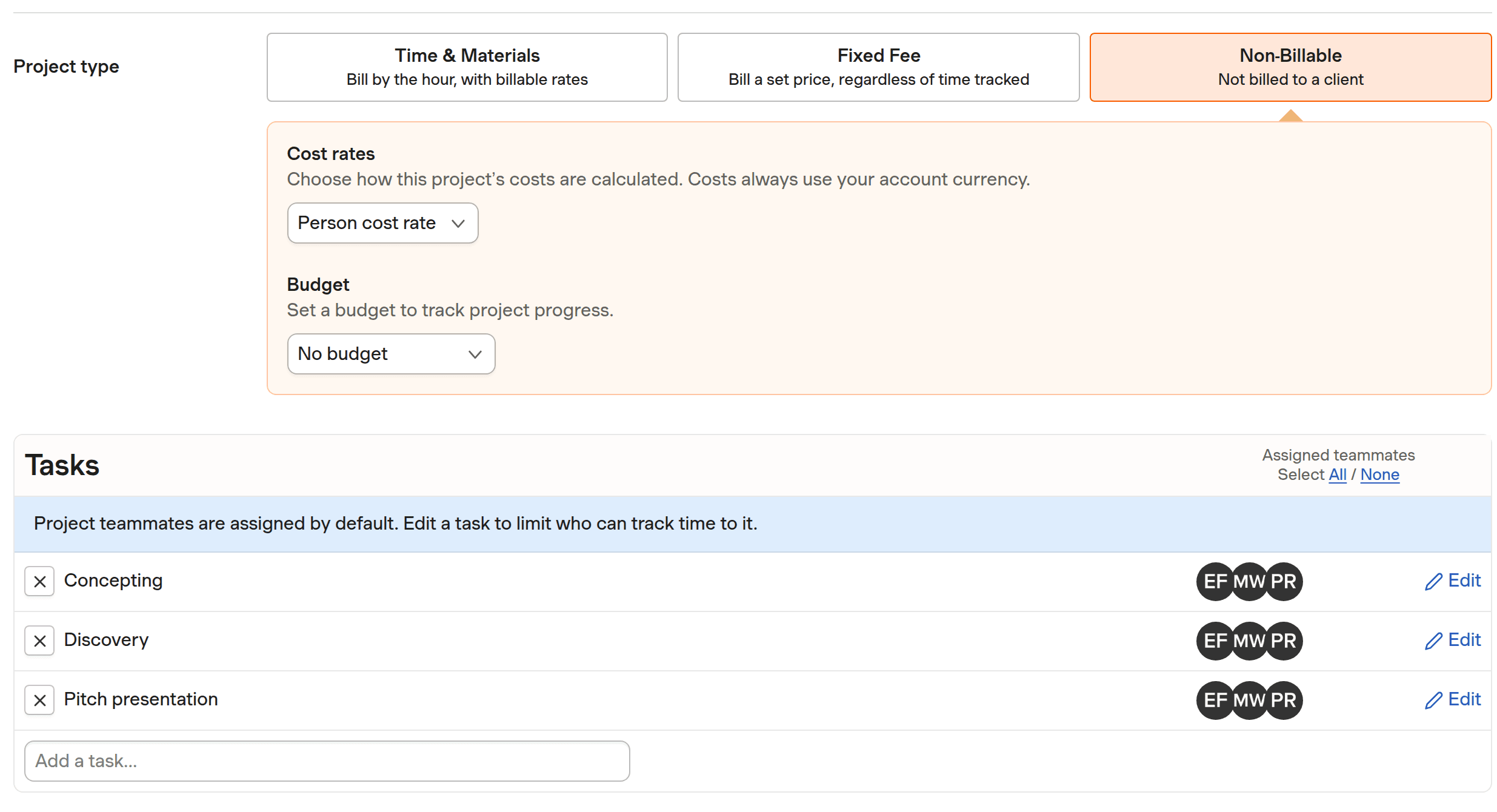
    Log proposal work to a dedicated Non-Billable project or a non-billable task while your team pitches. Every hour stays recorded against the client and task, but non-billable time never enters your uninvoiced balance until you decide to bill it.

    The Project type section of the Pitch — Northwind project, with Non-Billable selected and the project’s tasks listed below.
  2. Choose to convert or move

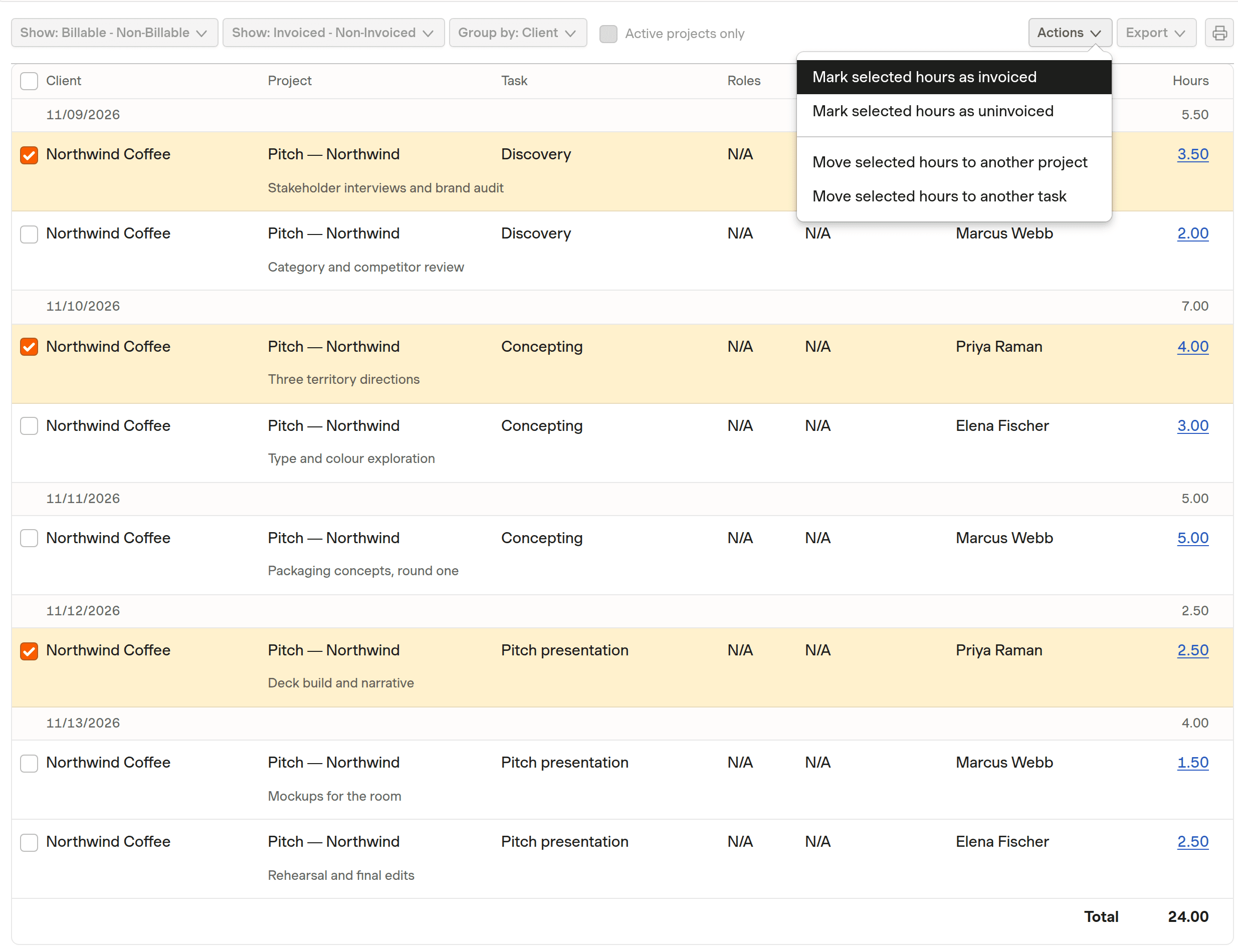
    When the contract is signed, decide how to bill the work. You can switch the pitch project to Time & Materials to bill it directly, or open Reports → New report → Detailed time and select entries to move into an existing client project.

    The detailed time report filtered to the pitch project, with three entries selected and the Actions menu open.
  3. Confirm the move or new rates

    In Detailed time, choose Actions → Move selected hours to another project. The confirmation dialog counts the entries, previews total hours, and notes any team members or tasks that will be added to the destination project before you type MOVE to confirm.

    The Move hours to another project confirmation step, with the Northwind Retainer chosen as the destination.
  4. Build the invoice from tracked time

    Create a new invoice for your client and choose Include all uninvoiced time. Harvest pulls the converted pitch entries into itemized line items priced at the destination rates, letting you review the full billing breakdown before anything reaches the client.

    The invoice built from the tracked pitch hours, with each converted entry as its own line item at the retainer’s rate.
  5. Save the invoice to lock the entries

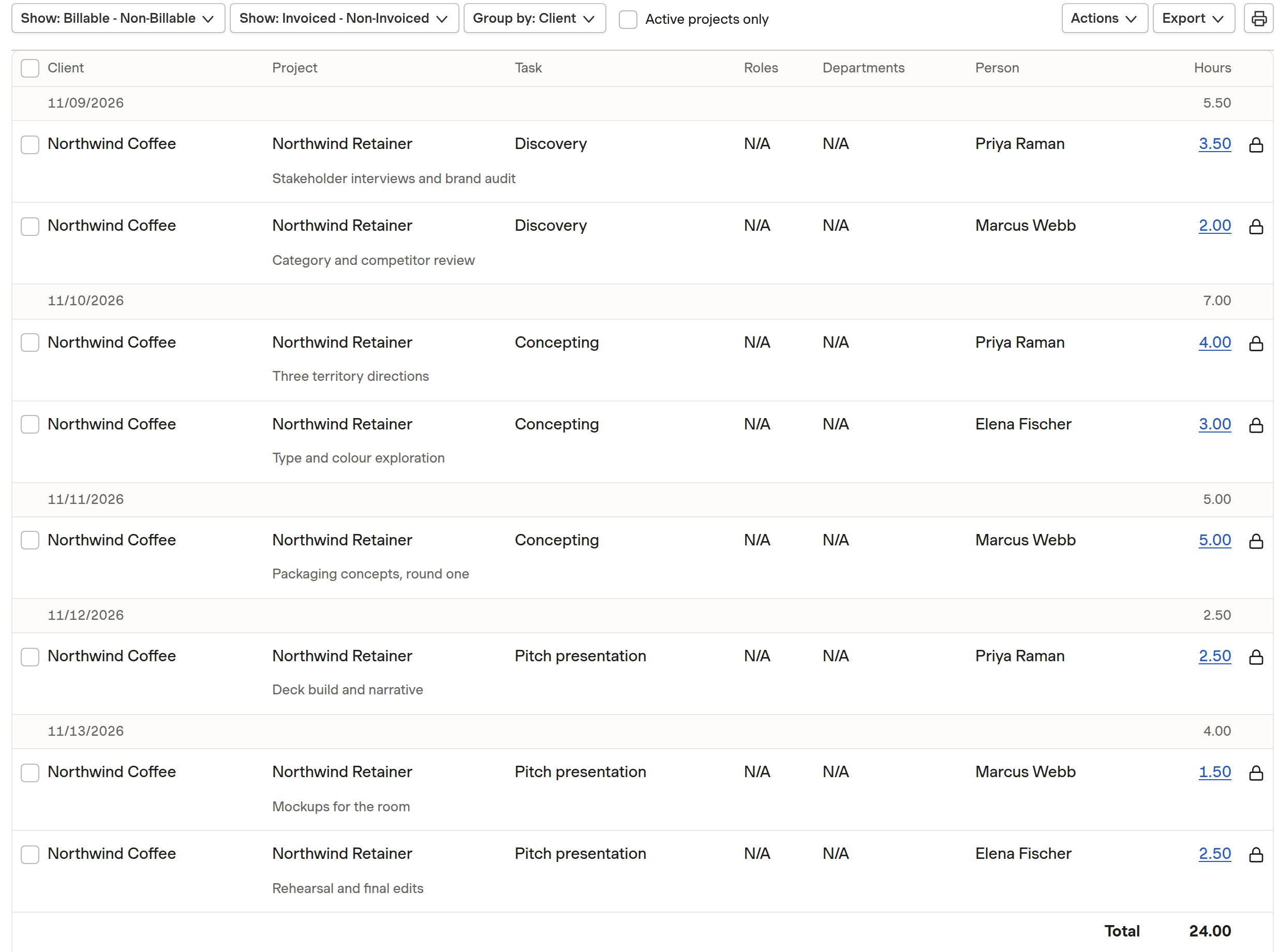
    Saving the invoice marks the included time entries as invoiced and locks them immediately. This protects historical timesheets from accidental edits, prevents duplicate billing, and keeps your uninvoiced balance perfectly aligned with what was billed.

    The detailed time report after the invoice was saved, with the moved pitch entries invoiced and locked.

Controlled moves and locked invoices

  • Controlled administrative access

    Moving hours and marking entries invoiced require administrator or manager permissions, so team timesheets stay protected from unauthorised changes.

  • Invoiced time stays locked

    Once saved to an invoice, entries lock against further edits or accidental moves, preserving an exact record of what the client was billed.

  • Automatic team and task assignment

    Moving hours automatically adds unassigned team members and task categories to the destination project, so no one is left off the project.

Pitch Hours

Stop retyping hours you already won

Track your next pitch under non-billable time, then move the hours onto the client project once the contract is signed.