Skip to content

Prepaid Hour Packages

Prepaid blocks offset your invoices before payments touch the bank

Apply upfront retainer balances to billable time directly on your invoice drafts. Your monthly hour caps reset on schedule, and applied draws copy as payments to your mapped QuickBooks deposit account when payment copy is on.

  • Tracked time draws from the client’s prepaid balance
  • Every add and draw links to its source invoice
  • Monthly hour caps renew on the calendar month
The invoice creation screen with the “Prepaid retainer” section open.

How it works

When you draft an invoice from billable time, Harvest checks whether the client holds an active retainer balance. Checking “Draw from pre-paid retainer” applies the funds as an immediate payment against the hours worked, so the client sees the work delivered, the prepaid deduction, and only what remains due. You never have to track prepaid balances in spreadsheets or calculate deductions by hand.

  1. Create the client retainer

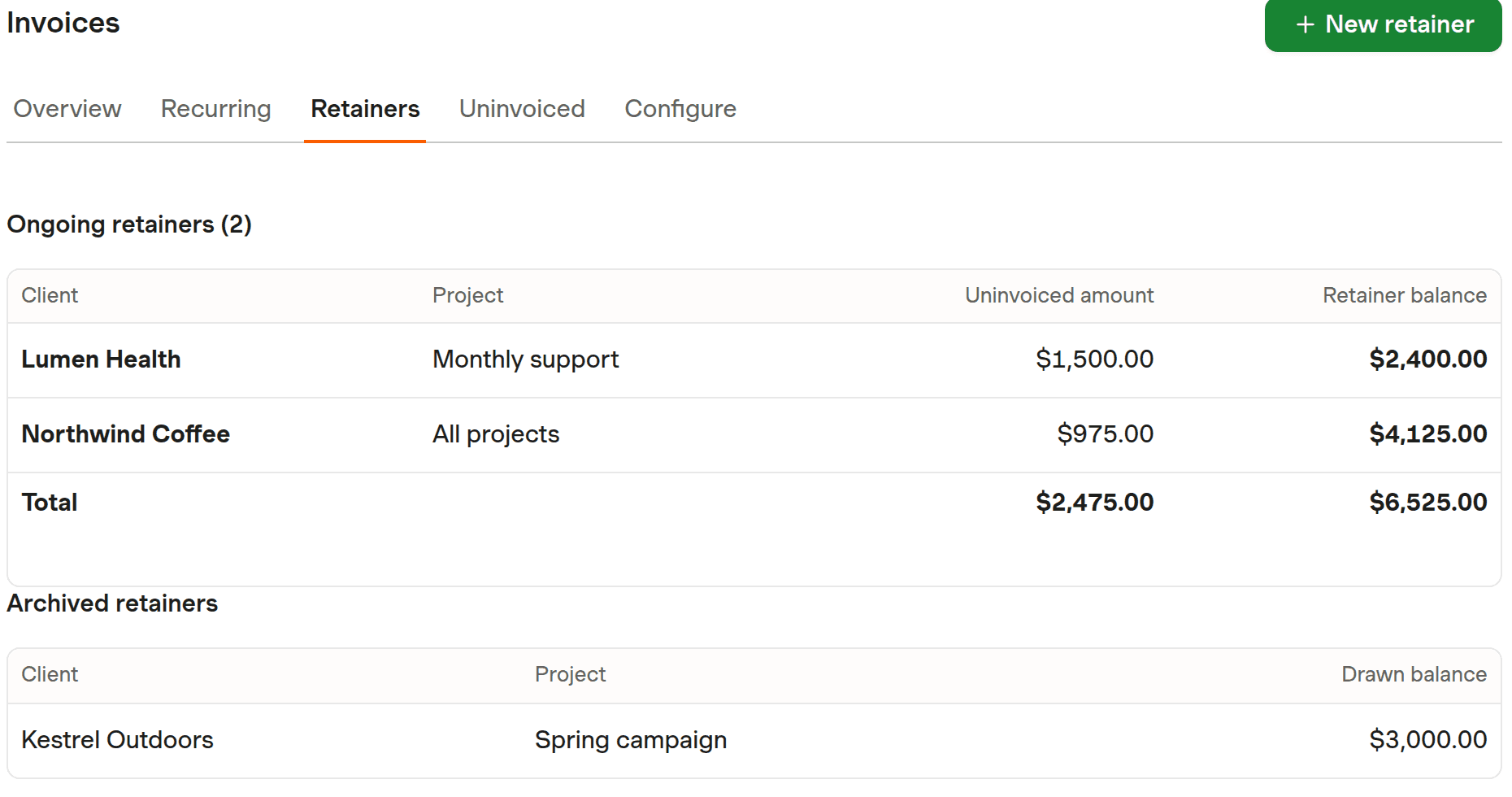
    In Retainers, select New retainer and choose your client. Specify whether the balance applies across all projects for that client or stays tied to a single project. Harvest opens a dedicated ledger where every addition and deduction remains visible.

    Invoices > Retainers with two ongoing retainers and one archived retainer.
  2. Add the prepaid funds

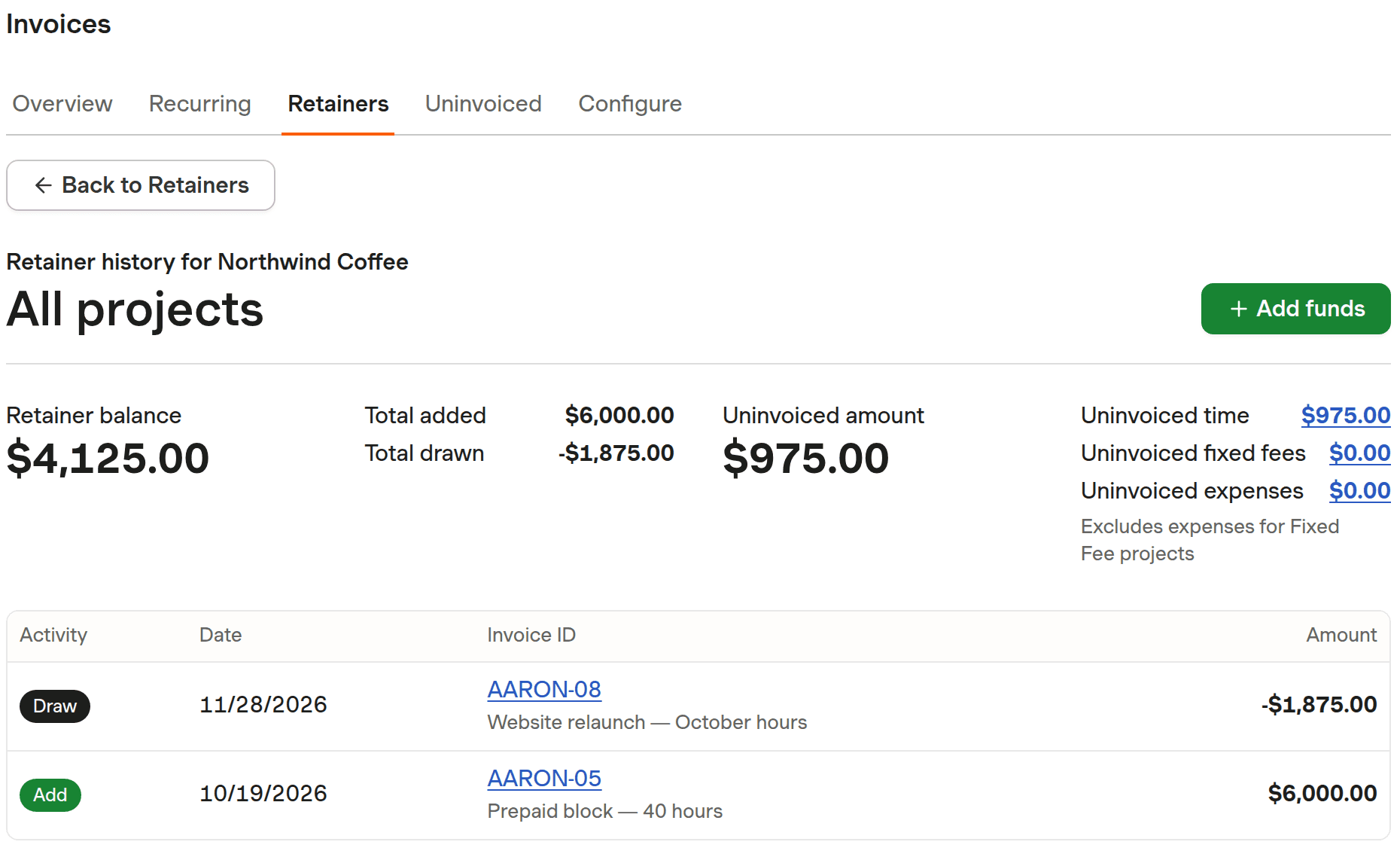
    Click Add funds to draft a retainer invoice for the upfront package. Once your client pays, recording that payment credits the retainer balance. The money sits ready to offset future work without touching your active project budgets.

    A retainer’s page with the balance card and the history table.
  3. Draw funds on your invoice draft

    When you bill tracked hours, check Draw from pre-paid retainer on the invoice draft. Harvest calculates the deduction and records the payment, so your client sees the time delivered, the applied funds, and what remains due.

    The invoice creation screen with the “Prepaid retainer” section open.
  4. Reset recurring allowances monthly

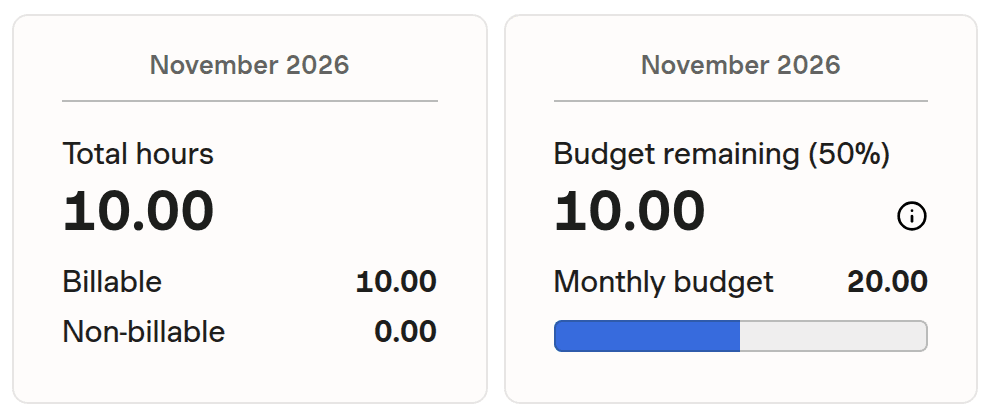
    For ongoing monthly packages, select Budget resets every month in your project settings. Tracked hours and budgets follow the calendar month, keeping recurring allowances paced without manual spreadsheet updates or creating new projects.

    A project’s page for an hours budget that resets monthly.
  5. Map payments to QuickBooks

    In QuickBooks Online settings, select your deposit account under Deposit account. When payment copy is on, applied invoice draws copy as payments to that account, while retainer invoices cannot be copied to QuickBooks Online.

What teams use it for

Invoice draft · drawing from a prepaid balance

Tracked time is paid from the prepaid balance before the client sees the bill

Clients need to see their delivered hours and prepaid balance applied without manual credit memos.

When generating an invoice from billable time, the prepaid retainer section displays the remaining balance, calculates the offset, and records the draw as a payment against the total.
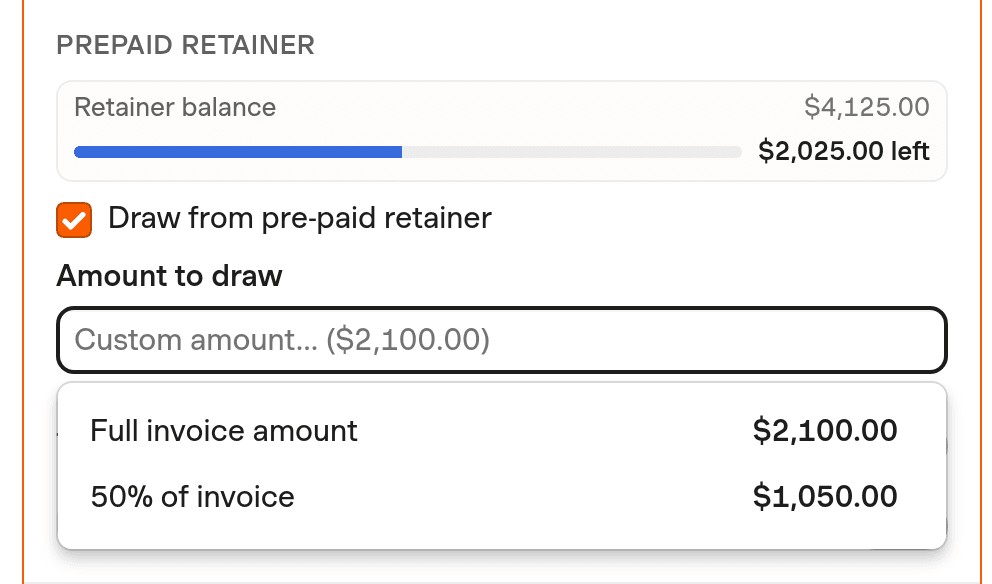
An invoice showing delivered hours, the prepaid deduction, and what remains due

The invoice creation screen with the “Prepaid retainer” section open.

The 1st of the month · recurring allowance renewal

Monthly hour allowances reset automatically without manual spreadsheet adjustments

Monthly support packages need strict monthly boundaries without creating new projects every month.

Ticking budget resets on an hours-budgeted project scopes time tracking to the current calendar month, keeping recurring allowances clean without creating new projects.

A clean monthly budget card tracking current spend against the client’s allowance

A project’s page for an hours budget that resets monthly.

Month-end reconciliation · syncing drawn invoices to accounting

Applied draws post to your mapped deposit account when payment copy is on

Prepaid cash must reconcile cleanly without creating duplicate invoice payments.

When payment copy is on, retainer draws copy as payments into your mapped deposit account, while retainer invoices are blocked from copying to QuickBooks Online.

Applied draws copy as payments to your mapped deposit account

Clear permissions and accounting controls

  • How QuickBooks handles retainer billing

    Retainer invoices cannot be copied to QuickBooks Online. When payment copy is turned on, draws applied to regular invoices copy as payments posted to your mapped deposit account.

  • Admin controls protect retainer setup

    Only administrators can create or edit a retainer and add funds. Managers with managed-invoice permission can choose to draw from an existing retainer when creating an invoice.

  • Strict project scopes and dated history

    A client can have one active retainer across all projects and one active retainer per individual project. Every addition and draw is kept as a dated row linked to its invoice.

Common questions on retainers

Why can’t I copy retainer invoices to QuickBooks Online?

Retainer invoices cannot be copied to QuickBooks Online. When payment copy is turned on, draws applied to regular invoices copy to QuickBooks as payments posted to your mapped deposit account.

Can I draw a partial amount from a retainer balance?

Yes. On an invoice created from tracked time, expenses, or a fixed fee, you can choose to apply the full invoice, the full balance, 50% of the invoice, or a custom amount. Harvest records a payment for the lesser of the amount due, the balance, and the requested amount.

Which invoices can draw from a retainer balance?

A draw is offered on invoices created from tracked time, expenses, or a fixed fee. Recurring invoices never offer a retainer draw.

Prepaid Hour Packages

Stop reconciling prepaid balances in spreadsheets

Track upfront client funds against logged hours, reset monthly allowances automatically, and draw down balances onto invoices with payments mapped to your QuickBooks deposit account.