Skip to content

Timesheets

Approved hours stay locked without waiting on a shared file

Replace the shared spreadsheet with dedicated timesheets that submit each week for approval and lock once approved. Past entries stay protected against retroactive edits, while approvers can reopen a week if hours need to change. Everyone logs time in their own view, so your team avoids slow files and broken filters.

  • Track by timer, duration, or start and end time
  • Approvers review submitted weeks in a central queue
  • Filter reports by client, project, task and approval status
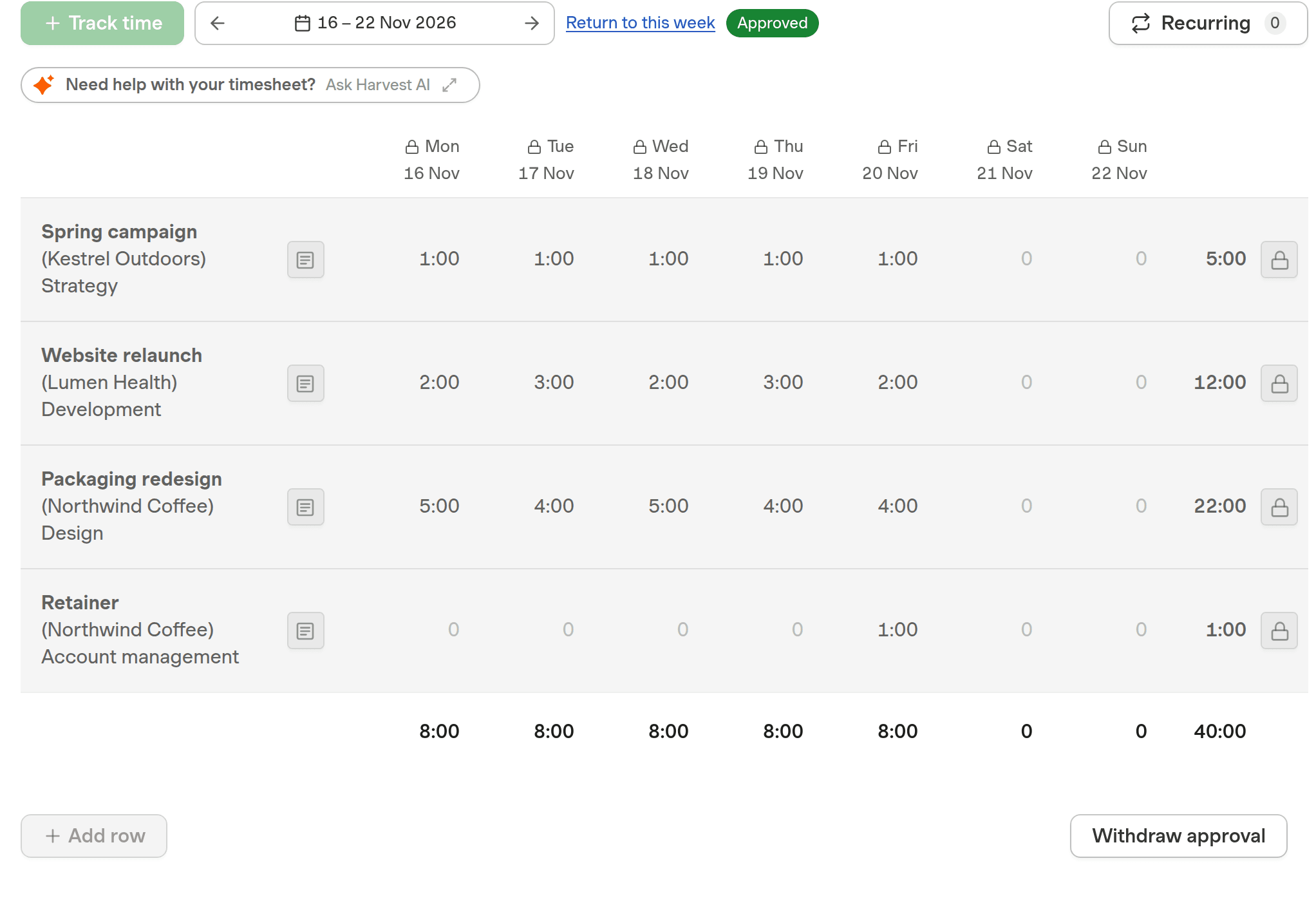
An approved week whose entries are locked.

How it works

When teams track time in a shared SharePoint workbook, slow files delay Friday submissions and unrecorded changes make past hours difficult to trust. Harvest replaces the shared file with individual timesheets where team members log their own hours and submit the week in one action. Once an approver reviews and approves the week, its entries lock against member edits, giving you reliable numbers for project tracking and billing without broken filters.

  1. Open your week

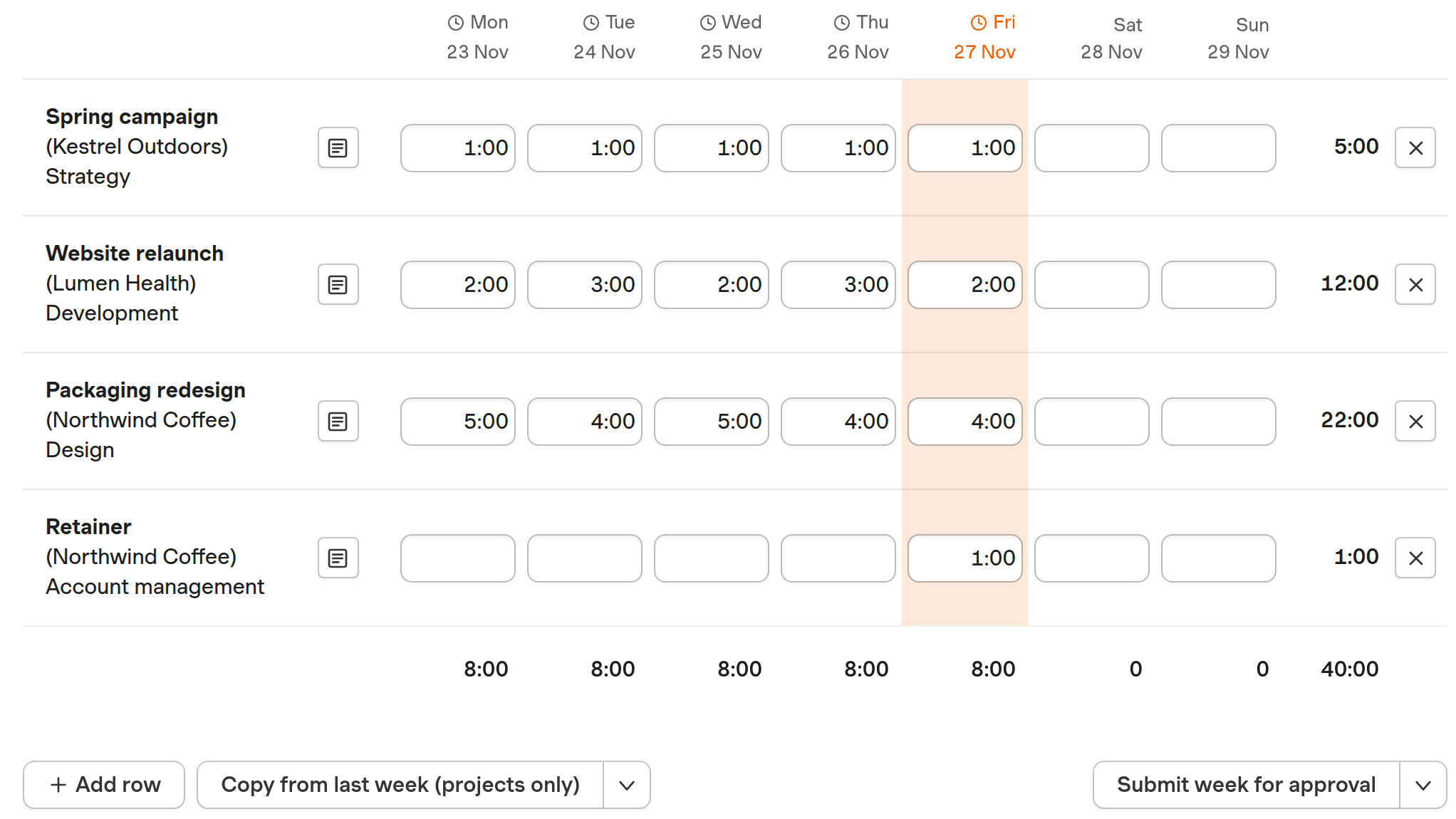
    Open your own week on Friday instead of waiting for someone to close a shared file. You see your project and task rows across Monday to Friday with running totals, so everyone logs hours at once without file conflicts.

    The Week view of Dana’s timesheet.
  2. Add your hours

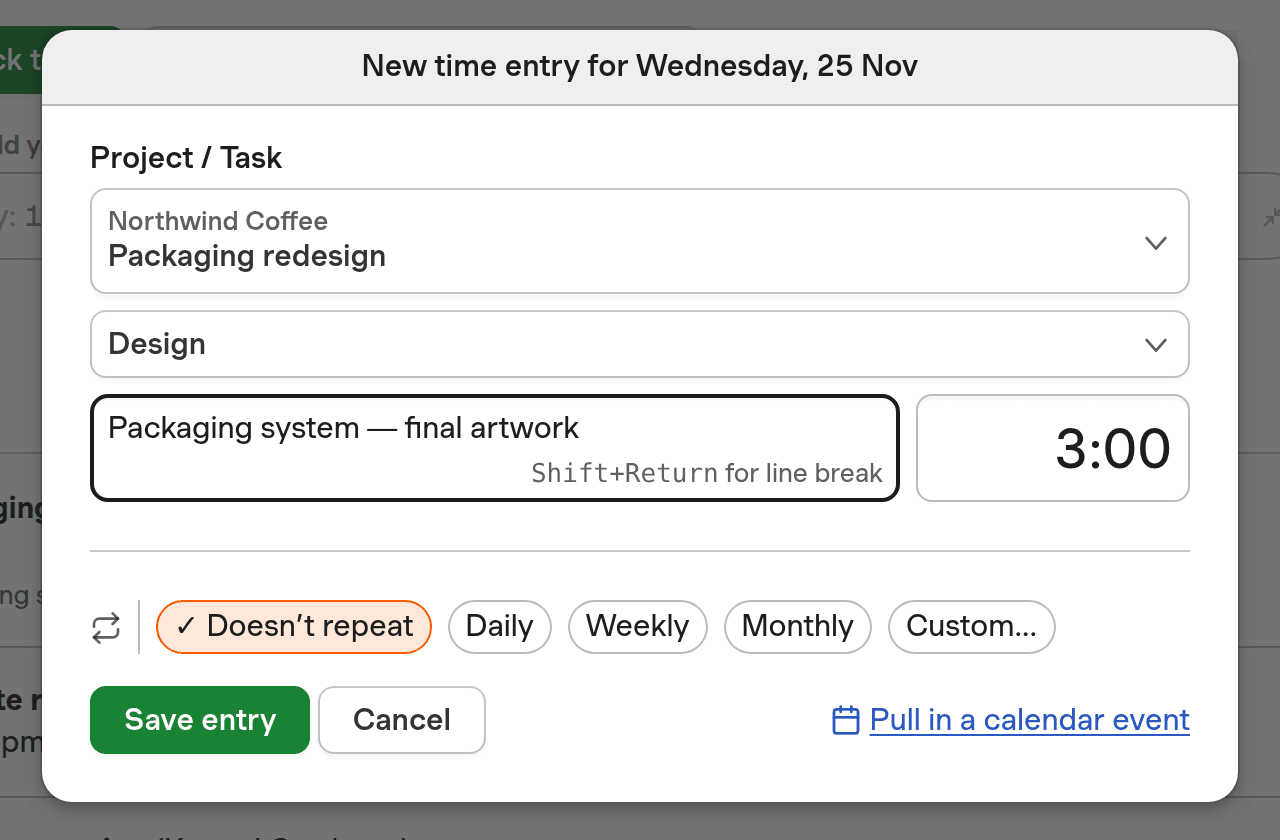
    Start a timer, type a duration, or enter a start and end time, adding a note if the account requires one.

    The Day view with the time entry dialog open.
  3. Submit the week

    Submit the completed week for approval in one action, sending time and expenses together.

    The Submit week for approval confirmation card.
  4. Review in approvals

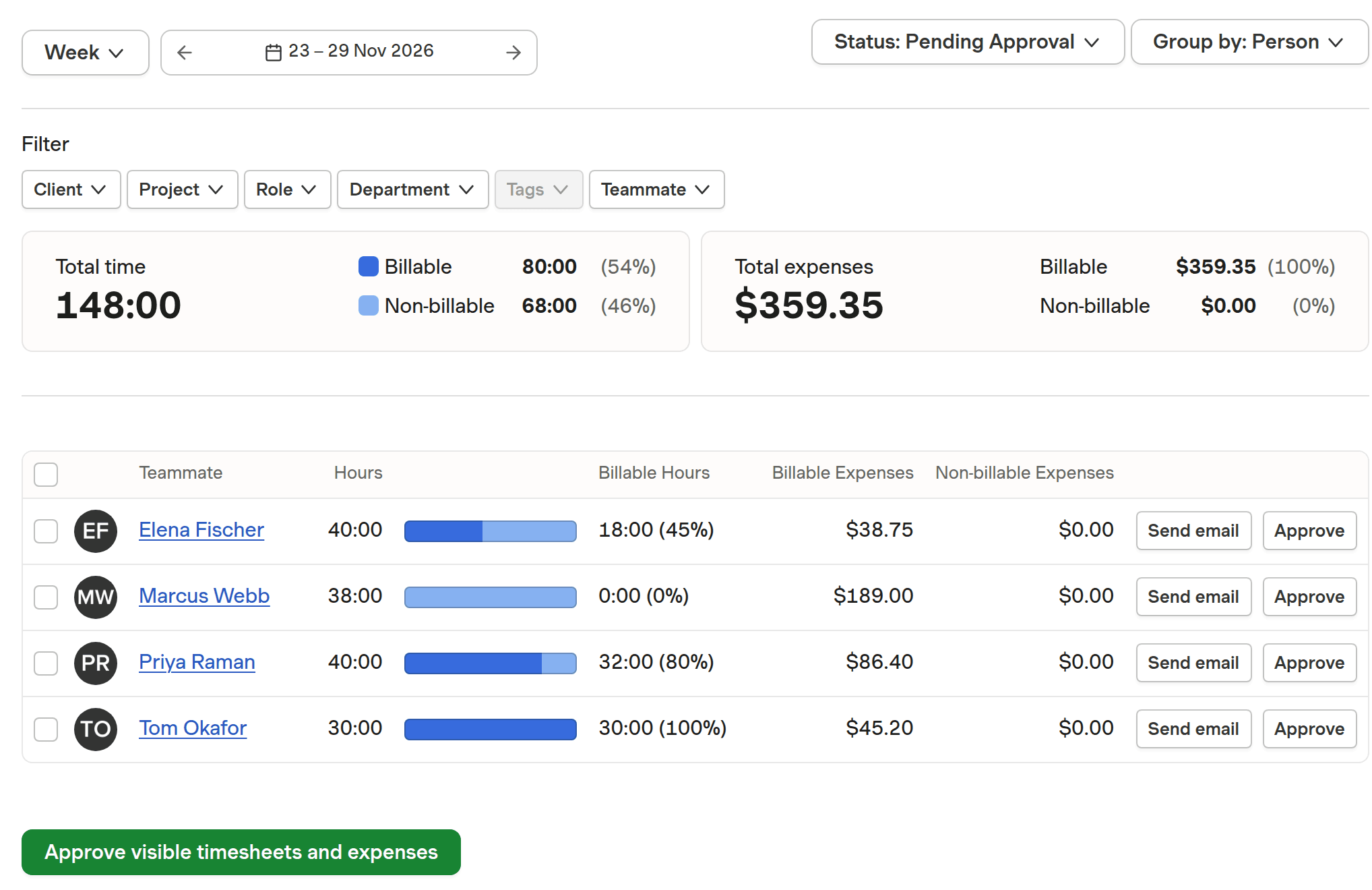
    Approvers open Time > Approvals to review submitted weeks filtered by client, project, or person.

    Time > Approvals with the team’s submitted weeks.
  5. Entries lock on approval

    Approved entries lock against member edits, while an approver can withdraw approval if a week needs to reopen.

    An approved week whose entries are locked.
  6. Filter detailed reports

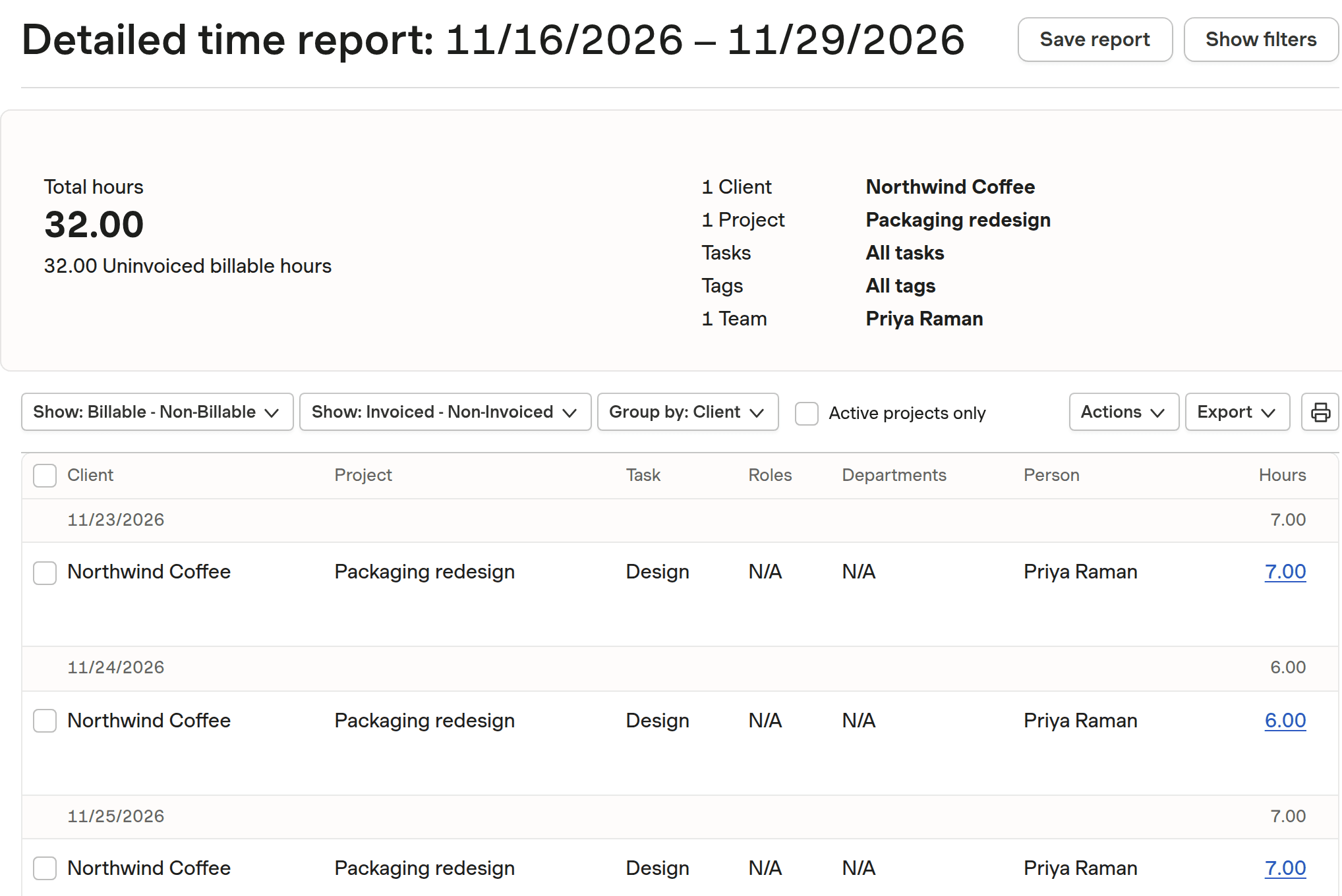
    Open the detailed time report to filter entries by client, project, person, and approval status, then export to CSV, XLSX, or PDF.

    Reports > Detailed time with filters applied.

Friday submissions, Monday approvals, and Wednesday project totals

Friday afternoon · the week closes

Submit weekly hours without waiting on a shared file

The team needs to submit weekly hours without waiting on a slow file.

Instead of waiting for a slow shared spreadsheet, each person enters their time in their own browser view and submits the full week with time and expenses together.
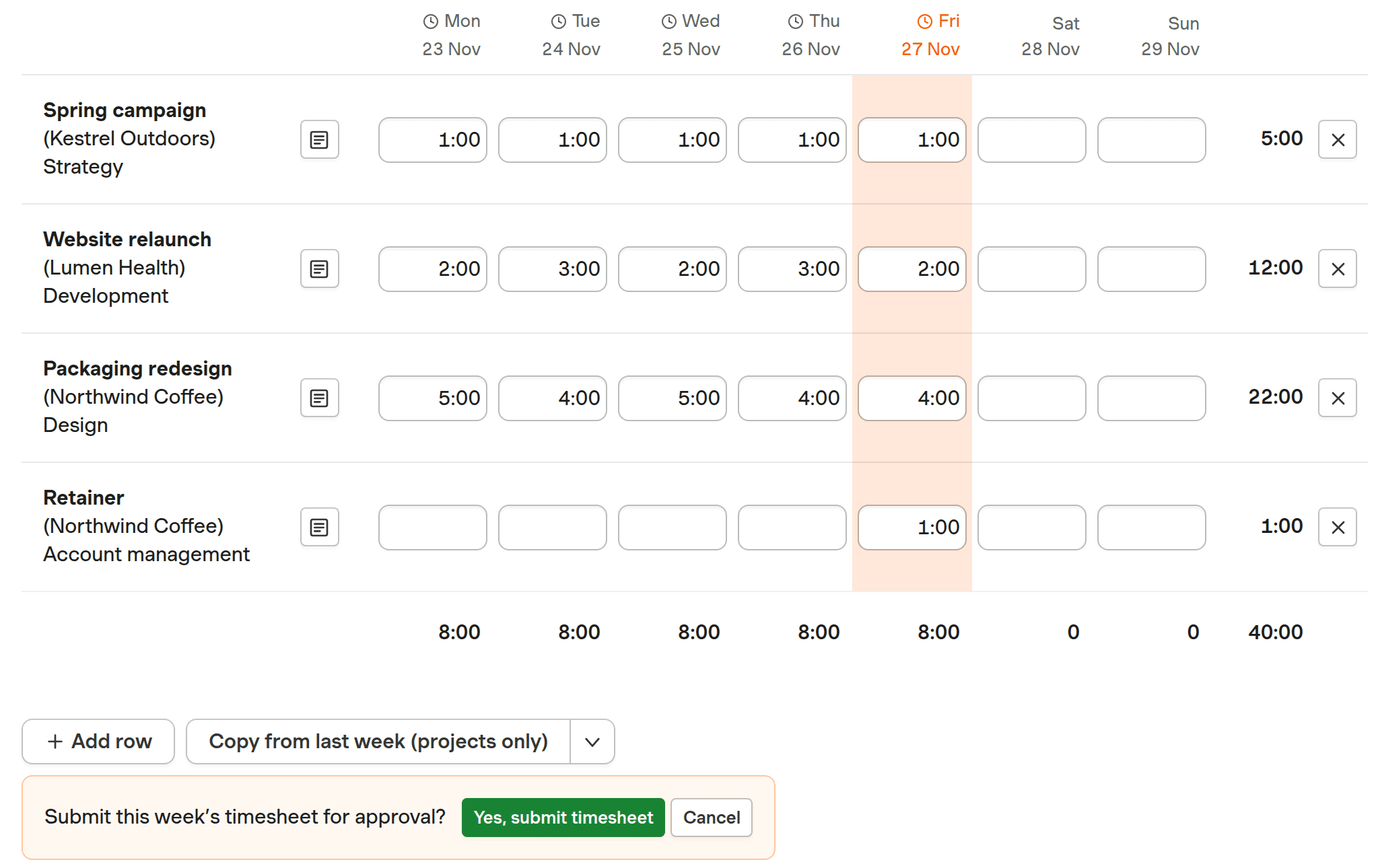
Every teammate submits their own week in one action

The Submit week for approval confirmation card.

Monday morning · reviewing submitted time

Protect approved hours from retroactive edits

Operations leads need historical hours to stay fixed once approved.

Once an approver signs off on a submitted week, its entries lock against member edits. If hours ever need to change, an approver can withdraw approval to reopen the week.

Nobody can quietly change last week’s hours after approval

An approved week whose entries are locked.

Wednesday status check · reviewing project totals

Filter project totals without broken sheet filters

Project leaders need reliable totals without troubleshooting broken sheet filters.

Review project hours using detailed reports that filter by client, project, person, and approval status, with results ready to export to CSV, XLSX, or PDF.

Direct report filtering that exports to CSV, XLSX, or PDF

Reports > Detailed time with filters applied.

Approvals, reopening locked weeks, and importing past time

  • Approvals are included on Premium plans

    Time tracking is included on every plan, while timesheet approvals and the approvals queue are available on Premium and legacy Pro plans.

  • Approvers can reopen a locked week

    Approved entries lock against member edits, but an approver can withdraw approval to reopen the week as long as the entries have not been invoiced.

  • Import existing time from CSV

    Bring past time entries into Harvest with a CSV import. An import adds entries rather than updating existing records, and an administrator can revert an import if needed.

Timesheets

Leave shared timesheet spreadsheets behind

Start your free trial to test the workflow with your team, and run your next Friday wrap-up without file lockouts or unrecorded changes.