Skip to content

Timesheet Approvals

Invoice only the hours your team reviewed and agreed

Review and lock each week of time and expenses together before anything reaches billing. Once approved, entries stay locked against member edits so your team avoids chasing sign-offs or writing off unverified hours.

  • Submit time and expenses together by the week
  • Filter draft invoices to approved hours only
  • Approved entries stay locked against member edits
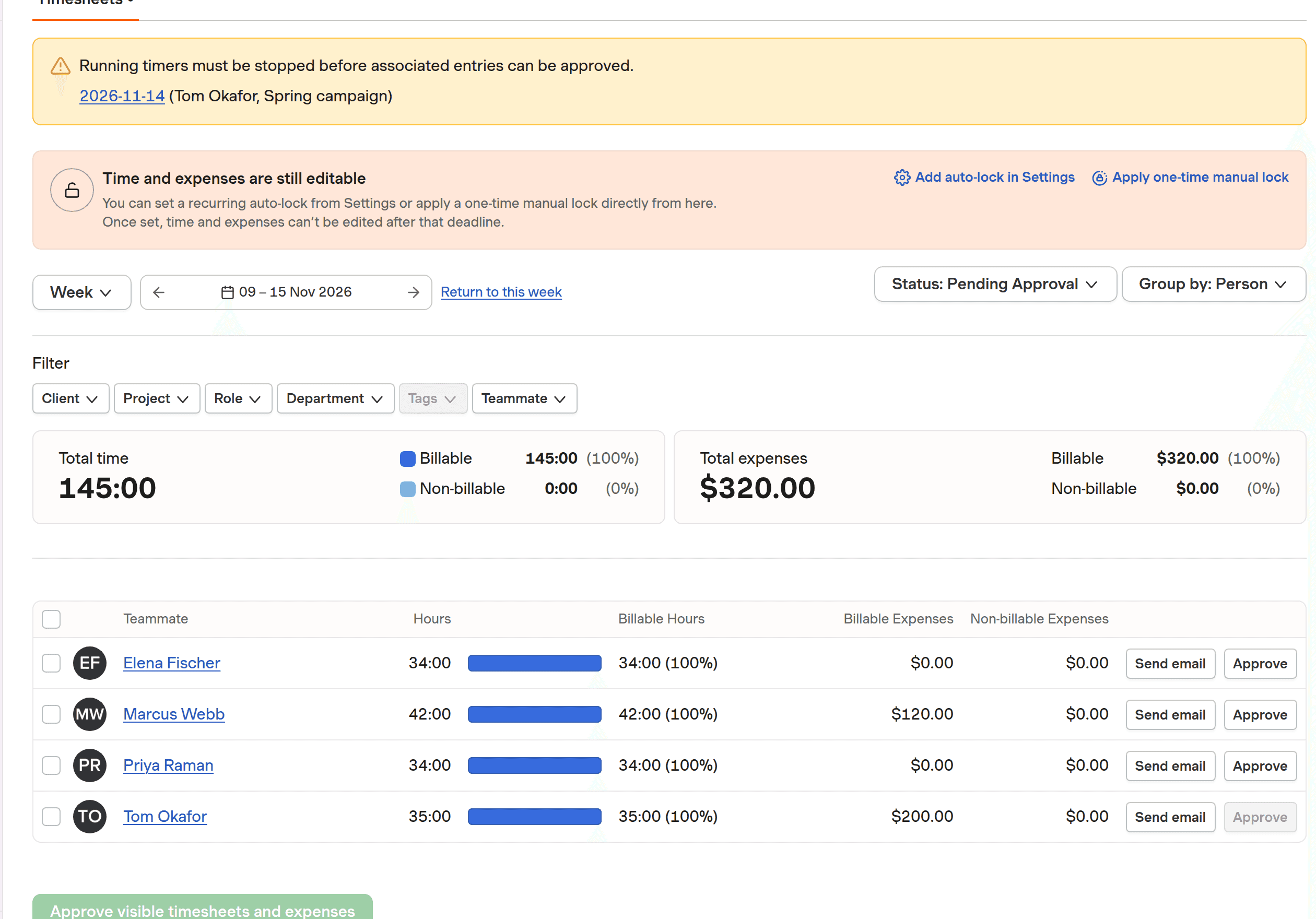
Time > Approval queue with status Pending Approval, showing team members and running timer notice

Review and lock weekly timesheets before billing

Instead of hunting through daily logs or asking project leads on Slack if their team’s hours are final, the approvals queue brings each person’s week into one view. You see total hours, billable percentages and attached expenses side by side. When you approve a timesheet, Harvest locks the entries in the approved scope against member edits, and setting your invoice filter to Approved only ensures client billing reflects approved entries.

Where weekly approvals protect your billing

Friday afternoon · the week closes

A complete week of time and expenses submitted together

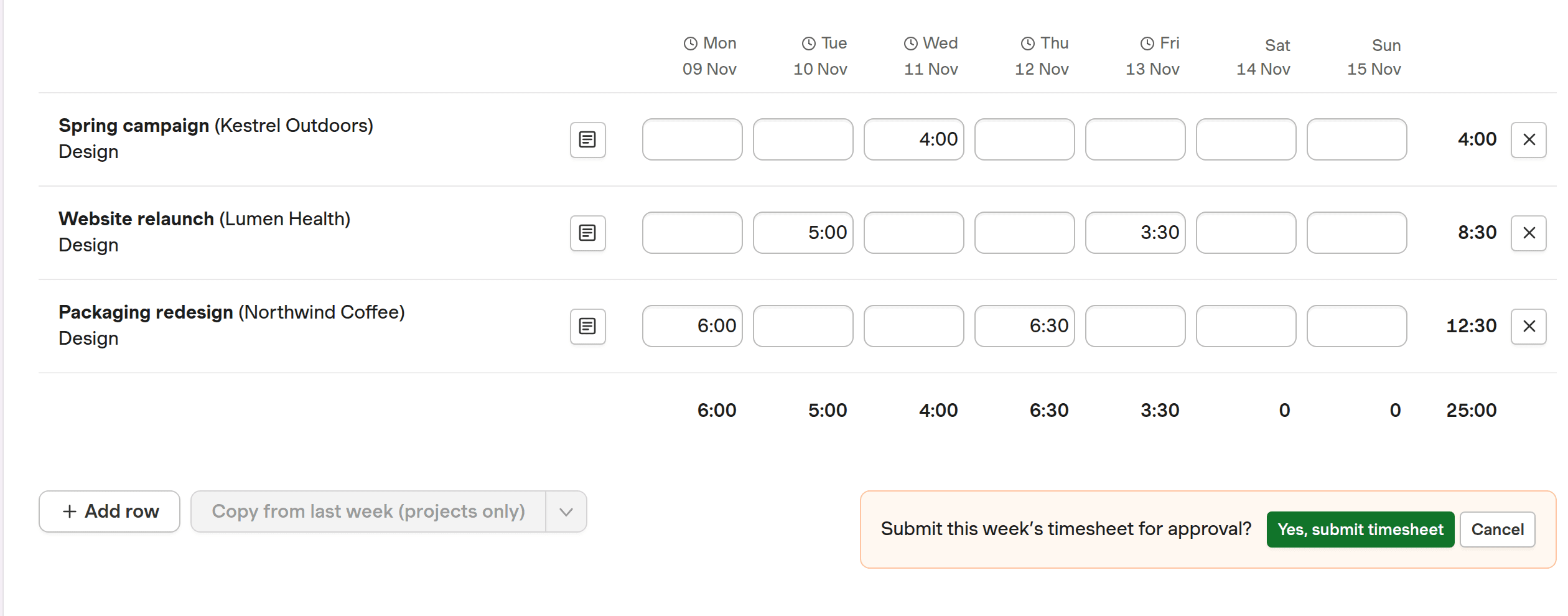
Team members submit their whole week directly from their timesheet footer, reviewing time and expenses together before submitting. Hours across projects and attached expenses package as a single submission for managers to review.
Submitted hours and expenses packaged for review

Timesheet footer showing the Submit week for approval confirmation card with Yes, submit timesheet

Every other Monday · reviewing the team’s weeks

Hours, billable share and expenses reviewed in one table

The approvals queue displays each person’s week with their total hours, billable breakdown and attached expenses side by side. Approvers sign off on individual rows or approve visible timesheets once any running timers are stopped.

Approved time and expenses locked against member edits

Time > Approval queue with status Pending Approval, showing team members and running timer notice

The 3rd of the month · invoicing a retainer

Invoices populated only from locked, approved hours

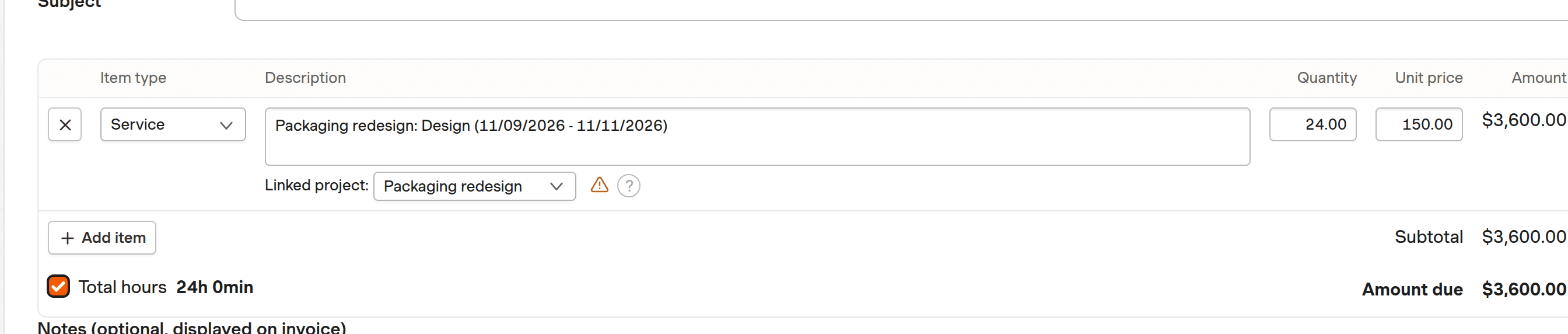
When building client invoices, you can set the approval filter to Approved only to limit line items to approved time. The invoice preview warns immediately if any selected project still has unapproved hours or pending expenses.

Billed amounts match approved hours when the filter is set

Invoice creation with include filter set to Approved only, showing approved hours and totals

How timesheet approvals work

  1. Submit week for approval

    Team members submit their entire week directly from their timesheet footer, packaging all project hours and attached expenses for review.

    Timesheet footer showing the Submit week for approval confirmation card with Yes, submit timesheet
  2. Review and approve timesheets

    Approvers review each person’s total hours, billable share and expenses under Time > Approval, then approve individual rows or visible timesheets once running timers are stopped.

    Time > Approval queue with status Pending Approval, showing team members and running timer notice
  3. Lock entries and filter invoices

    Approved entries lock against member edits, and you can set the invoice include filter to Approved only so unverified hours stay off client bills.

    Invoice creation with include filter set to Approved only, showing approved hours and totals

What to know about timesheet approvals

  • Keep unapproved hours off invoices

    Set invoice include filters to Approved only. If a selected project still has unapproved or unsubmitted time, a preview banner flags it before you draft.

  • Who can approve time

    Only Administrators, and Managers with permission for their assigned people and projects, can approve timesheets. Managers cannot approve their own time unless that permission is turned on.

  • What happens when time needs editing

    Approval locks time entries from member edits. If an hour needs to change, an administrator or manager with withdraw permission can reopen the week.

Timesheet Approvals

Start every billing cycle with agreed hours

Start your free trial to review weekly time and expenses in one pass, lock approved entries against member edits, and draft client invoices with confidence.