Skip to content

Track Billable Hours

Invoices ready to review the moment the month closes

Separate billable from internal hours as your team tracks them, with agreed rates attached to every entry. When the month ends, generate client invoices from tracked time instead of cross-referencing timesheets in a spreadsheet.

  • Dated rates keep earlier hours on previous pricing
  • Uninvoiced balances visible per project before billing runs
  • Filter invoice hours by timesheet approval status
New invoice for Northwind Coffee, built from tracked time, at the review step

Review tracked hours instead of rebuilding them from scratch

When billing day arrives, your operations team should be reviewing finished numbers, not doing forensic accounting. Because billable and non-billable time are separated the moment team members record their work, an invoice is generated directly from unbilled hours with agreed rates already attached as unit prices.

Instead of cross-referencing timesheet exports against contracts in spreadsheets to figure out which hours were chargeable, project setup defines which tasks are billable and what each hour costs. Every saved entry carries its billing status and rate from day one.

How tracking billable hours works

  1. Set up project rates and tasks

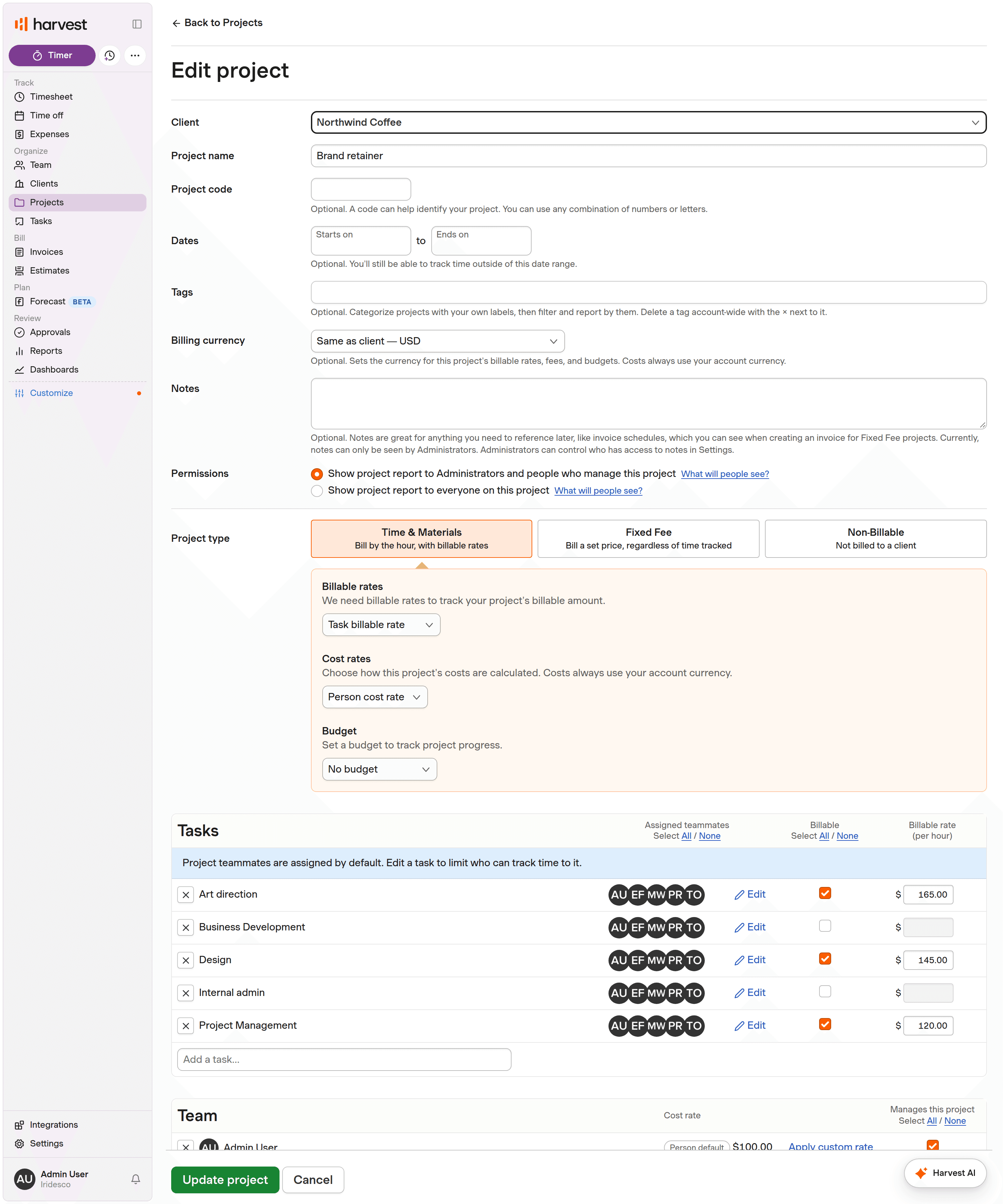
    An operations lead sets up a retainer project once in the project editor, choosing whether it bills by project rate, person rate, or task rate, and checking Billable for chargeable tasks. Every later entry arrives classified and priced without manual tagging. Setting rates requires permission to view and edit billable rates, and adding a new rate with a start date keeps earlier hours on earlier pricing, while editing an existing rate updates the period it covers.

    The project editor’s Billable rates section and the Tasks table beneath it
  2. Track time to billable tasks

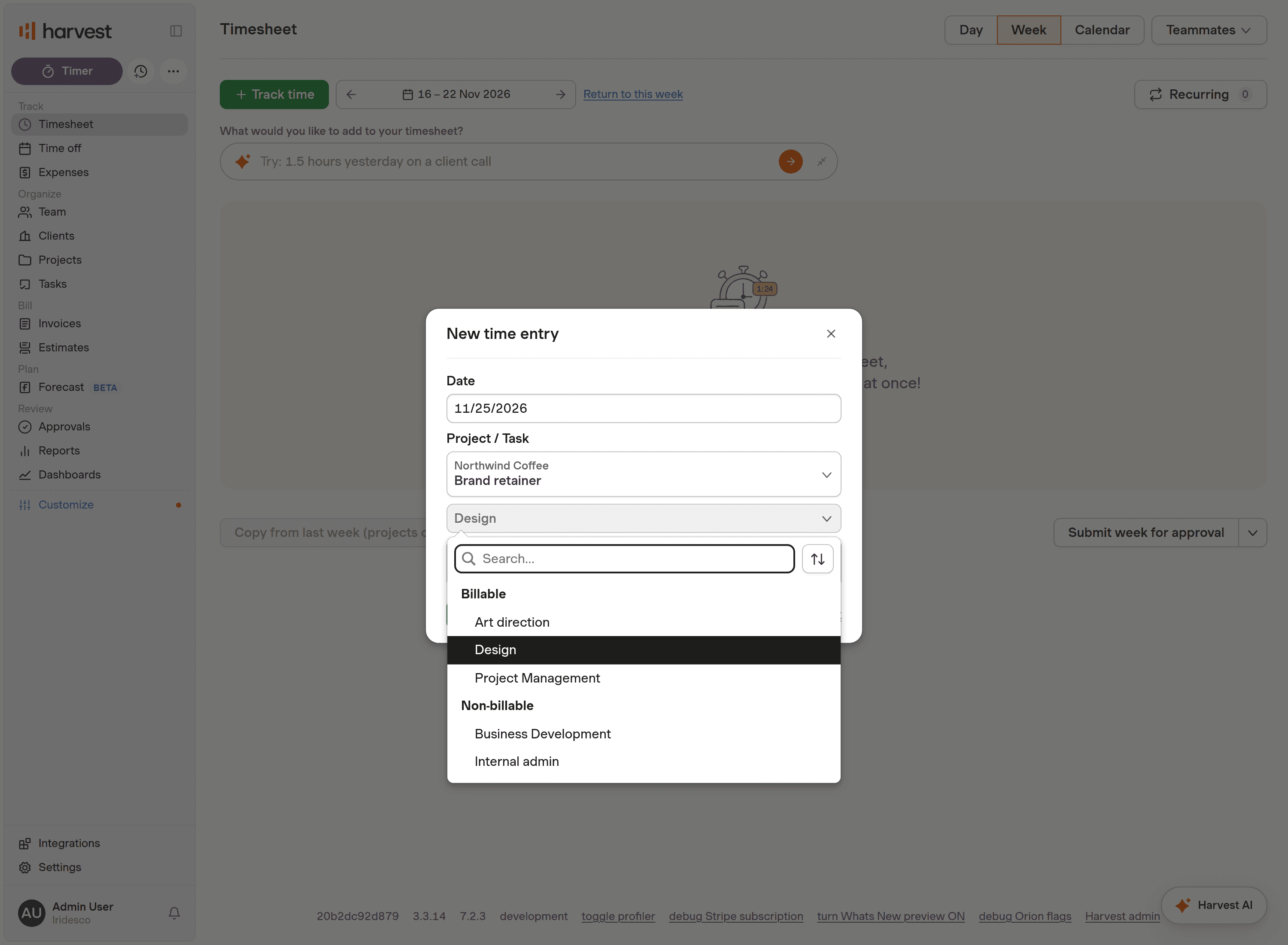
    Team members pick from clearly separated Billable and Non-billable groups in the task dropdown whenever they log time. The billable flag and current rate are written onto the entry the moment it is saved. Nobody has to remember client billing rules or add manual billing tags to their notes.

    The task dropdown in a new time entry on the Brand retainer project
  3. Create an invoice from tracked time

    Create an invoice from tracked time and expenses when you are ready to bill. Unbilled billable hours pull directly into the draft, grouped by task, person, or project. Every line item arrives with its tracked rate filled in as the unit price, ready to edit before sending.

    New invoice for Northwind Coffee, built from tracked time, at the review step

Managing billable time across the month

The last Friday of the month · the invoicing run

Every chargeable hour arrives already priced on the draft invoice

Instead of opening timesheet rows in a spreadsheet to determine what was client work and what was internal overhead, pull unbilled time directly into an invoice with tracked rates already set as unit prices.
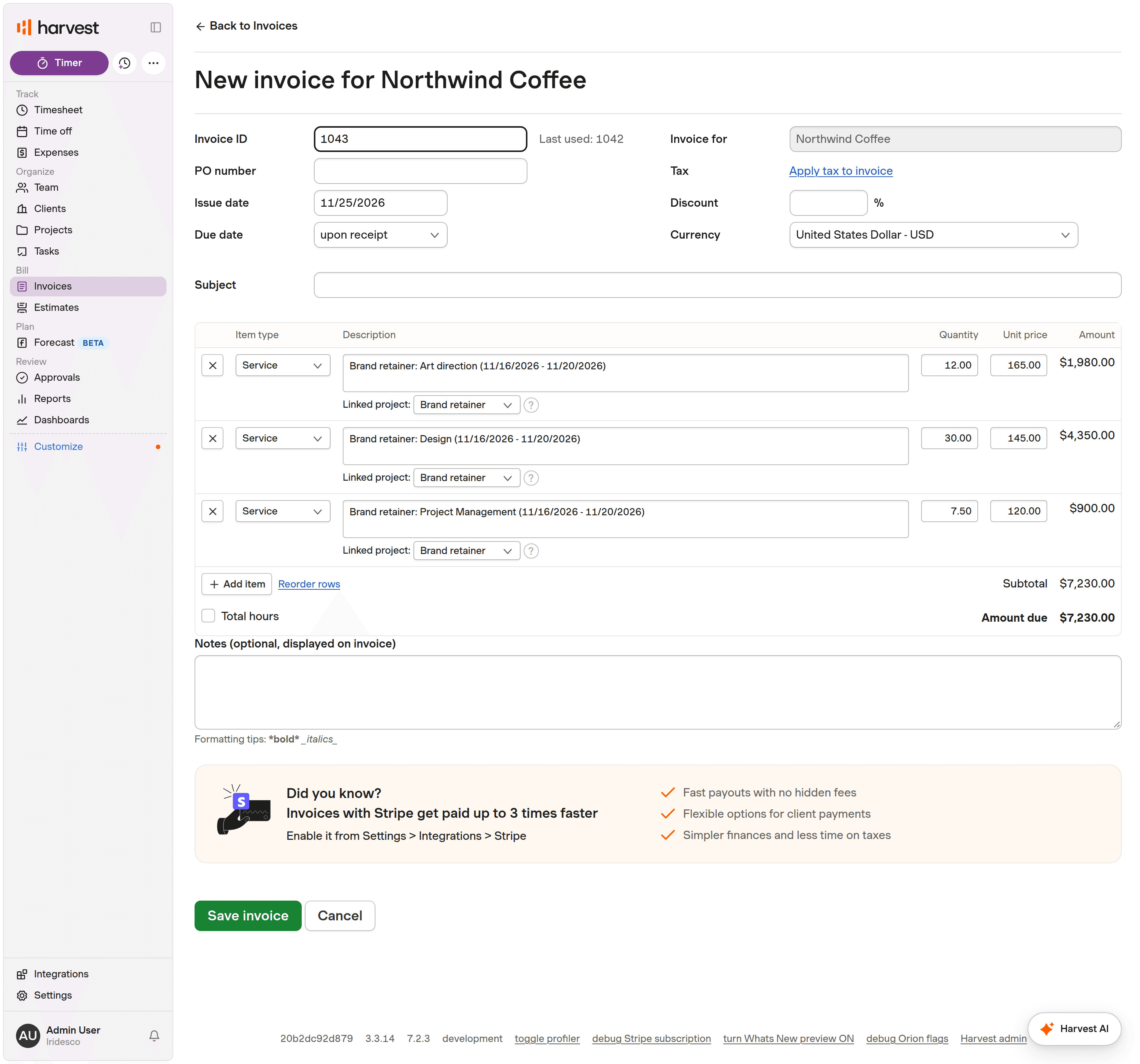
Invoices generated from tracked time with rates attached

New invoice for Northwind Coffee, built from tracked time, at the review step

Mid-month · a client asks what their bill stands at

Current unbilled totals are clear before an invoice even exists

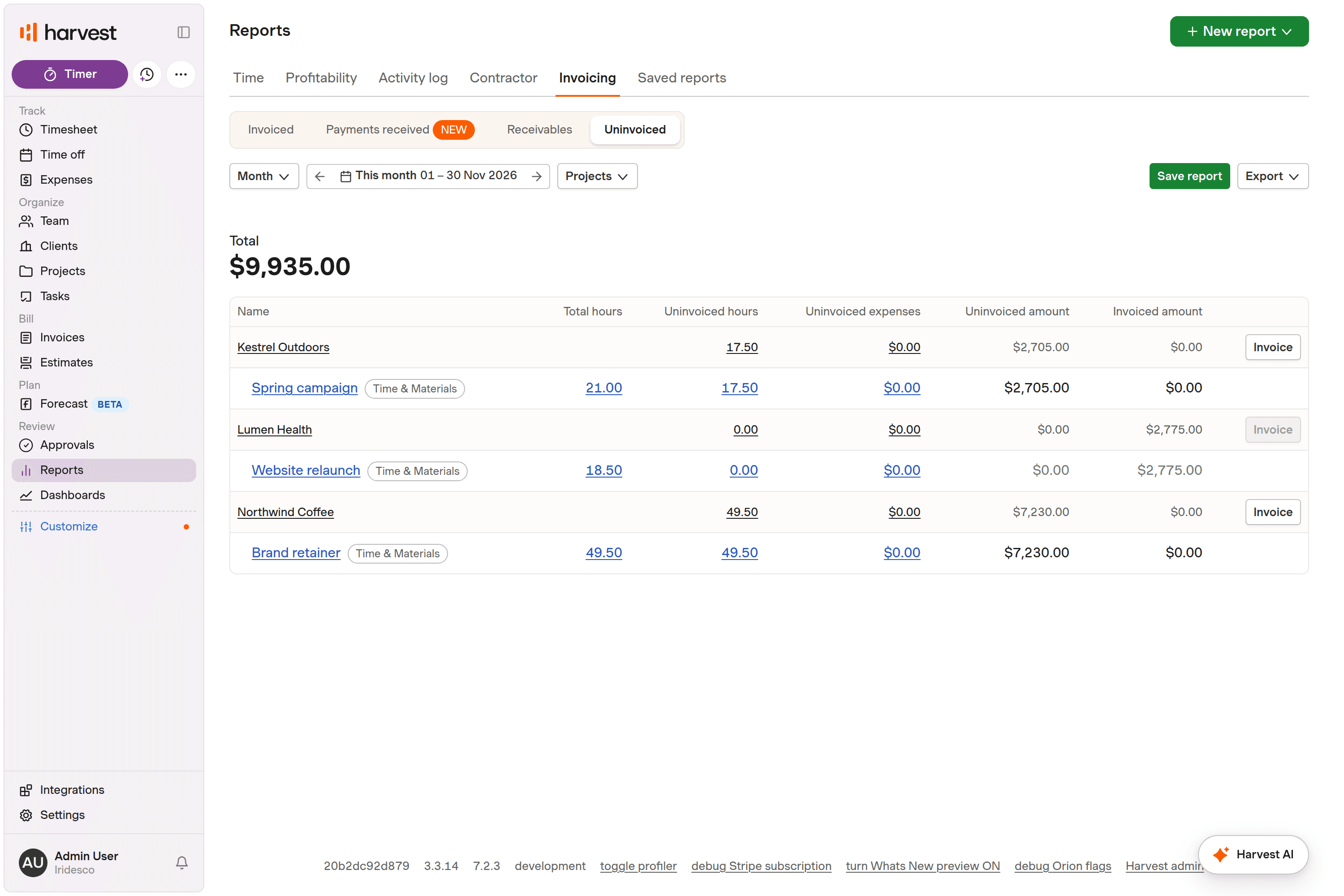
Answer mid-cycle spend inquiries without calculating totals by hand or waiting for month-end reports. The Uninvoiced report lists unbilled hours, expenses, and totals per project.

Uninvoiced balances visible across every active project

Reports → Invoicing → Uninvoiced

Friday afternoon · weekly timesheets come up for sign-off

Sign off hours knowing exactly how much of the week was chargeable

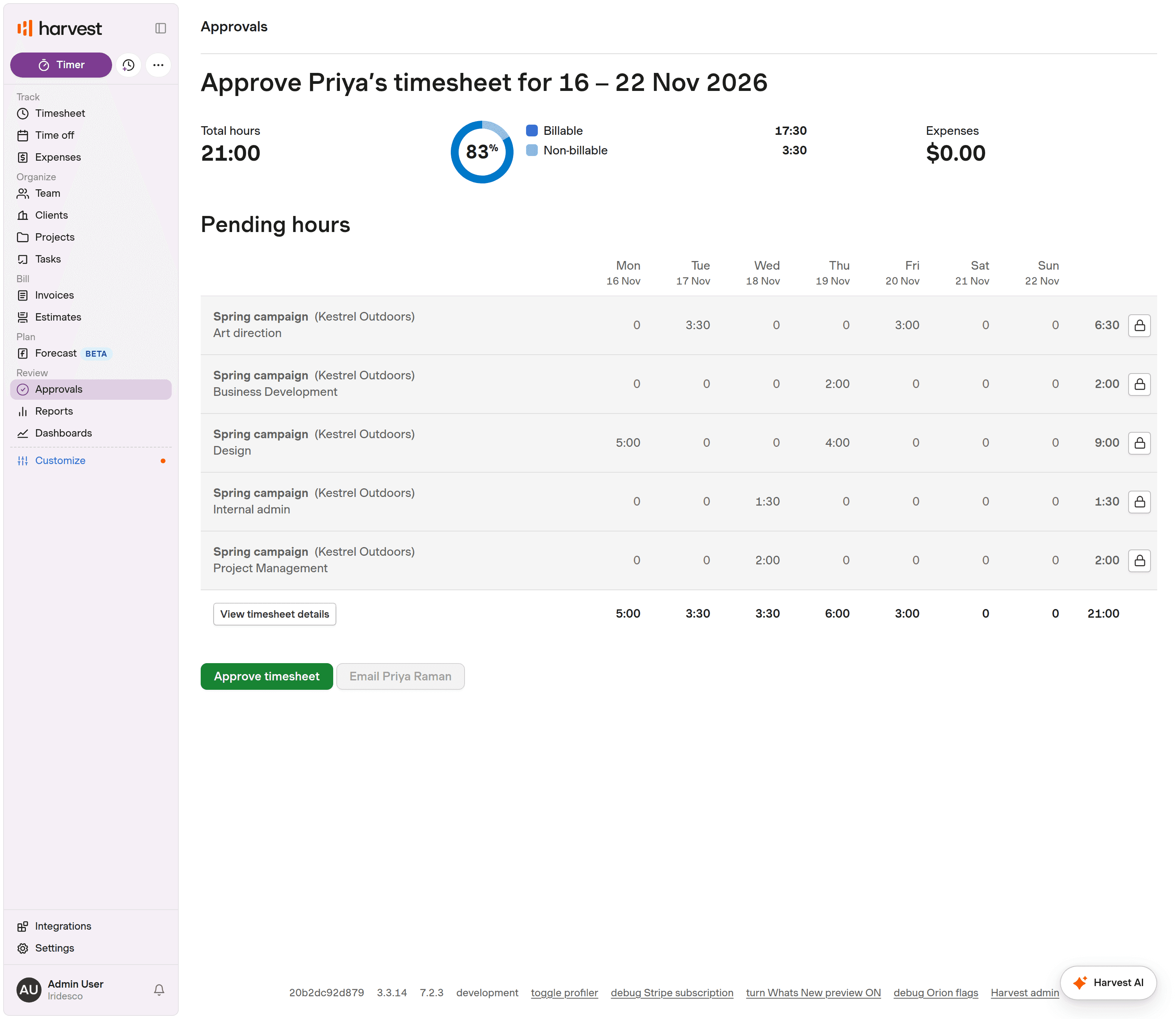
On plans with timesheet approval, reviewing timesheets no longer means approving a flat number of hours on trust. The approval screen displays total hours, billable and non-billable totals, and the billable percentage side by side.

Clear billable splits on every submitted timesheet

The Approve page for one person’s week

Review and adjust before anything is sent

  • Filter by approval status

    When your account requires approval, choose whether to pull all hours, approved hours only, or approved plus pending time, so you control which hours reach the invoice.

  • Adjust draft line items freely

    Group hours by task, person, or project, and adjust quantities or rates directly on the draft invoice before saving or sending to the client.

Track Billable Hours

Stop rebuilding invoices from timesheets

Start your free trial and set up your first project with its billable tasks and agreed rates. When the month closes, pull tracked hours straight into an invoice without opening a spreadsheet.