What is Harvest for Windows?
Harvest for Windows is a desktop application designed specifically for Windows users to streamline time tracking and project management. By offering a native experience, it ensures that users can manage their time more efficiently and without the hassle of switching between browser tabs. With just a few clicks, you can start or stop timers, review your weekly timesheet, and manage projects directly from your desktop.
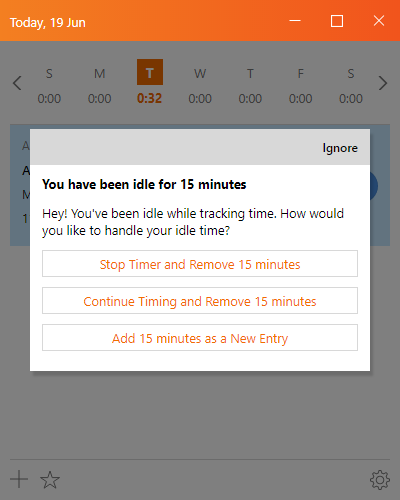
The application integrates seamlessly into your daily workflow, providing features like idle time detection and keyboard shortcuts. Idle time detection, for example, helps you correct any periods where you may have left a timer running unintentionally. This feature is particularly useful for busy professionals who juggle multiple tasks and meetings throughout the day. Keyboard shortcuts further enhance efficiency, allowing you to quickly manage timers without interrupting your workflow.
Harvest for Windows also offers a visually intuitive interface. You can easily check whether a timer is running by glancing at the system tray, which displays the duration of your current timer. This feature means that you don't have to switch between apps to keep track of your time, thereby minimizing distractions. By providing these functionalities, Harvest for Windows aims to make time tracking a seamless part of your workday.
What Are the Benefits of Using Harvest for Windows?
Using Harvest for Windows can significantly enhance productivity and simplify time management for both individuals and teams. One of the primary advantages is its ease of use; the desktop application allows users to track time without needing to open a web browser, which saves precious seconds and helps maintain focus throughout the workday.
Another key benefit is the integration capability of Harvest for Windows. It works well with other tools and platforms, ensuring that you can easily sync your time tracking with project management software like Asana and Trello or accounting systems like QuickBooks and Xero. This reduces the need for manual data entry and minimizes the risk of errors, making your workflow more efficient.
The application also contributes to better project oversight. By having a clear view of time allocations and usage, managers can make more informed decisions and adjust project plans as necessary. According to lifthcm.com, businesses that utilize time tracking tools are reported to be 30% more profitable, underscoring the direct financial impact of accurate time management. This highlights how Harvest for Windows can be a game-changer in enhancing both productivity and profitability.
Detailed Feature Breakdown
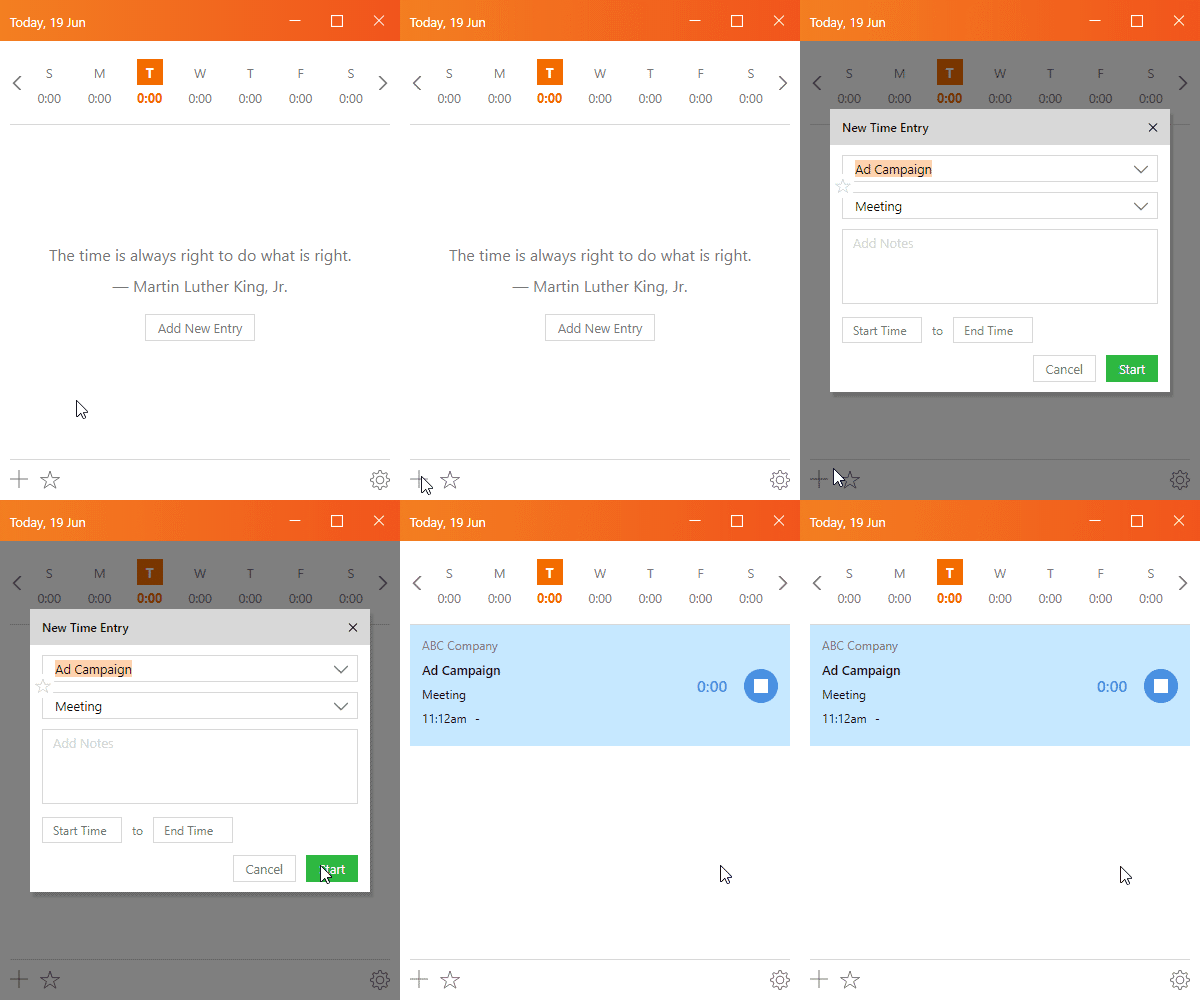
Harvest for Windows is packed with features designed to make time tracking and project management as seamless as possible. At its core is a robust time tracking system that allows users to start and stop timers with a simple click or keyboard shortcut. This ensures that every minute of your workday is accounted for accurately.
Another standout feature is the automated reporting functionality. Users can generate detailed reports that offer insights into how time is being spent across various projects. This is invaluable for both individual productivity assessment and team performance reviews. The ability to create invoices directly from these time entries is another key feature, streamlining the billing process for freelancers and companies alike.
The system also supports integrations with over 50 tools, including Slack, GitHub, and Jira, which means you can pull in tasks and projects from these platforms easily. According to teamtrackin.com, only 17% of individuals accurately track their time, which highlights the importance of having a reliable tool like Harvest to ensure accuracy. By integrating time tracking with other tools, Harvest for Windows minimizes the need for context switching and helps maintain seamless workflows, making it an indispensable tool for modern workplaces.
How to Use Harvest for Windows: Getting Started
Getting started with Harvest for Windows is straightforward and designed to be user-friendly. The first step is to download the application from the Microsoft Store. Once installed, you can sign in using your Harvest account credentials, which will sync your existing projects and tasks automatically.
To set up your first time tracking session, simply click the timer icon on your desktop. From there, you can either start a new timer or select from pre-defined tasks and projects. The application allows you to customize your task list to match your specific workflow, ensuring that you can track time accurately across different projects.
For those new to time tracking, it might be helpful to explore the keyboard shortcuts feature. This functionality lets you start, stop, and switch timers without leaving your current window, making it easier to manage your time without breaking your flow. According to unrubble.com, the demand for digital solutions that prioritize performance and accountability has surged, particularly with the rise in remote and hybrid work models. This trend highlights the growing importance of using tools like Harvest for Windows to maintain efficiency and accountability in diverse work environments. With these steps, you can quickly integrate Harvest into your daily routine and start reaping the benefits of efficient time management.
Comparison with Other Time Tracking Apps
Harvest for Windows stands out in the crowded field of time tracking applications due to its user-friendly design and robust feature set. Unlike many competitors, Harvest integrates seamlessly with over 50 tools including Asana, Trello, and QuickBooks. This compatibility makes it a versatile choice for businesses looking to streamline their workflows. While other apps like Toggl and Clockify offer free basic versions, they often lack the depth of features found in Harvest's premium offerings.
When it comes to user interface, Harvest for Windows is designed with simplicity in mind. The app's layout is intuitive, allowing users to start and stop timers with just a few clicks or keyboard shortcuts. This ease of use is a significant advantage over more complex systems that require extensive training to navigate effectively. Furthermore, Harvest's idle time detection reduces the risk of time entry errors, a feature that sets it apart from standard time tracking tools.
In terms of pricing, Harvest offers a straightforward plan, which can be more appealing compared to the tiered pricing models of other apps. Many competitors require users to pay extra for each additional feature or integration. In contrast, Harvest provides a more comprehensive package, which can be particularly beneficial for growing teams or businesses that need scalable solutions. According to factmr.com, the global market for time tracking software is projected to grow significantly, highlighting the increasing demand for efficient tools like Harvest.
Overall, Harvest for Windows offers a balanced combination of usability, features, and pricing, making it a strong contender in the time tracking arena. Whether you're a freelancer or part of a large organization, the app's comprehensive suite of tools can help improve time management and overall productivity.
User Reviews and Testimonials
User feedback for Harvest for Windows is overwhelmingly positive, with many praising its ease of integration into existing workflows. Users particularly appreciate the app's ability to seamlessly track time across various projects without complicated setup procedures. The ability to start timers directly from the desktop has been highlighted as a significant productivity booster, especially for teams that juggle multiple tasks simultaneously.
One common theme in user reviews is the app's impact on billing accuracy. Users from professional services, such as legal and consulting firms, have noted that Harvest's precise time tracking has significantly reduced discrepancies in billing, leading to improved client trust and satisfaction. This aligns with industry reports that accurate timekeeping can enhance profitability by up to 30% for businesses source: getharvest.com.
Some users, however, have expressed a desire for more customization options within the app, particularly in terms of reporting and analytics. While Harvest provides a strong suite of predefined reports, the ability to tailor these to specific business needs is on the wishlist for some. Despite this, the overall sentiment remains highly favorable, with users citing the app's reliability and excellent customer support as key strengths.
The testimonials from users illustrate that Harvest for Windows is not just a tool for tracking time, but a comprehensive solution that aids in project management and financial accuracy. Whether managing a small team or a large organization, Harvest's ability to integrate time tracking with other business processes is a recurring highlight among its user base.

System Requirements for Windows
To run Harvest on a Windows system, you'll need to meet certain hardware and software requirements to ensure optimal performance. Harvest for Windows is compatible with systems running Windows 10 or later, which means it can integrate smoothly into most modern PC environments. The app is designed to be lightweight, so it doesn't require extensive system resources to function efficiently.
In terms of hardware, a standard setup with at least 2GB of RAM and 100MB of free disk space should suffice. This makes Harvest accessible even for users with older hardware, although for best results, a more modern setup with higher specs is recommended. The app also requires an active internet connection to synchronize data in real-time, which is crucial for teams that rely on up-to-date information to manage their projects effectively.
It's important to ensure that your system is regularly updated with the latest Windows updates to maintain compatibility and security. Keeping your operating system current helps prevent potential issues that could arise from outdated drivers or security vulnerabilities. Additionally, if your team uses integrated tools such as Slack or QuickBooks, ensure these are also compatible and updated to maximize the efficiency of Harvest's integration capabilities.
By adhering to these basic requirements, users can leverage the full potential of Harvest for Windows without encountering performance hitches. The system requirements are straightforward, reflecting Harvest's commitment to providing a seamless user experience across various business environments.
Is There a Free Trial for Harvest for Windows?
Yes, Harvest for Windows offers a free trial, allowing potential users to explore its features before committing to a subscription. To start your free trial, simply visit the Harvest website and sign up. The process is straightforward, requiring only basic information to get started. This trial period is a fantastic opportunity to see how Harvest can be integrated into your daily workflow and evaluate its impact on your productivity.
During the trial, you'll have access to all of Harvest's features, including time tracking, invoicing, and reporting tools. This full access allows you to test the app in real-world scenarios, whether you're managing a small team or working on complex, multi-layered projects. It's an opportunity to determine how well the software meets your business needs and whether it can help streamline your operations.
Make the most of your trial by thoroughly testing features such as the timer, idle detection, and project management capabilities. Experiment with integrations that are relevant to your workflow, like Asana or QuickBooks, to see how Harvest can enhance these existing processes. According to hubstaff.com, businesses that adopt automated time tracking can see substantial efficiency gains, making the trial a worthwhile exploration.
After the trial period, you'll have the option to choose a subscription plan that best suits your needs, ensuring that Harvest continues to support your business processes effectively. The free trial is not just a test drive; it's an invitation to transform how you manage projects and track time.
Frequently Asked Questions
What are the benefits of using Harvest for Windows?
Harvest for Windows offers seamless time tracking directly from your desktop, enhancing productivity. It features automatic idle time detection, ensuring your timesheets remain accurate, and allows for quick timer starts with just a click or hotkey. This integration into your workflow helps reduce errors and improve billing accuracy, ultimately saving time and increasing efficiency.
How does Harvest for Windows compare to other time tracking apps?
Harvest for Windows stands out due to its user-friendly interface and robust features like automatic idle time detection and detailed reporting. Compared to other apps, it offers a balance of simplicity and powerful project management tools, making it suitable for both individuals and teams. Users often find it more intuitive and efficient, leading to better time management and productivity.
What features are included in the Harvest for Windows app?
Harvest for Windows includes features like a quick-start timer, automatic idle time detection, and detailed weekly timesheet reviews. Additionally, it allows users to track expenses and generate comprehensive reports, helping teams stay on top of their projects. These features are designed to streamline time tracking and improve overall workflow efficiency.
Is there a free trial for Harvest for Windows?
Yes, Harvest for Windows offers a free trial. Users can explore the app's features and functionality before committing to a paid plan. To start the trial, simply sign up on the Harvest website, and you'll have access to all tools for a limited time, allowing you to evaluate how it fits your time tracking needs.


